Pause and resume the environment
Eureka 1.0: pause and eureka admin resume --start are implemented. Neither has been proven on a live environment. To resize control or login, use the cloud console, and only when nothing is running. Those steps are in doc/resize-control-login.md. The rest of this page is the pause UI.
In Eureka 1.0 the scheduler is the control node. Admin > Nodes > Pause environment… in the environment bar turns off the whole environment: running jobs are handled, the queue is held, users are told, the login node stops, and the control node stops itself last. Nothing runs and no VM is billed while it is paused. Disks, the login domain and its certificate are kept.
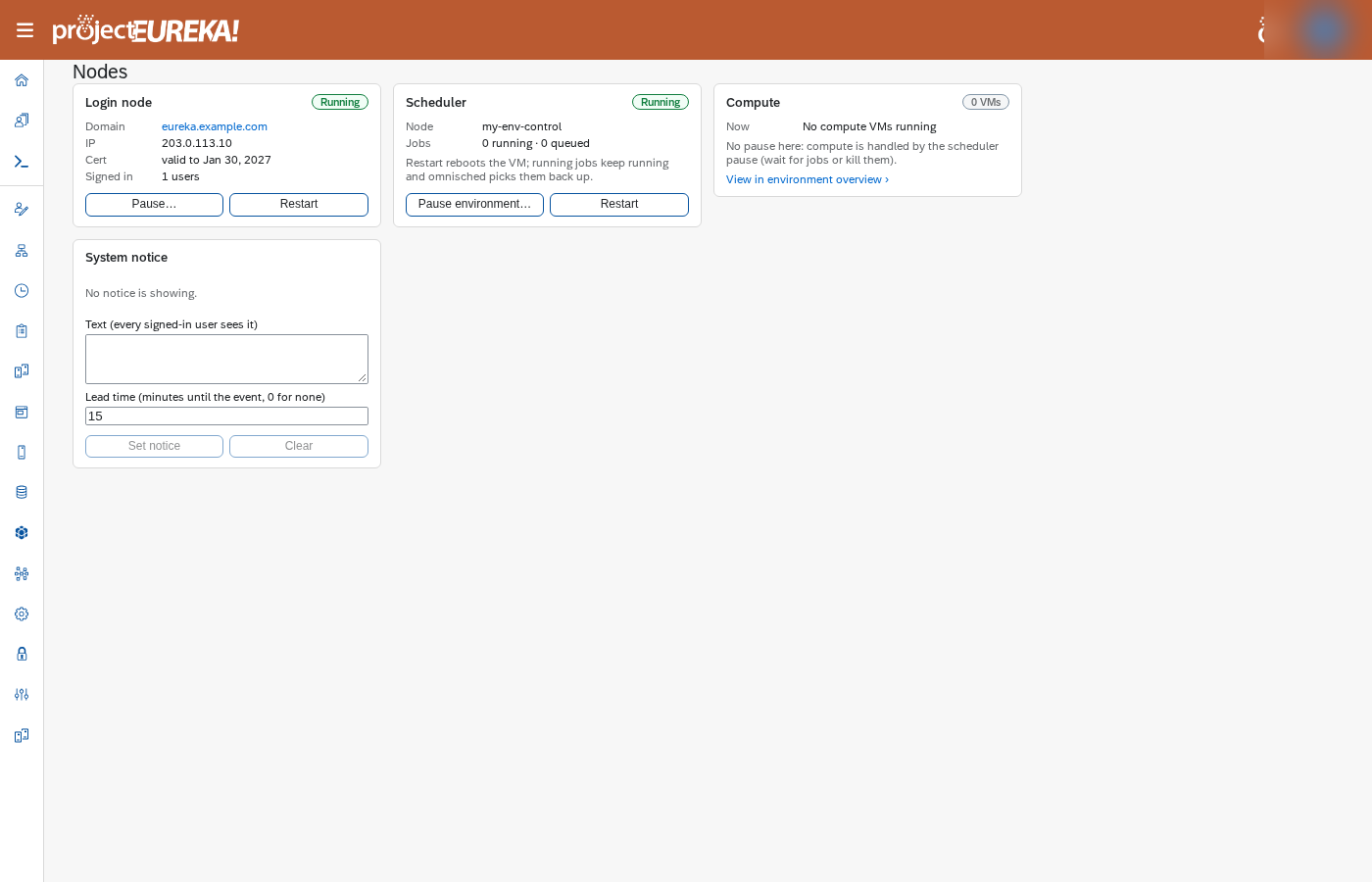
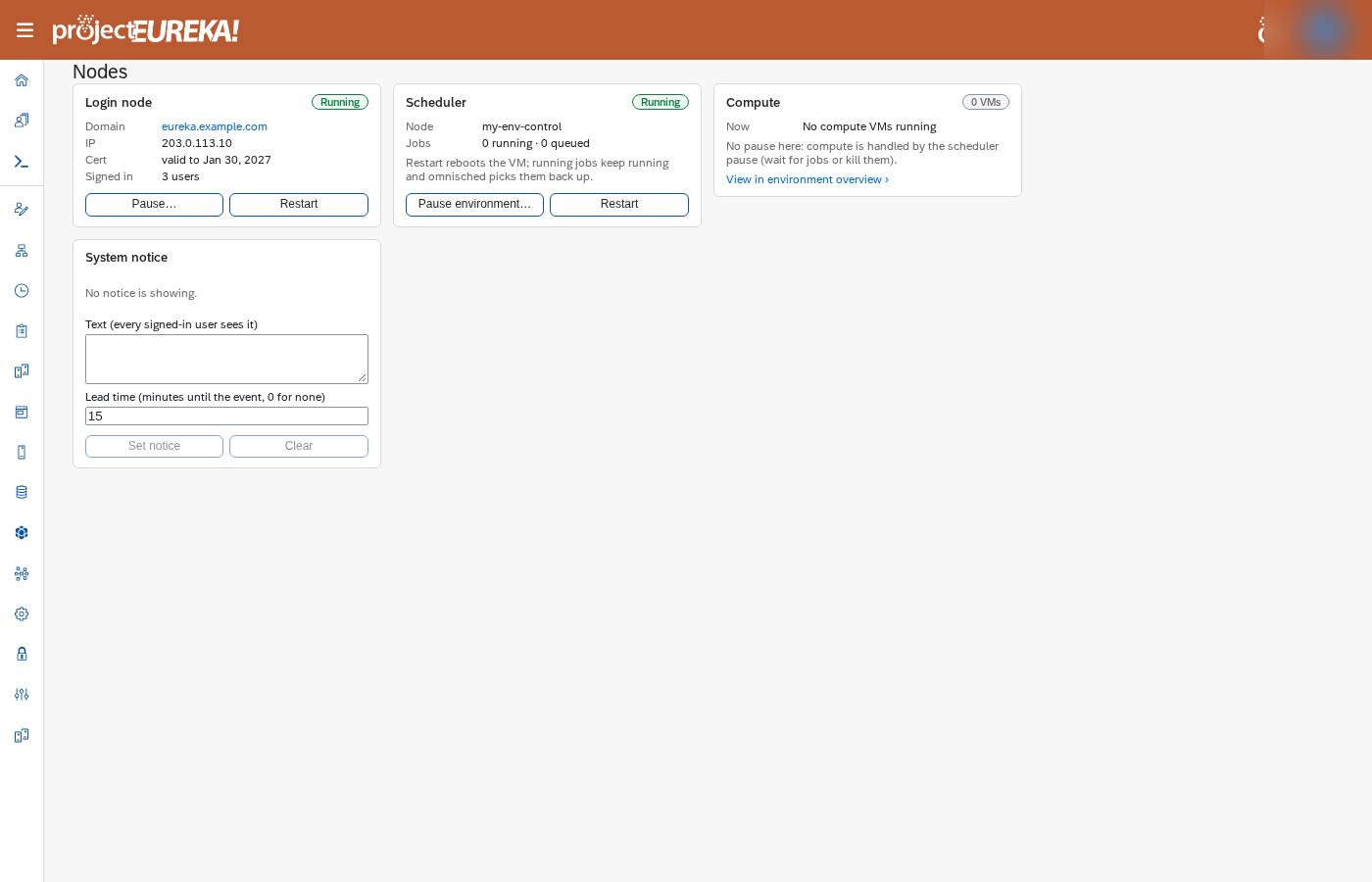
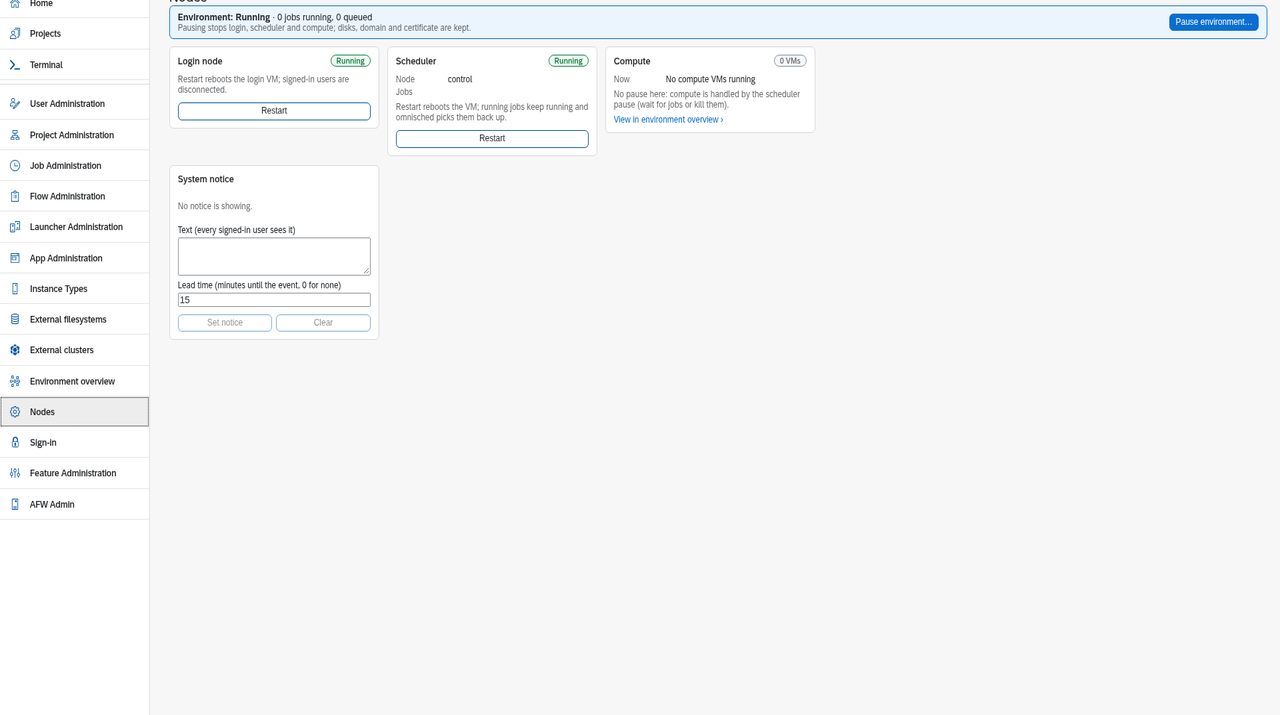
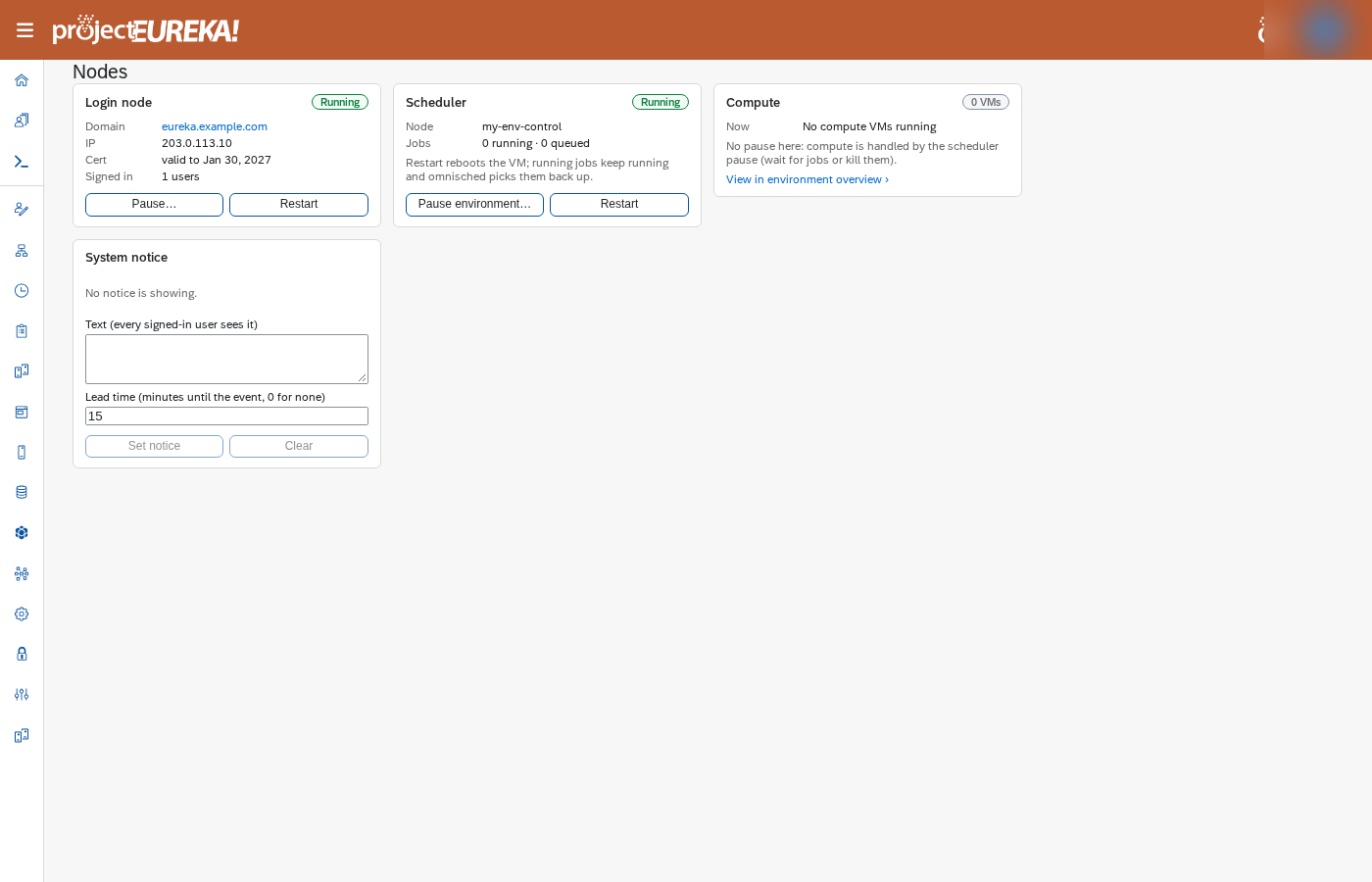
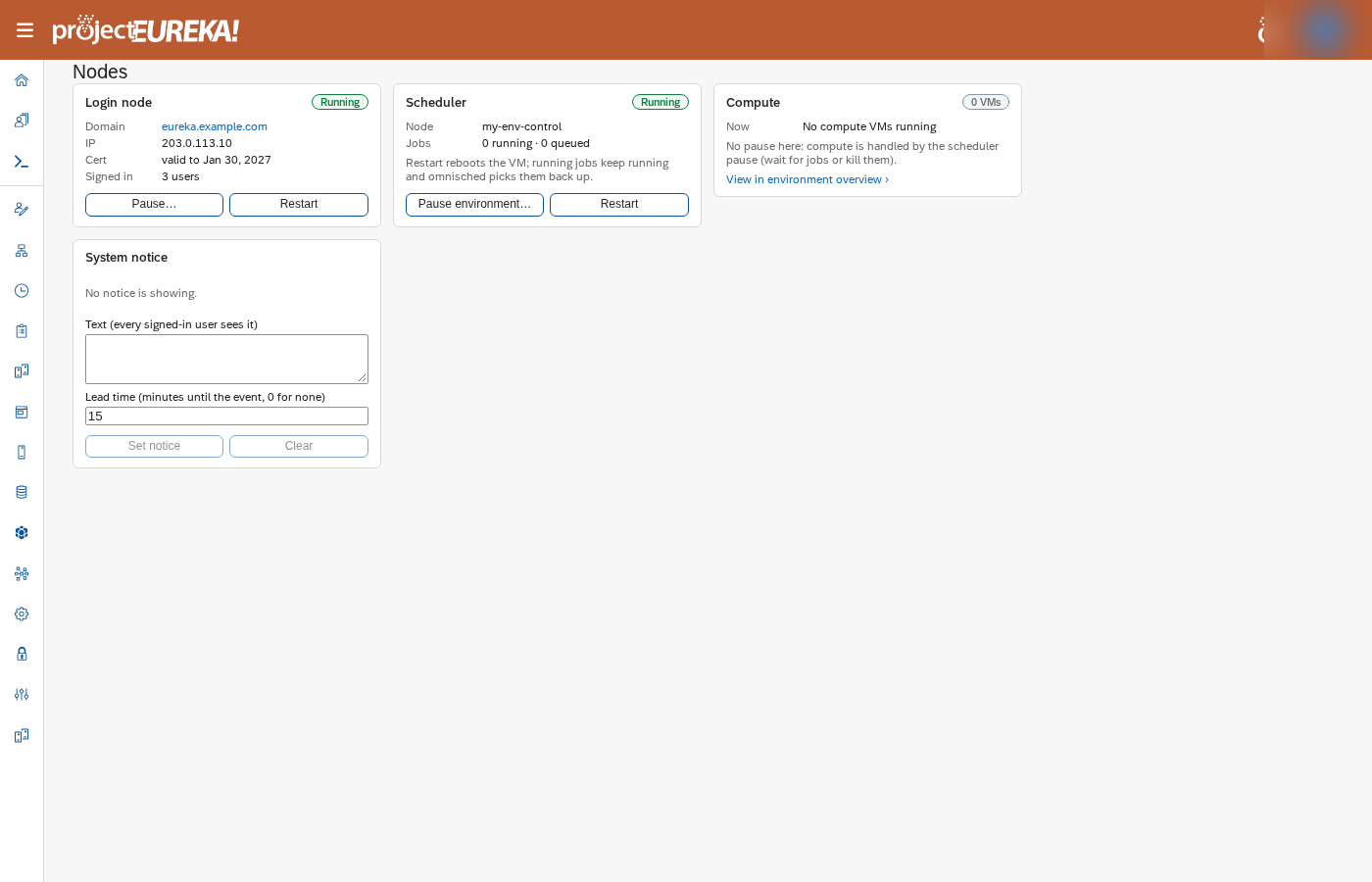
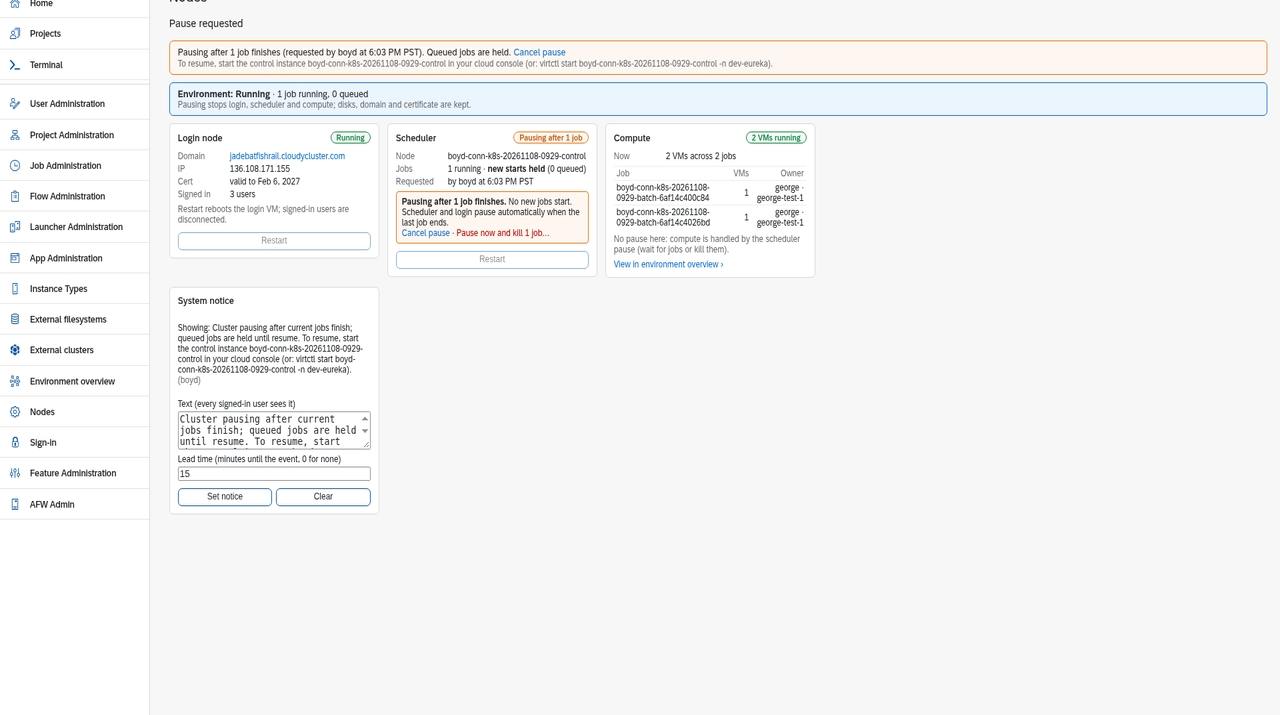
Nodes shows an environment bar above three cards. The bar reads Environment: Running, with jobs running and queued, and Pause environment…. Login node shows the domain, IP, certificate expiry, how many people are signed in, and Restart (reboots the login VM and disconnects signed-in users). Scheduler is the control node and offers Restart. Compute lists running VMs, grouped by flow. A Running jobs list under the cards shows jobs that are actually running (name, user, submitted, and state), so the count matches the pause dialog. Compute has no pause of its own. Pause environment… waits for those jobs or kills them.
Google Cloud
AWS
Kubernetes
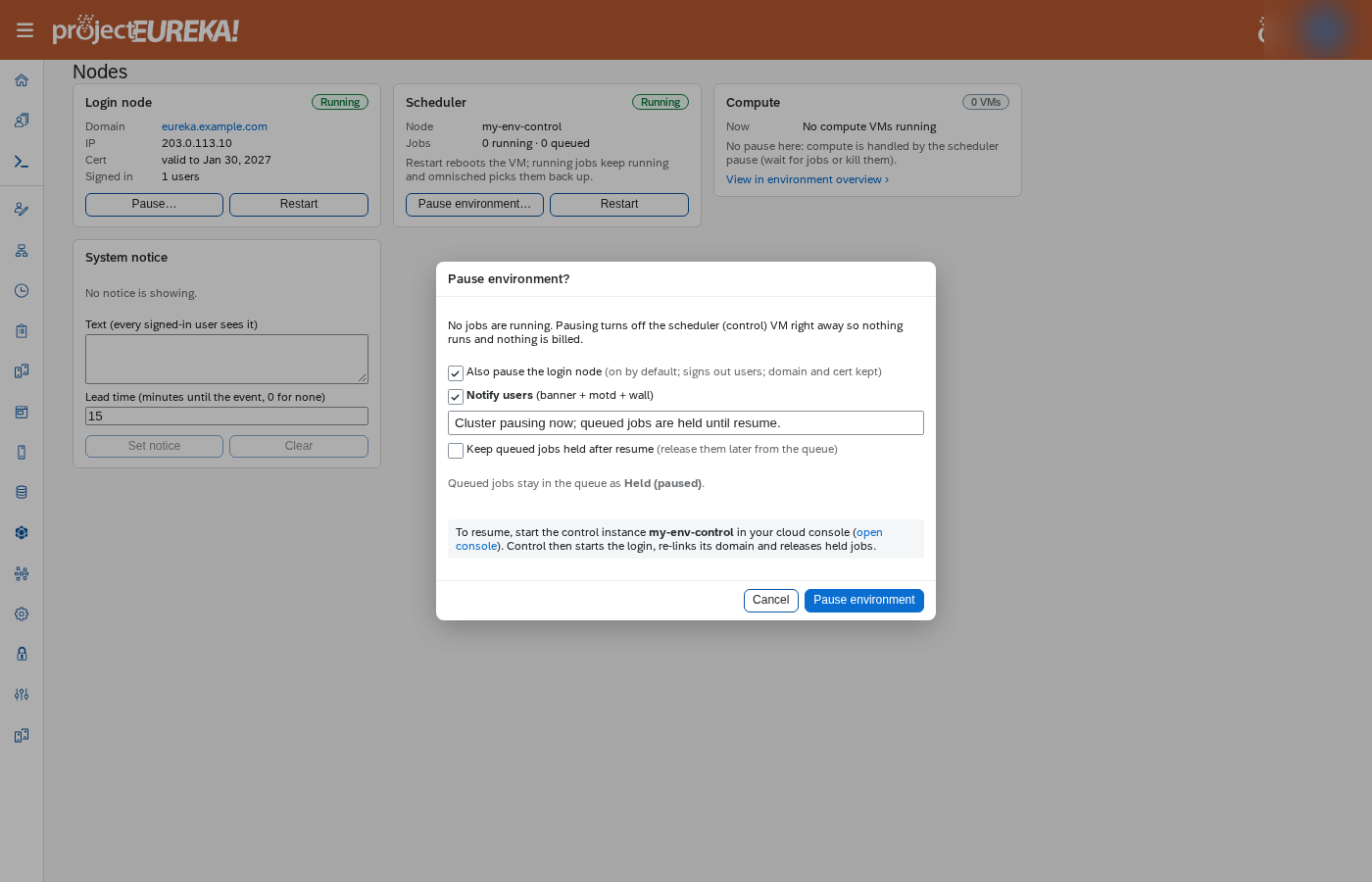
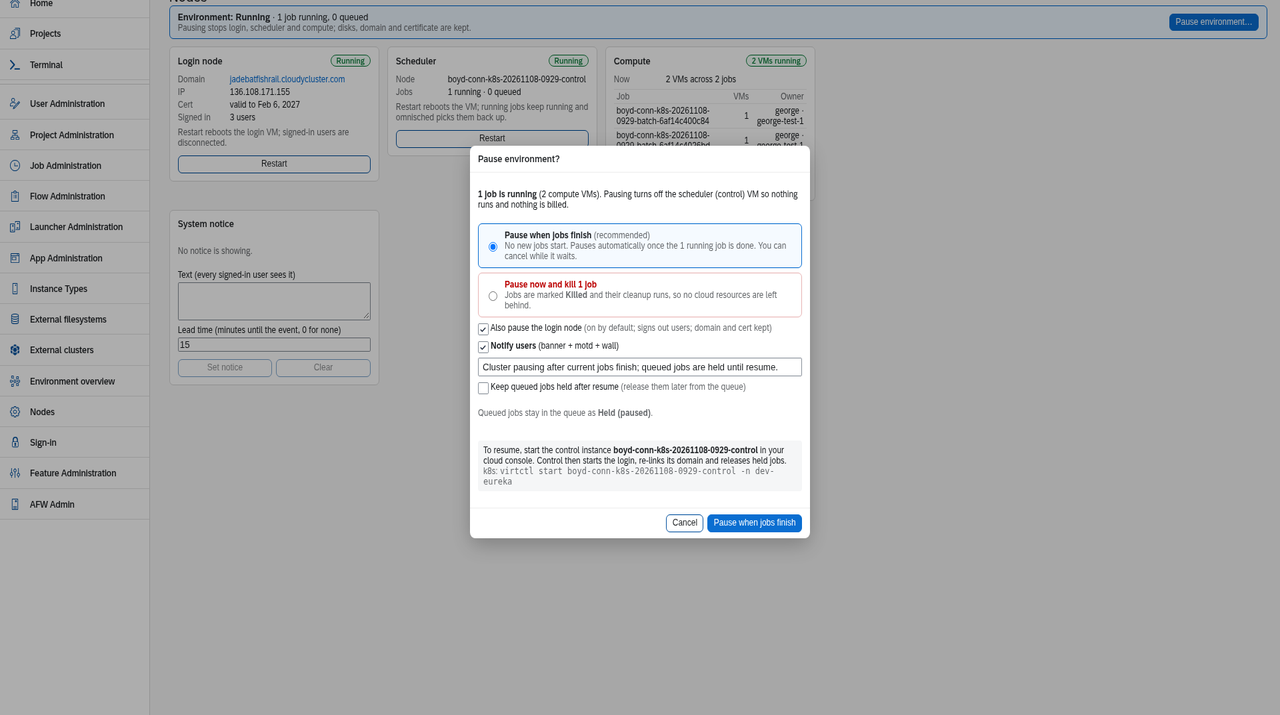
Pause when jobs finish waits for running jobs to complete, holds the queue, then stops login and control. You can cancel while it waits. Pause now and kill marks running jobs Killed: environment paused, runs their cleanup, then stops login and control.
- Open Admin > Nodes and choose Pause environment… in the environment bar.
- If jobs are running, pick one:
- Pause when jobs finish (default, recommended). No new jobs start. The Scheduler card shows Pausing after N jobs with Cancel pause. The environment bar hides Pause environment…, and Restart on the Login and Scheduler cards stays off until it finishes or you cancel.
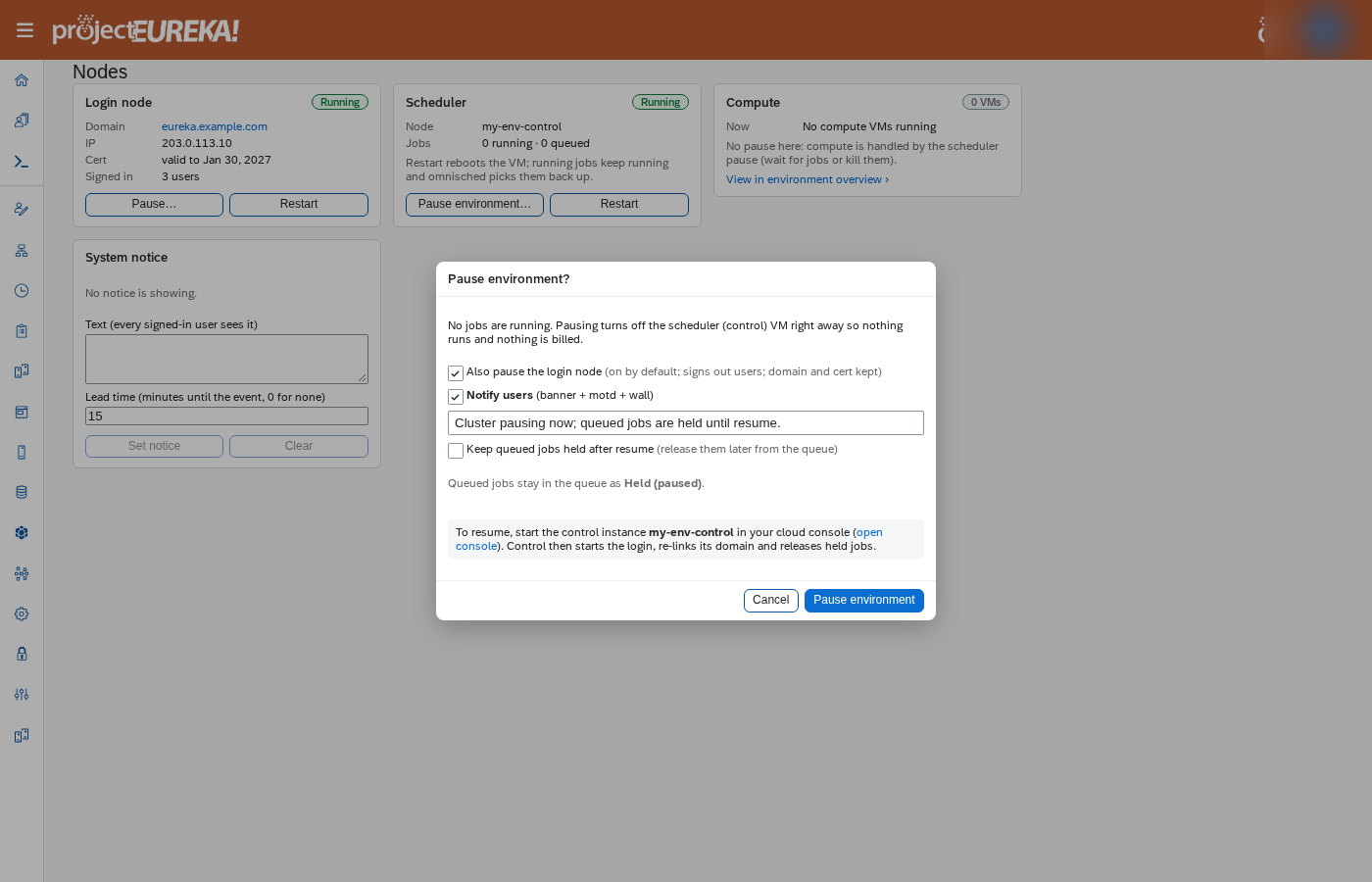
- Pause now and kill N jobs. Running jobs are marked Killed: environment paused, and their normal cleanup runs so no cloud resources are left behind. Stopping a machine that never got an address, or that is still connecting, tears it down at once instead of waiting out SSH retries. With no jobs running, it’s a simple confirm.
- Also pause the login node is on by default. Leave it on. While the environment is paused there is no projectEureka UI. Resume with
eureka admin resume --startfrom a machine that has the cloud credentials and the resume hint, or start the control instance from the cloud console. The login node and everything else come back with it. - Notify users (on by default) shows the system notice banner and writes the text to the login’s motd and
wall. - Keep queued jobs held after resume is off by default. Turn it on and the queued jobs stay held after resume. Release them one at a time or all at once from the job queue on the Nodes page (
eureka admin jobs release).
Queued jobs show Held (paused) to admins and Held: environment paused to their owners. On the project Jobs page the same jobs show Held: environment paused, or Held (kept after resume) when you kept them held.
Google Cloud
AWS
Kubernetes
Google Cloud
The same two pause choices appear on Google Cloud.AWS
The same two pause choices appear on AWS.Kubernetes
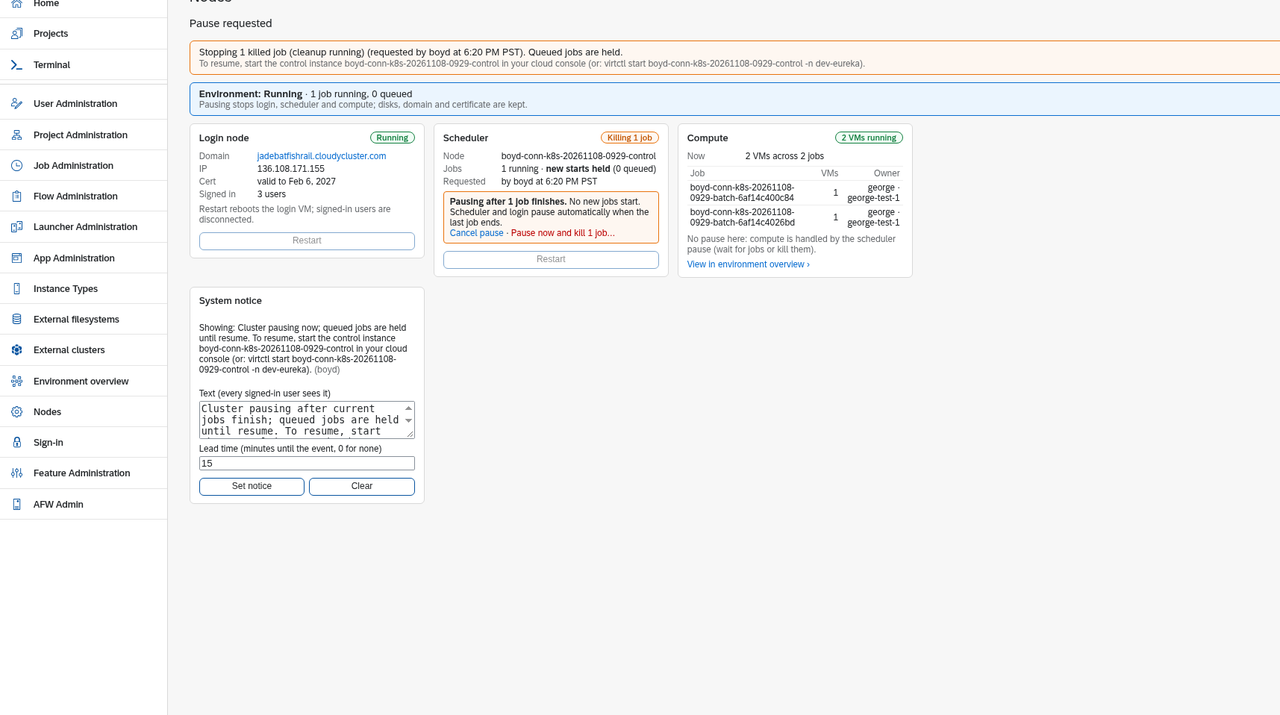
The order is always: jobs (wait, or kill plus cleanup), hold the queue, notify, stop the login, stop the control. The login and control are stopped through the platform’s own managed group or VM API (an AFW Adaptive Script on control), never by deleting anything:
- GCP: the login managed instance group’s
stopInstanceskeeps the instance in the MIG as stopped, so autohealing doesn’t recreate it. Control runsinstances.stopon itself. - AWS: the login Auto Scaling group gets
suspendProcesses(so the ASG doesn’t replace a stopped instance), then EC2StopInstances. On resume,StartInstancesruns, thenresumeProcesses. Control runsStopInstanceson itself. - Kubernetes: the KubeVirt VMs are set to
runStrategy: Halted. On resume they go back toAlways.
The control stop is sent after the portal has answered and the state is saved as paused, so control always stops last.
Resume
Section titled “Resume”While the environment is paused, there is no projectEureka UI. The portal does not answer, so users see a connection error rather than a paused page. When the pause reaches stopping, Eureka writes /var/lib/eureka/resume-hint.json (cloud, env, control name, id, project, zone, region, namespace; no secrets) on the machine that ran eureka admin pause or eureka admin pause --status, and on control and the login node. Run --status from the workstation you will resume from while control is still up.
eureka admin resume prints the console command below. eureka admin resume --start reads that hint file, which works while control (AFW) is down, and starts the control VM with credentials already on that machine:
- GCP: application-default credentials. The caller needs
compute.instances.getandcompute.instances.starton the control instance. - AWS: the default credential chain. The caller needs
ec2:DescribeInstancesandec2:StartInstanceson the control instance. The login node has no instance profile, so run--startfrom an admin workstation that already has those credentials and the hint file. - Kubernetes:
KUBECONFIGor~/.kube/config. The command patches the control VirtualMachinerunStrategytoAlways.
The command then waits until AFW answers. If the permission is missing it exits 1, names the permission, prints the console command, and does not start the VM. If the VM is already running it does nothing. This start path has not been proven on a live environment.
The cloud console still works: Compute Engine on Google Cloud, EC2 on AWS, or the control KubeVirt VM on Kubernetes (for example virtctl start). Control then starts the login node, and the rest come back automatically.
The control instance name is shown in the pause dialog and banner as “To resume, start the control instance name in your cloud console”. That’s usually <env>-control.
Google Cloud
In Compute Engine > VM instances, open <env>-control and choose Start / Resume. Or run:
gcloud compute instances start <env>-control --zone <zone> --project <project>AWS
In EC2 > Instances, filter on Name = <env>-control and choose Instance state > Start instance. Or run:
aws ec2 start-instances --region <region> --instance-ids \ $(aws ec2 describe-instances --region <region> --filters Name=tag:Name,Values=<env>-control \ --query 'Reservations[].Instances[].InstanceId' --output text)Kubernetes
virtctl start <env>-control -n <namespace># orkubectl patch vm <env>-control -n <namespace> --type merge -p '{"spec":{"runStrategy":"Always"}}'When control boots, it resumes on its own. Control:
- starts the login node through its managed group;
- releases held jobs (unless you chose to keep them held);
- clears the banner.
The login node re-links its existing domain to its new public address. On AWS the public DNS changes when the instance stops and starts, so the scheduler keeps the same login record (by instance id) and does not treat the new address as a new node. A new node would lose the domain binding, and the next start would hand out a new domain. The login reuses its certificate when that certificate is valid for more than a day, so the same URL works. It asks for a new domain only when the domain service no longer knows the instance.
On Kubernetes the login keeps its load-balancer address and its domain is not managed that way, so the re-link step is skipped.
Google Cloud
While the environment is paused, there is no projectEureka UI. Runeureka admin resume --start from a machine with Google Cloud credentials, or start the control instance in Compute Engine, for example gcloud compute instances start <env>-control --zone <zone>. Login starts on its own after control boots. AWS
While the environment is paused, there is no projectEureka UI. Runeureka admin resume --start from an admin workstation that has AWS credentials, or start the control instance in the EC2 console (the instance tagged Name=<env>-control). Login starts on its own after control boots. Kubernetes
While the environment is paused, there is no projectEureka UI. Start the control KubeVirt VM, for examplevirtctl start <env>-control -n <namespace>. Login starts on its own after control boots. Allow a few minutes after the control starts.
Restart
Section titled “Restart”Restart on the Scheduler card reboots the control VM. Running jobs keep running, and omnisched adopts them again after the reboot. Restart on the Login card stops and starts the login node through its managed group, which disconnects signed-in users; its domain is re-linked the same way. Restart is unavailable while a pause is pending. Pause environment… is on the environment bar above the cards.
System notice
Section titled “System notice”The System notice card on Nodes is the banner every signed-in user sees. Text is the message (up to 500 characters). Lead time is minutes until a planned event, or 0 for none. Set notice publishes it. Clear removes it.
Pause uses the same banner when Notify users is on. You can also set a notice when you are not pausing.
eureka admin notice set TEXT [--lead MINUTES] [--motd] [--wall] and eureka admin notice clear [--motd] match the card. --motd and --wall also write the login host’s message of the day or send wall, and need root on that host. MCP: system_notice_get, system_notice_set, system_notice_clear.
Google Cloud
AWS
Kubernetes
CLI and MCP
Section titled “CLI and MCP”| Portal | CLI | MCP tool |
|---|---|---|
| Pause environment | eureka admin pause [--kill-now] [--keep-login] [--no-notify] [--message TEXT] [--keep-held] |
admin_env_pause |
| Status | eureka admin pause --status |
admin_env_pause_status |
| Cancel pause | eureka admin pause --cancel |
admin_env_pause_cancel |
| Restart | eureka admin restart [control|login] |
admin_env_restart |
| Keep held after resume | eureka admin resume --keep-held / --release-on-resume |
admin_env_resume_options |
| Start control from the hint file | eureka admin resume --start |
(local command; control is down, so there is no MCP tool) |
| Release / Release all | eureka admin jobs release PATH… | --all |
admin_jobs_release |
eureka admin resume prints the console steps above and the --start command. eureka admin pause --status prints a stop error line with the text of a failed control stop. eureka admin resume --start is not proven live.