Archive, restore, or delete a project
This is the last step in a project’s life. Archiving moves a project to Archived Projects. It changes only where the project is listed.
archive-project archive-project archive-project Google Cloud video: https://docs.projecteureka.ai/clips/archive-project/gcp/archive-project.gcp.mp4
AWS video: https://docs.projecteureka.ai/clips/archive-project/aws/archive-project.aws.mp4
Kubernetes video: https://docs.projecteureka.ai/clips/archive-project/k8s/archive-project.k8s.mp4
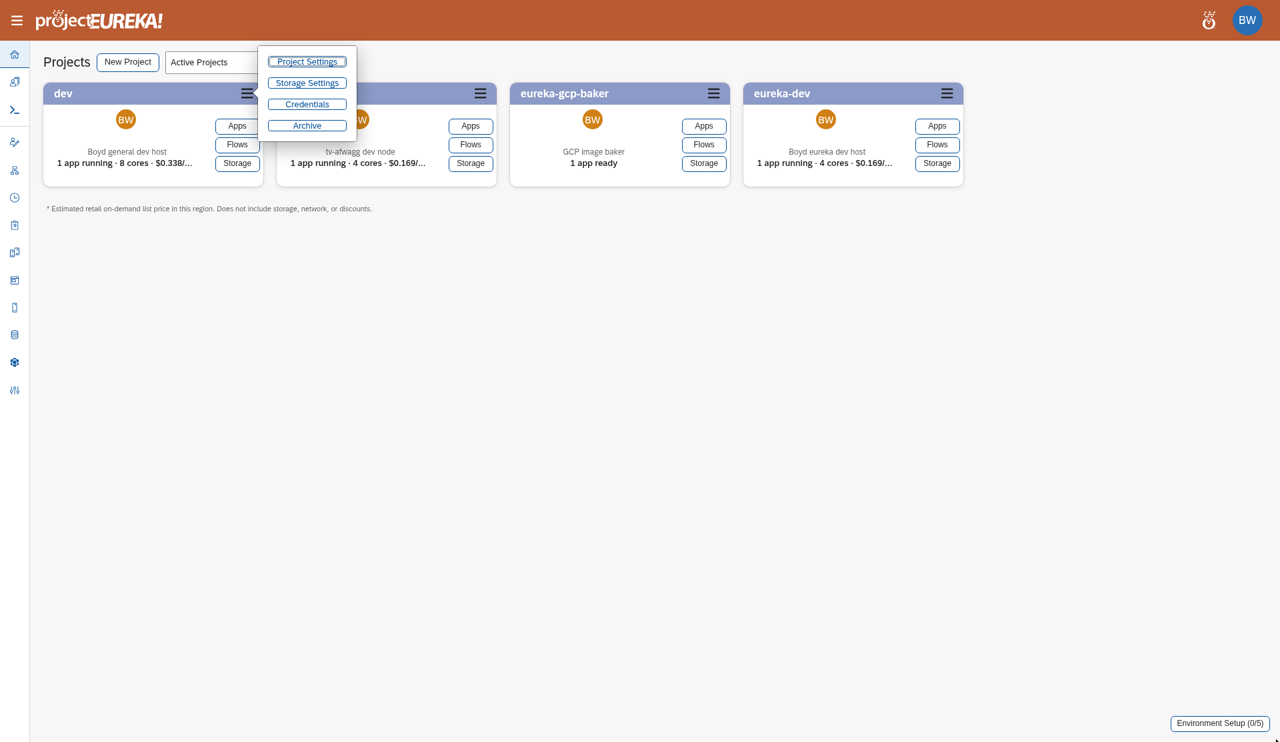
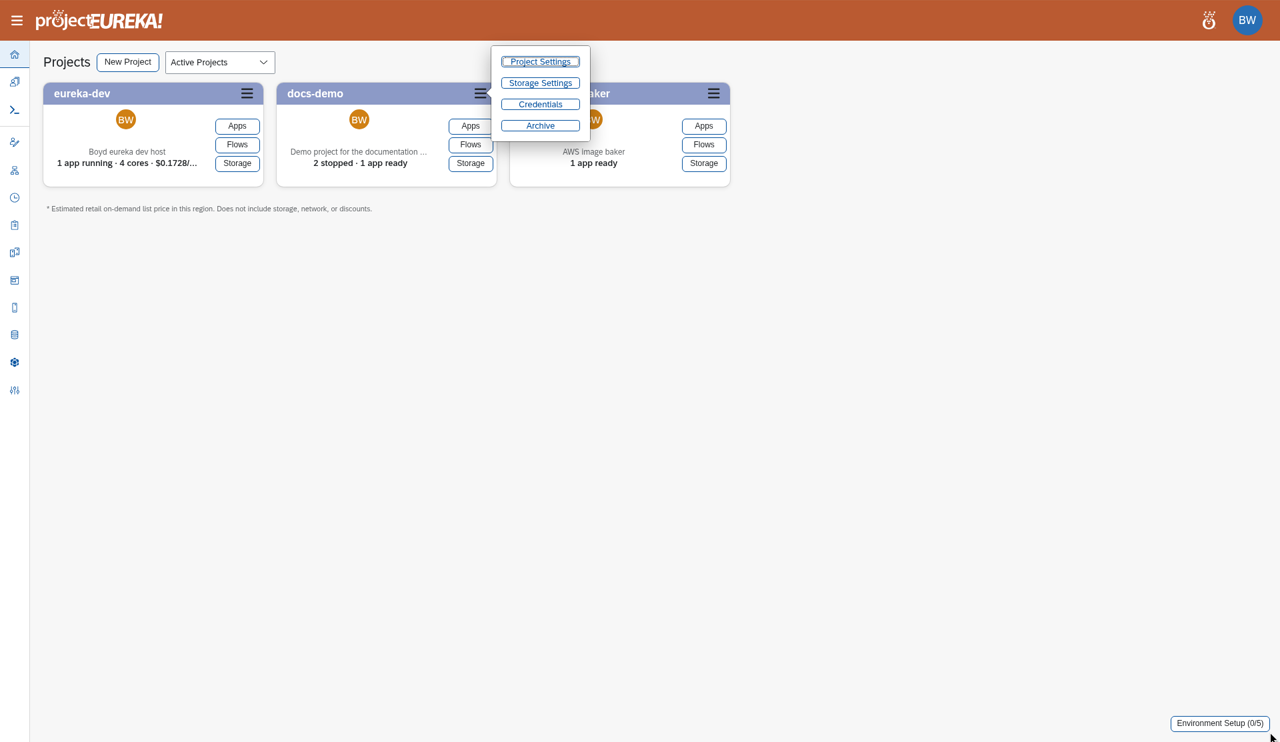
- On the home page, select the menu button (☰) on the project card.
- Select Archive, then Archive again in the confirm dialog.
Google Cloud
AWS
Kubernetes
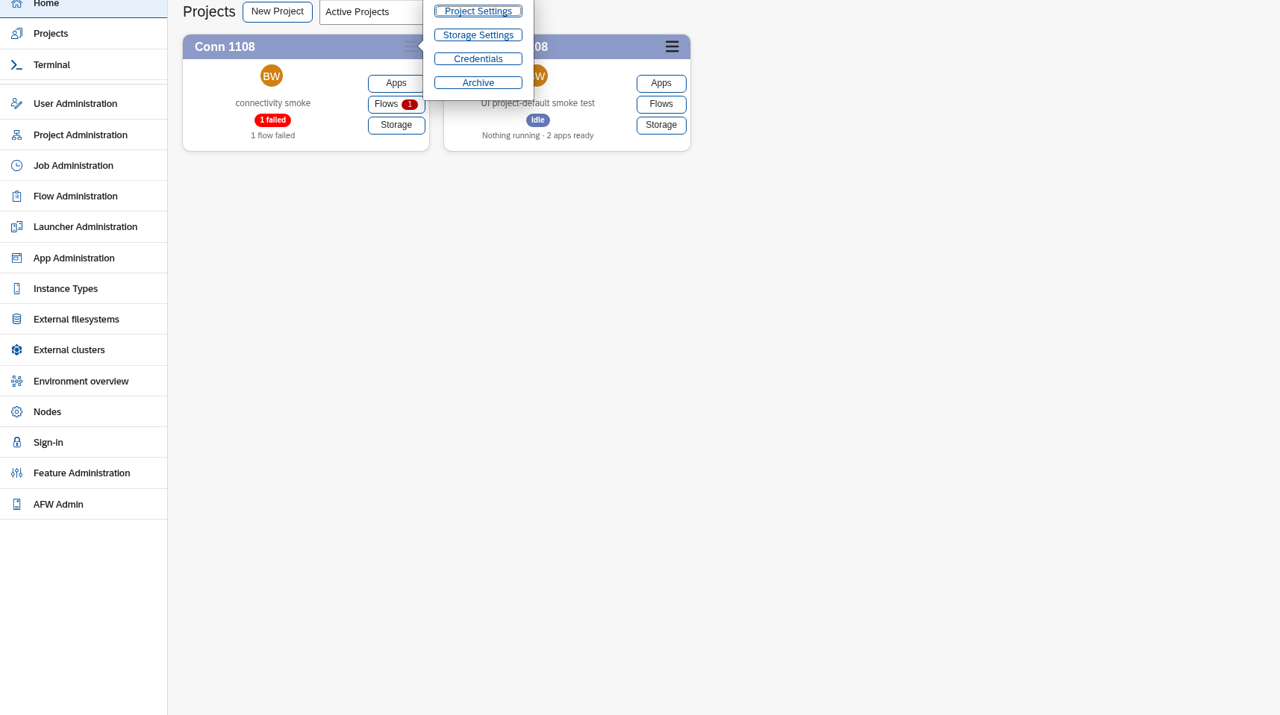
To bring it back, switch the list to Archived Projects, select ☰ on the card, and select Restore. Archive asks you to confirm; Restore does not.
What archive does not do
Section titled “What archive does not do”Archive does not stop running apps or flows, remove members, or delete storage, launchers, flows, or credentials. Stop running work first if you want it to end.
Who can archive
Section titled “Who can archive”Only the project Owner can archive or restore a project. A system admin can too. Editors and Readers cannot.
Delete
Section titled “Delete”Only an archived project can be deleted, by its Owner or a system admin.
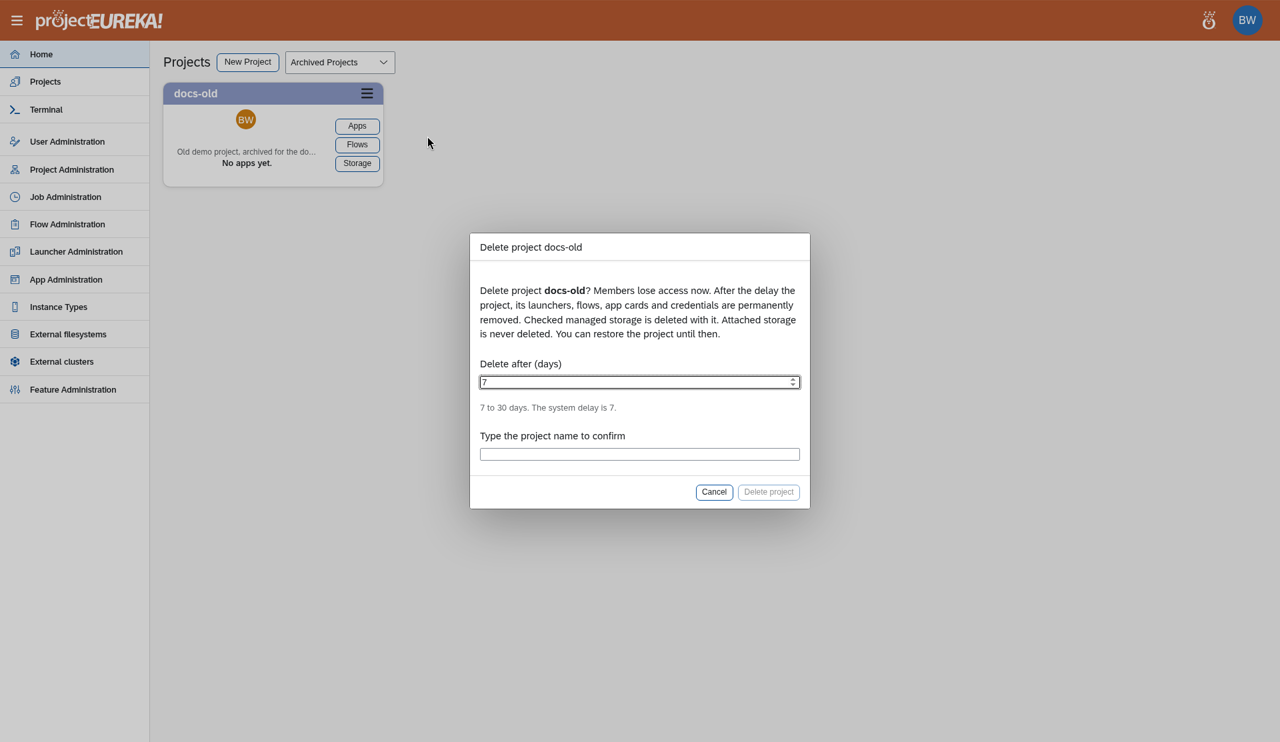
- Switch the list to Archived Projects.
- Select ☰ on the card, then Delete Project….
- Check any managed storage to delete with it. Attached storage is listed but is never deleted.
- If anything is still active, the dialog lists it and Delete project stays disabled. Select Stop running and clear failed (N). Running and starting sessions and flows are stopped. Failed ones are cleaned up and marked done. Stopping ends a session without saving open work, and members get a notice. When the list is empty, continue.
- Choose the delay (the Project delete delay, default 7 days, or longer up to 30), type the project name, and select Delete project.
Google Cloud
AWS
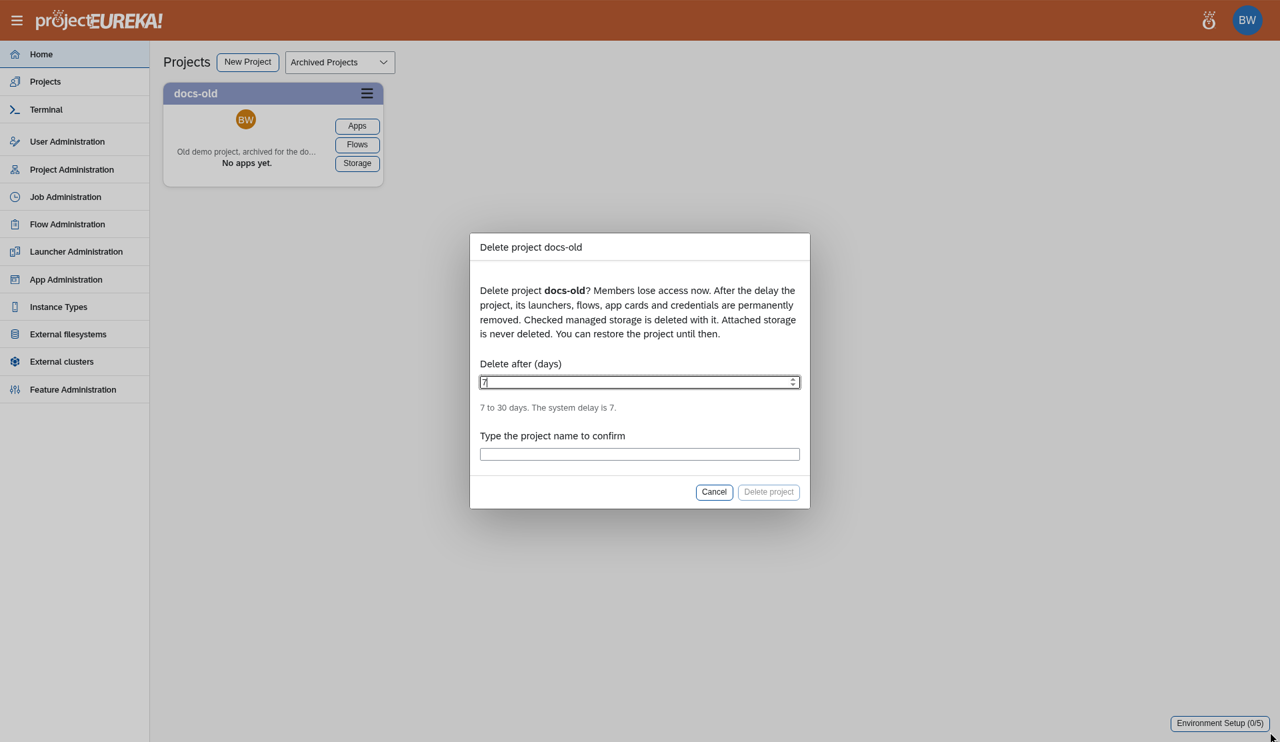
Kubernetes
public/screenshots/archive-project/archive-project-step2.k8s.pngGoogle Cloud
public/screenshots/archive-project/archive-project-step3.gcp.pngAWS
public/screenshots/archive-project/archive-project-step3.aws.pngKubernetes
public/screenshots/archive-project/archive-project-step3.k8s.pngA failed job no longer blocks delete once it has been cleared. The dialog’s button does both the stop and the clear. You can clear failed jobs without stopping running work:
eureka project failed-jobs NAMEeureka project clear-failed NAMEeureka project stop-and-clear NAMEThe same three actions are the MCP tools project_failed_jobs, project_clear_failed_jobs, and project_stop_and_clear. The project Owner or a system admin can run them.
Members lose access at once. The card shows Pending deletion on ‹date› with Restore until the purge runs. See Project delete.