AI services and credentials
In Feature Administration, the AI services and Quantum sections hold the admin credentials: the environment’s API keys for language models and quantum providers. They let flow stages call outside services.
Admin credentials and project credentials
Section titled “Admin credentials and project credentials”- Admin credentials (this page) are set once per environment by a system admin. They decide which services and models any project may use.
- Project credentials are keys a project Owner adds on the project’s Credentials tab. The services you add here are their Provider choices. See Project credentials.
AI services
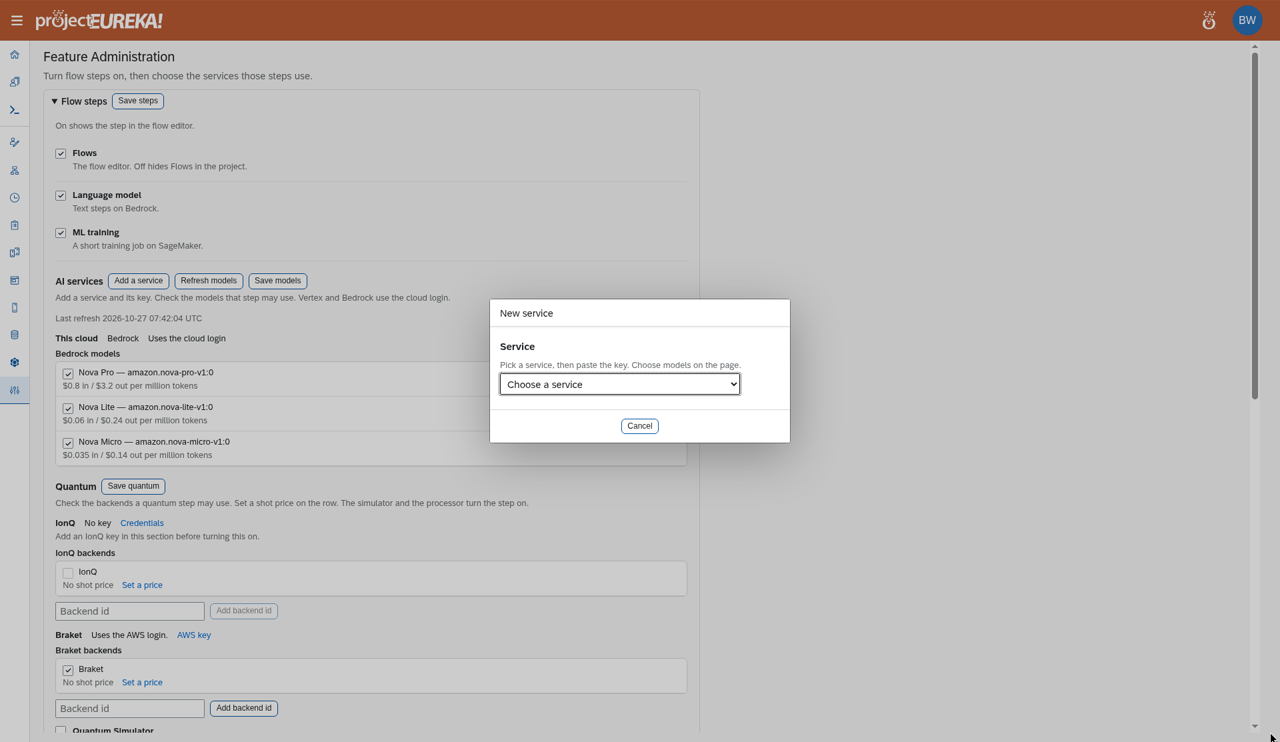
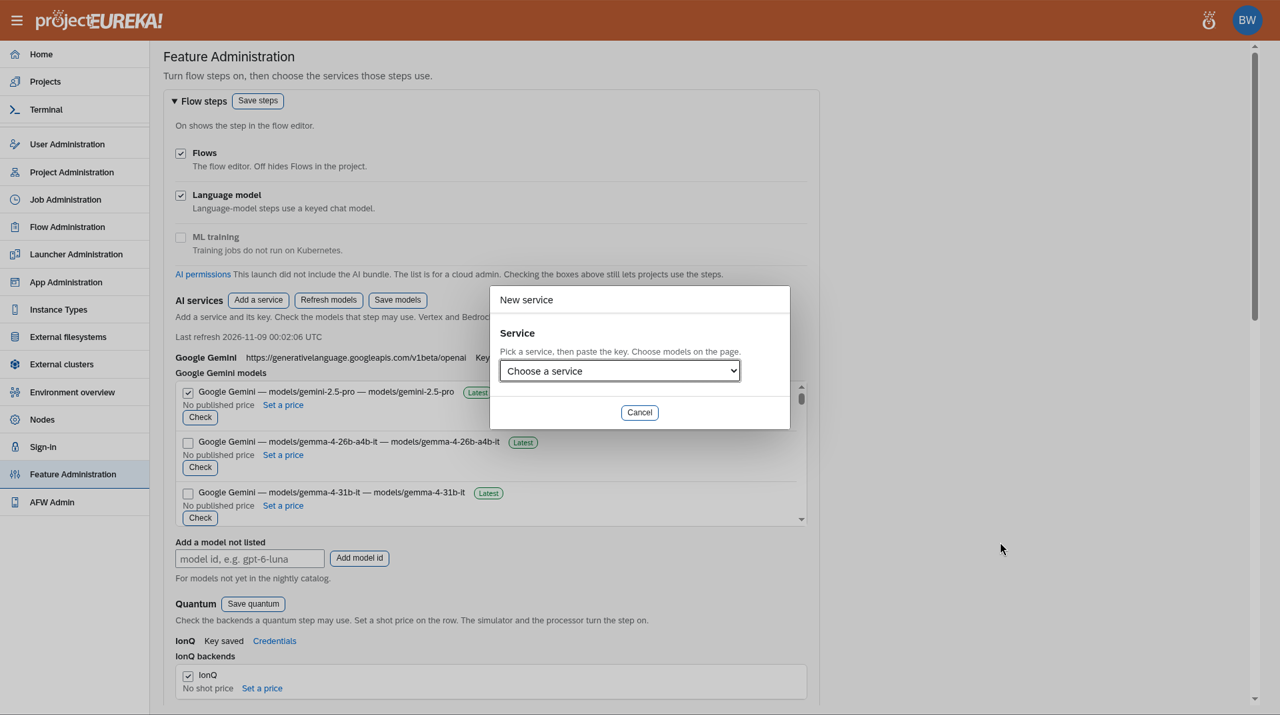
Section titled “AI services”- In Feature Administration, under AI services, select Add a service.
- In New service, choose the service, enter the API key, and select Save service. To change a service later, open Service settings.
- Pick the models projects may use, and select Save models. Checking or unchecking a model stays unsaved until you select Save models. Save models only saves models already on the service. To attach a model that is not in the list, type its id in Add a model not listed and select Add model id.
- Check the service with
eureka connector provider check. It sends one short prompt to a keyed model.
Google Gemini (API key)
Section titled “Google Gemini (API key)”When you add a Gemini service, set its base URL to https://generativelanguage.googleapis.com/v1beta/openai and a Gemini API key. If the model you want is not listed, add it with Add a model not listed (for example models/gemini-4-argon), then run eureka connector provider check.
This cloud lists models from the cloud’s own service, which use the cloud login instead of a key:
Google Cloud
Models from Vertex AI.AWS
Models from Amazon Bedrock.Kubernetes
Kubernetes has no cloud login of its own, so use services added with an API key. Vertex AI or Bedrock models need that cloud’s identity; some providers also accept a key, which you can add as a keyed service where the provider supports it.Google Cloud
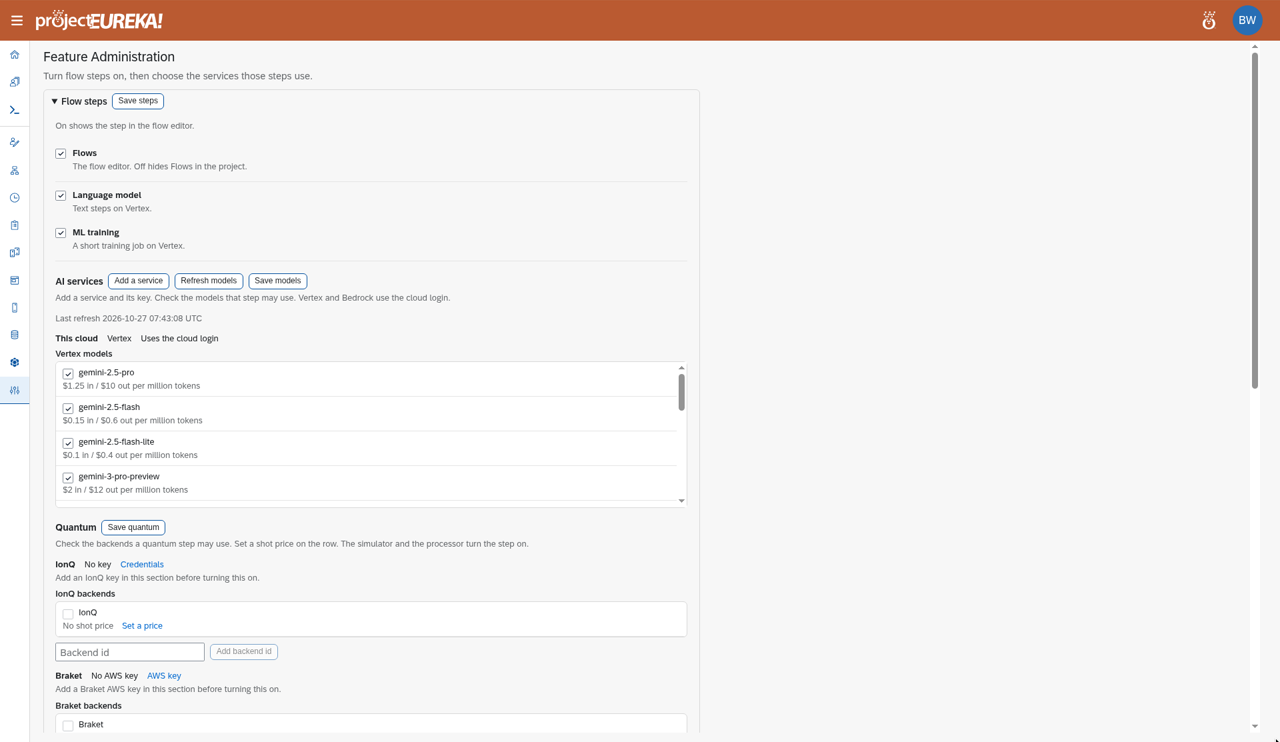
AWS
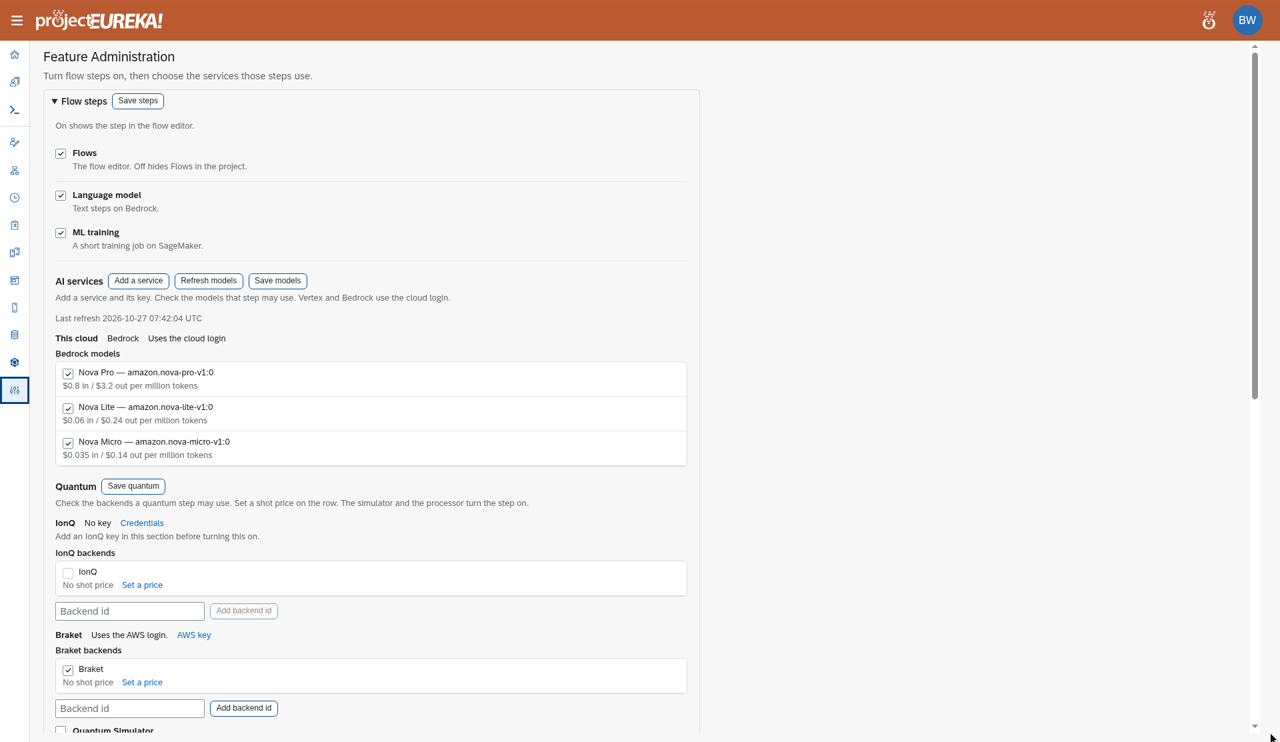
Kubernetes
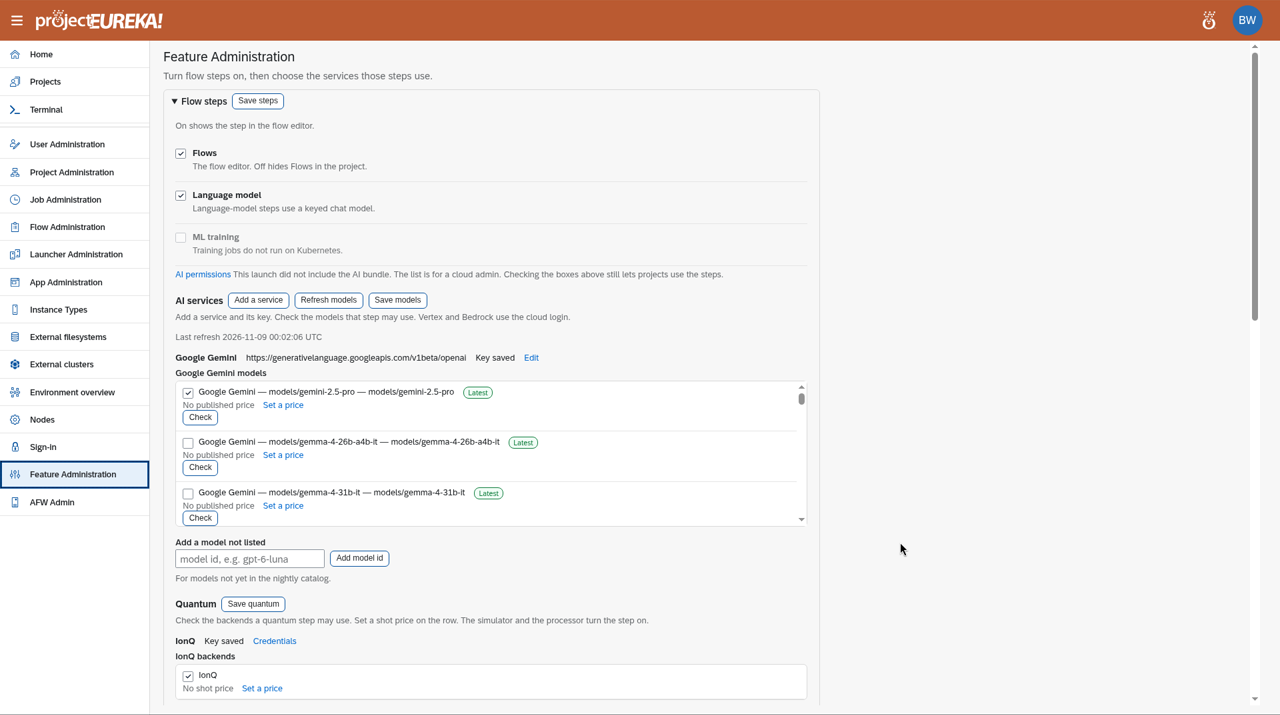
The services you add here are the Provider choices when a project adds a project credential.
Google Cloud
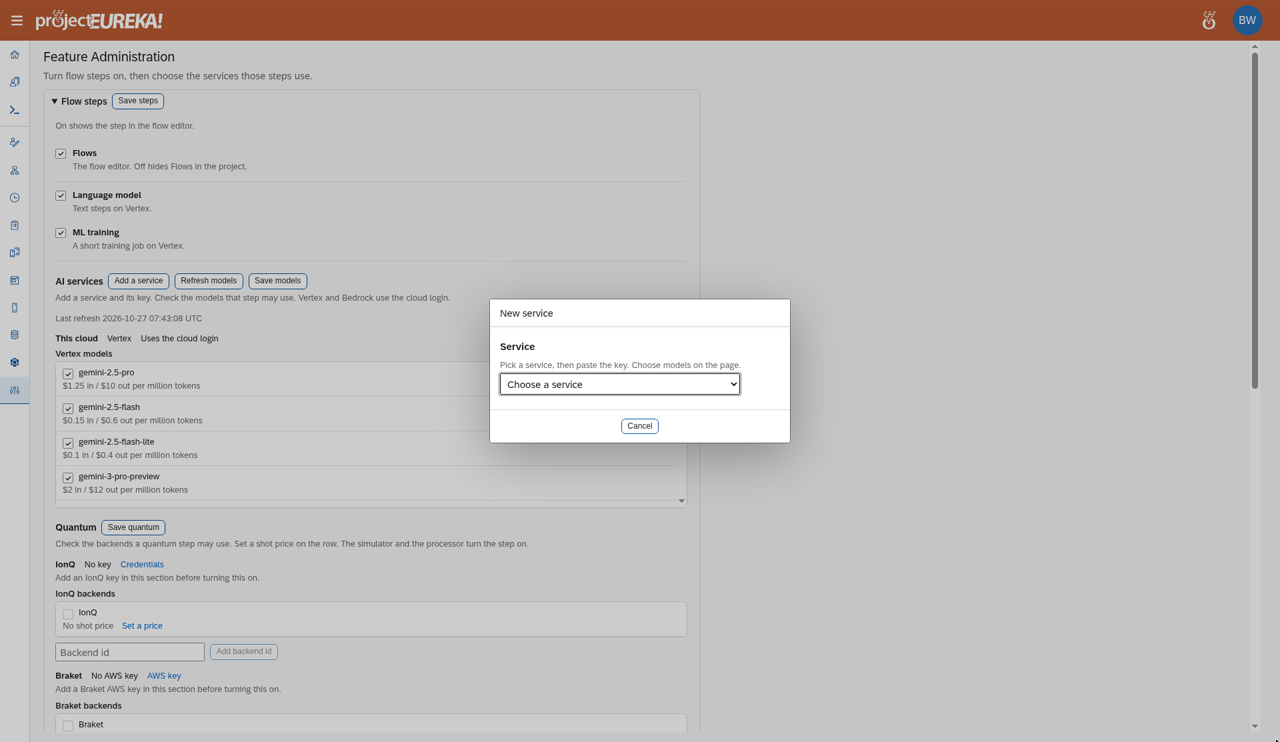
AWS
Kubernetes
Quantum
Section titled “Quantum”Add IonQ opens New IonQ service; enter an API key. Change it later in IonQ credentials. Braket is AWS only. It uses the environment’s AWS login (Create, Get, and Cancel quantum tasks) and a bucket whose name starts with amazon-braket-. Kubernetes does not offer Braket; quantum there is IonQ with a provider API key. Gemini is a provider API key, or this cloud’s own login: Vertex AI on Google Cloud and Bedrock on AWS. Checking or unchecking a quantum option stays unsaved until you select Save quantum. Turn on Quantum Simulator before Quantum QPU. IonQ and Braket are the only quantum services today. The IonQ key is an IonQ Cloud API key; it works the same on every cloud and on Kubernetes. A QPU run on IonQ also needs the IonQ QPU device (Aria 1 or Forte 1) set, and the project must allow QPU.
Projects
Section titled “Projects”A project can turn off connectors and limit models in Project Settings > Connectors. It cannot turn on what the environment has off.