Use buckets
A bucket is cloud object storage (Amazon S3 or Google Cloud Storage) that shows on the project’s Storage page.
- A managed bucket is created by projectEureka for the project.
- An external bucket already exists. projectEureka only keeps an entry for it and never deletes the bucket.
buckets buckets buckets Google Cloud video: https://docs.projecteureka.ai/clips/buckets/gcp/buckets.gcp.mp4
AWS video: https://docs.projecteureka.ai/clips/buckets/aws/buckets.aws.mp4
Kubernetes video: https://docs.projecteureka.ai/clips/buckets/k8s/buckets.k8s.mp4
Google Cloud
Managed and external buckets are both available.AWS
Managed and external buckets are both available.Kubernetes
projectEureka 1.0 on Kubernetes has no managed buckets. Add an existing S3 or GCS bucket as an external bucket. A private S3 bucket needs an access key in JSON form and a CORS setting on the bucket. A private GCS bucket needs a service account key (JSON). Seedoc/storage.md. Before you begin
Section titled “Before you begin”- You need the Editor or Owner role in the project, or be a system admin, to add, change, or remove a bucket entry. Readers see the list and cannot change that entry. The server enforces this for the page, for
eureka bucket add, and for a bucket request submitted as a run. Object bytes are separate: a Reader can write, read, and delete objects in a managed bucket or a keyed external bucket. The key helper does that work and does not return the key. A public bucket with no key stays read only. See Roles and permissions.
Create a managed bucket
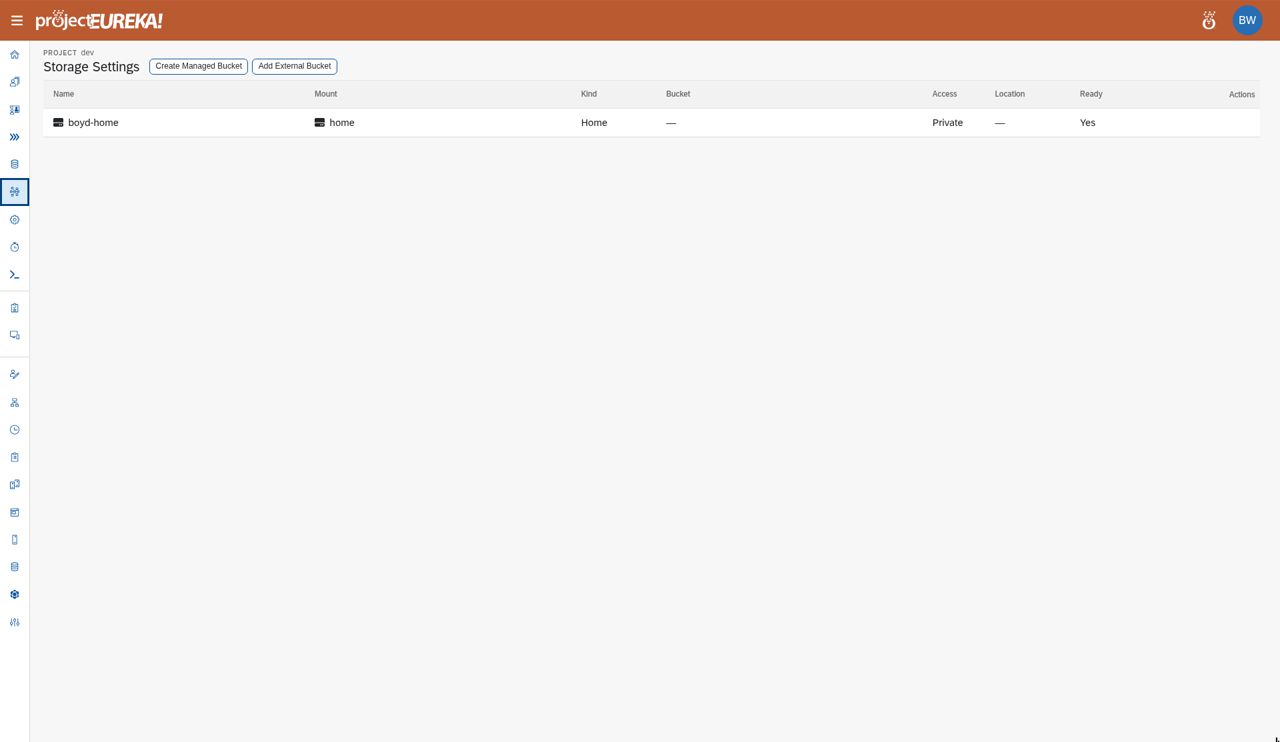
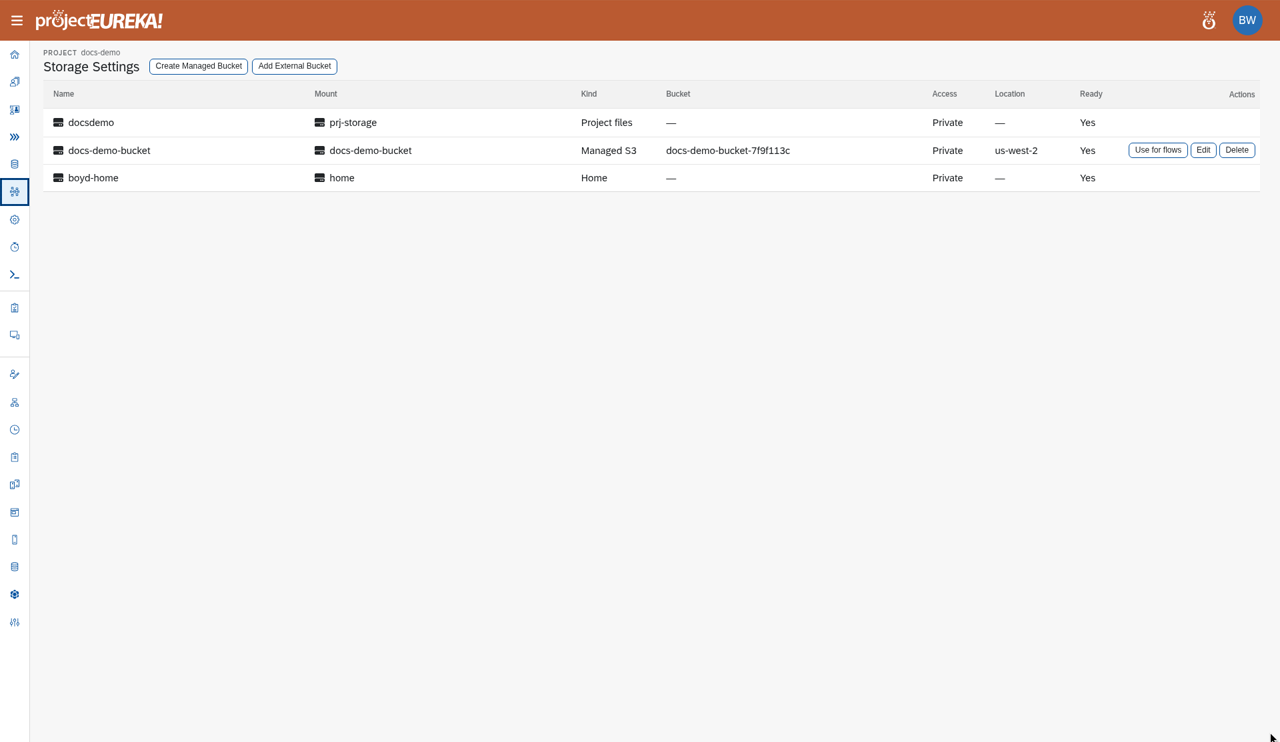
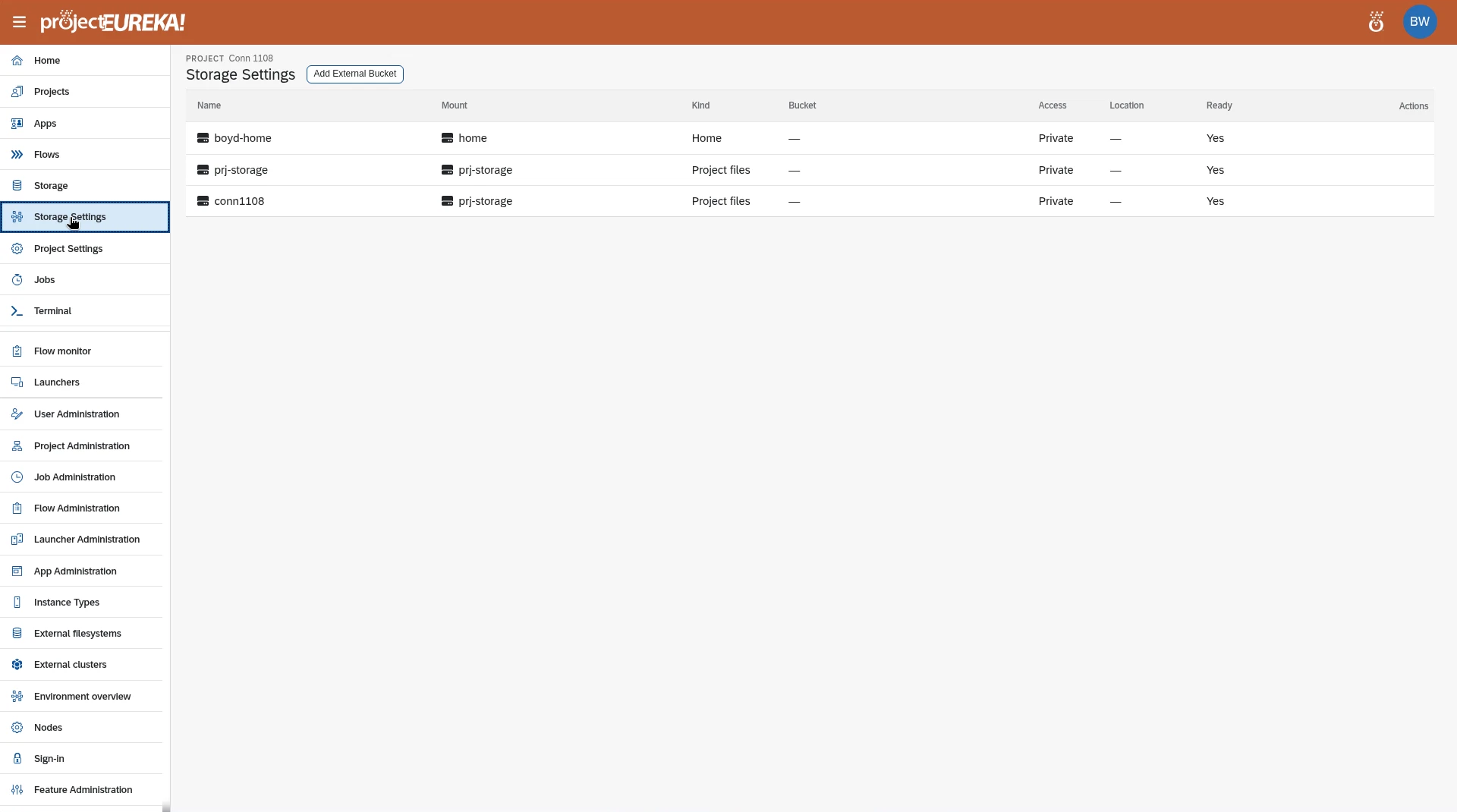
Section titled “Create a managed bucket”- Open the project and select Storage Settings.
- Select Create Managed Bucket.
Google Cloud
AWS
Kubernetes
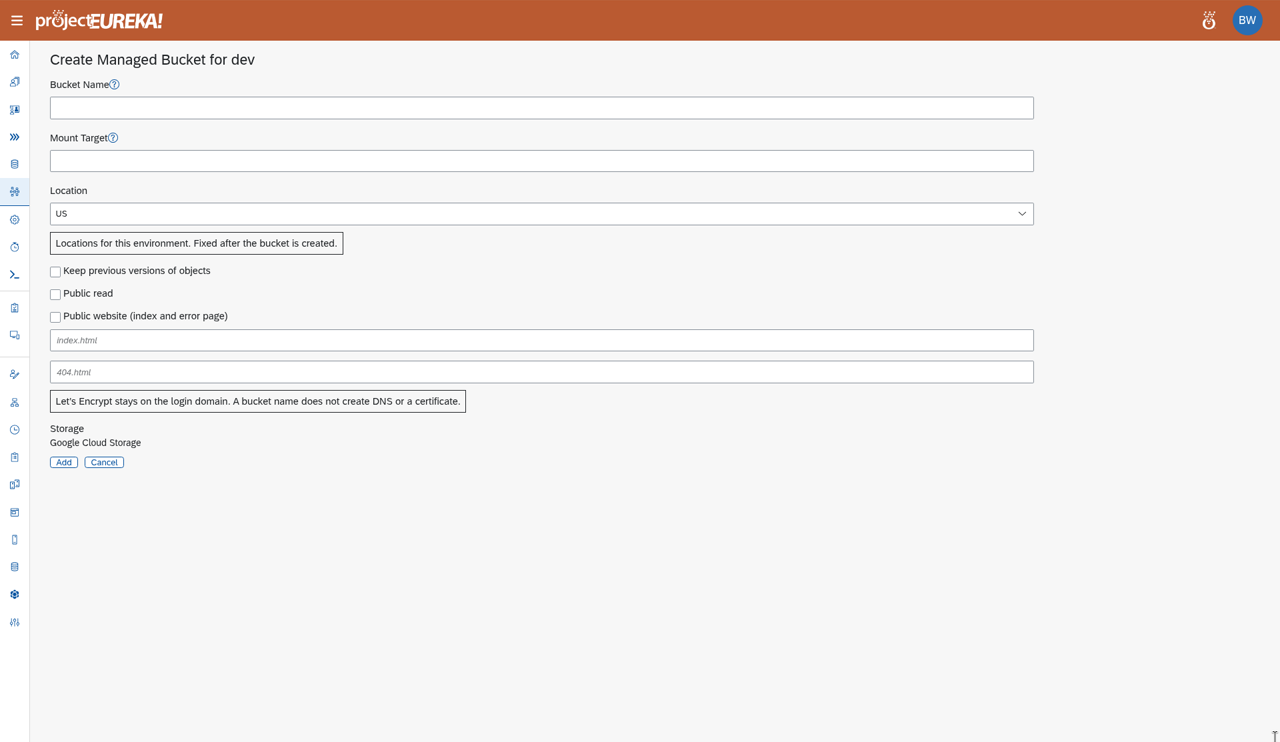
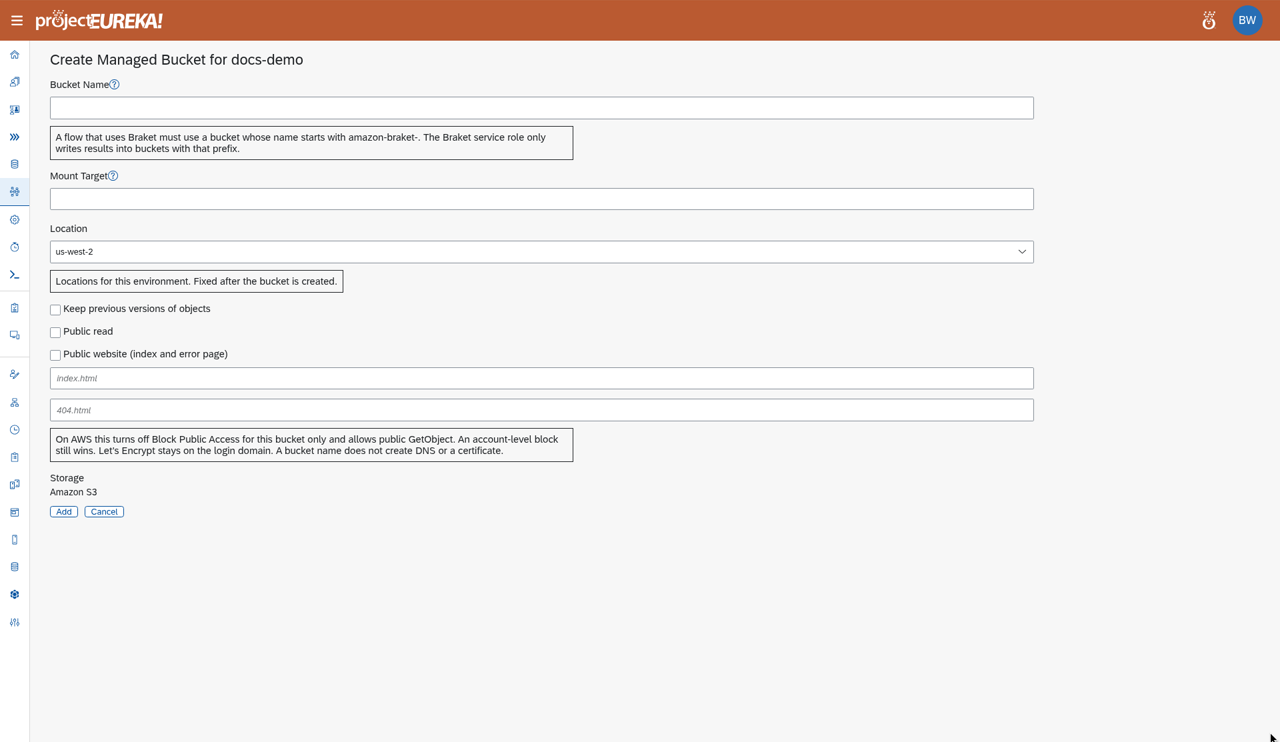
- Enter Bucket Name and Mount Target (the folder name the bucket uses under the project’s storage). A name is 3–63 characters: lowercase letters, numbers, dots, and hyphens, starting and ending with a letter or number. Spaces, an IP-shaped name, consecutive dots, a
googprefix, and the wordgoogleare refused. A flow that uses Braket needs a bucket name that starts withamazon-braket-. - Choose Location. It cannot be changed after the bucket is created.
- Optional: select Keep previous versions of objects, Public read, or Public website (index and error page).
- Select Add.
Google Cloud
AWS
Kubernetes
Kubernetes has no managed buckets, so this form is not available. Add an existing S3 or GCS bucket as an external bucket instead.The new bucket shows at once as Creating… and the list updates by itself.
Add an external bucket
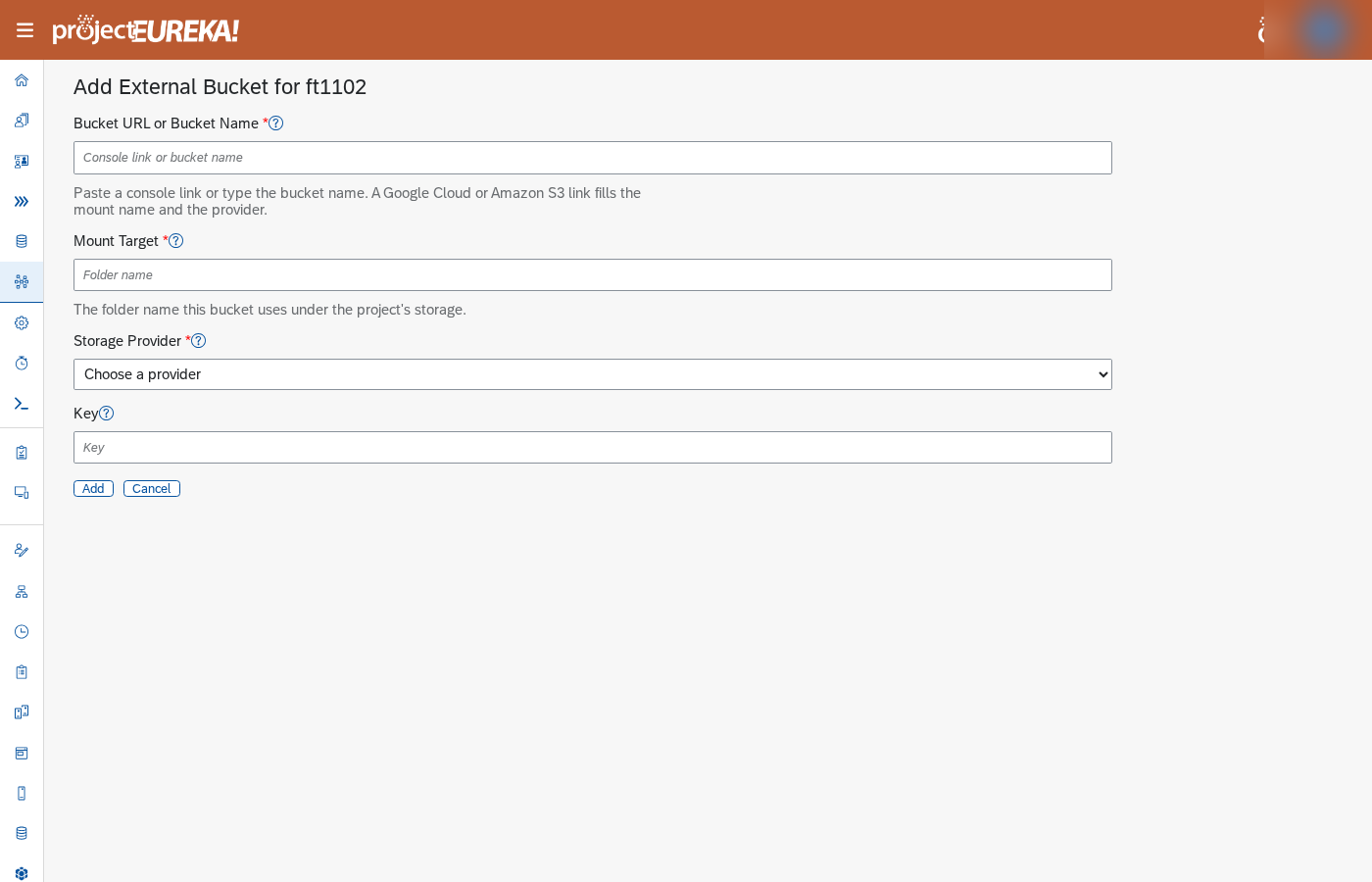
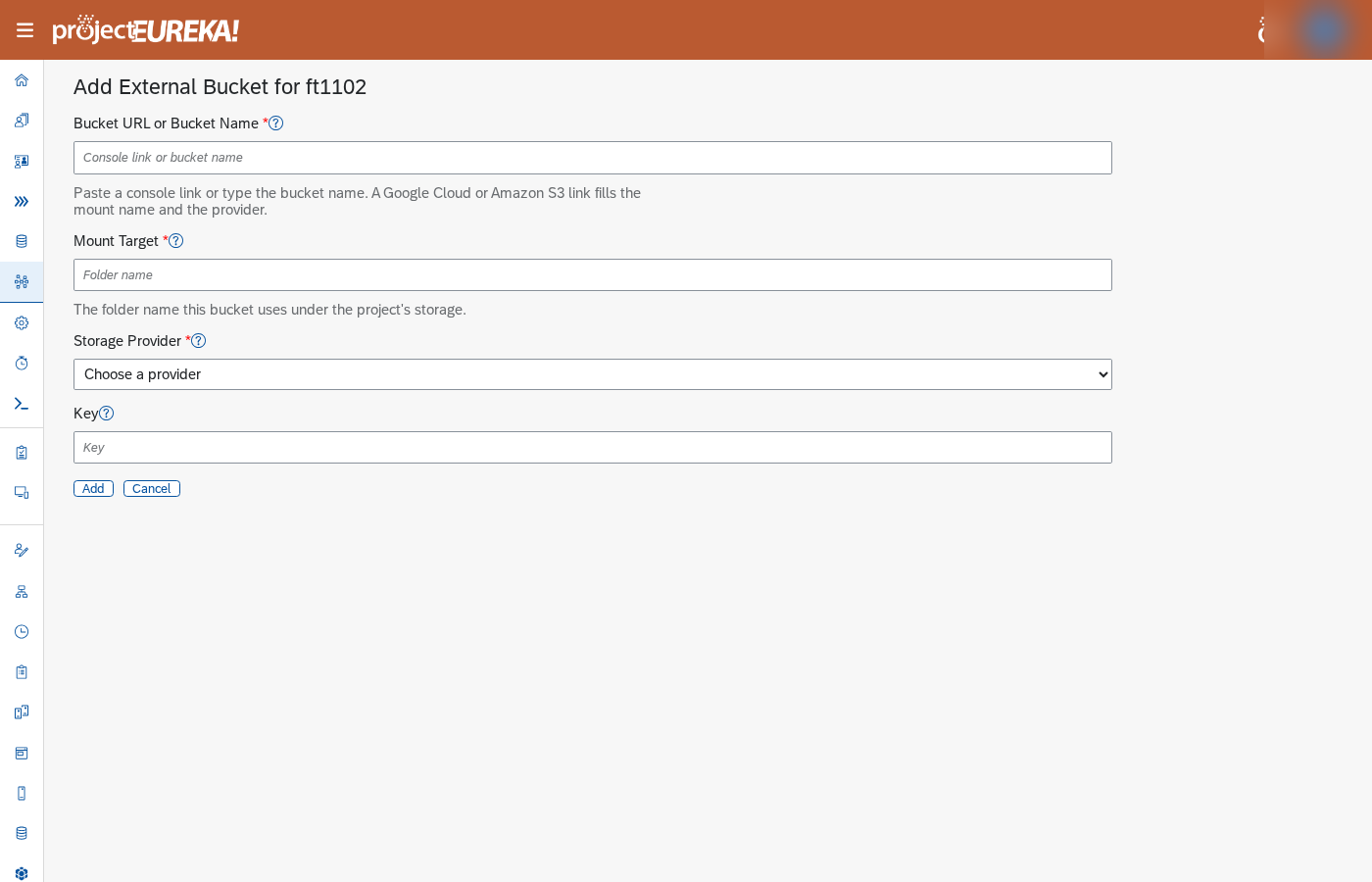
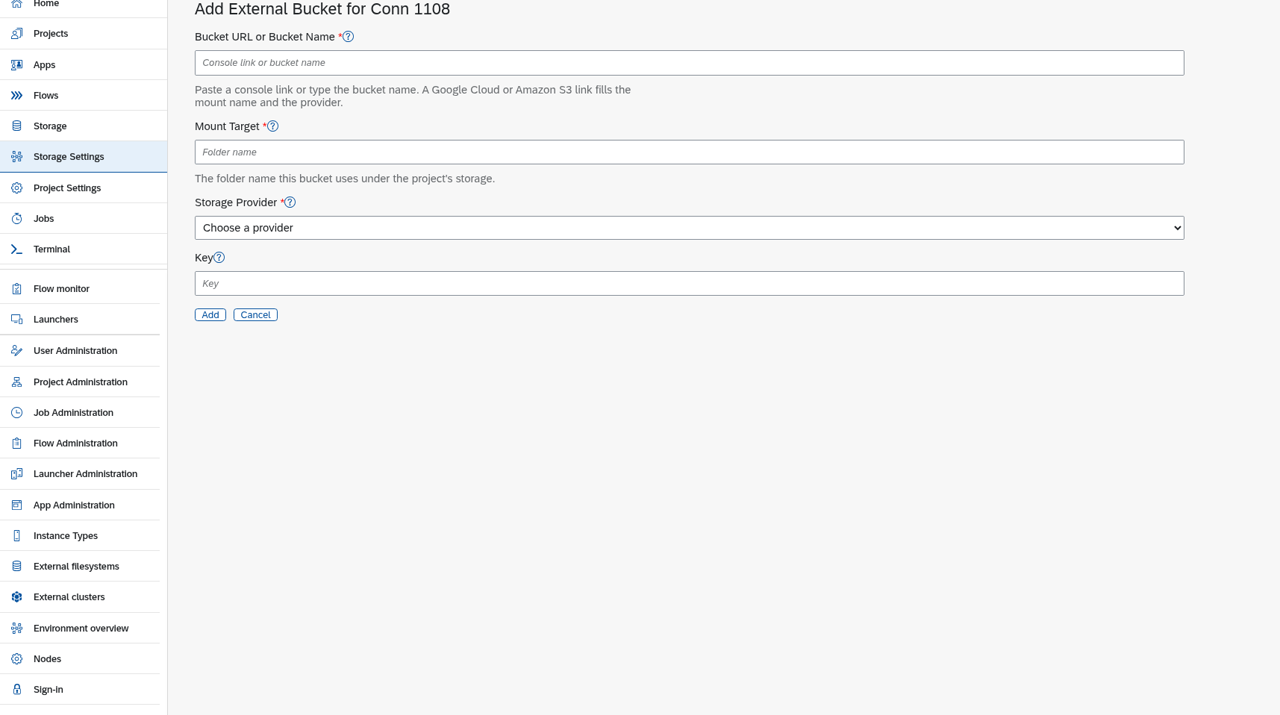
Section titled “Add an external bucket”- In Storage Settings, select Add External Bucket.
- In Bucket URL or Bucket Name, paste a console link or the bucket name. Storage Provider fills in.
- For a private bucket, paste the Key. A public bucket needs no key and is read only. The key is stored as a secret. It is not shown again to project members, only system admins can read it. Project members write, read, and delete objects through the key helper, which uses the stored key and does not return it. A public bucket with no key stays read only.
- Check Mount Target, then select Add. If the mount target is left empty, the bucket name is used. projectEureka never deletes an external bucket. It only keeps this entry.
Google Cloud
AWS
Kubernetes
A name or a mount target that this project already uses is refused: A storage resource in this project is already named … or Mount … is already in this project.
eureka bucket add NAME --project PROJECT [--target MOUNT] checks the name the same way as the form. --target defaults to the bucket name.
See the bucket setup notes in the repo (doc/storage.md) for CORS and key formats.
Remove a bucket
Section titled “Remove a bucket”- In Storage Settings, open the row’s Actions and select Delete.
- Confirm.
- An external bucket: only the projectEureka entry is removed. The cloud bucket is left.
- A managed bucket: the cloud bucket is deleted only if it is empty. If it has files, the message This bucket was not removed explains why. You can then select Remove projectEureka entry to remove only the entry and keep the bucket and files.
Google Cloud
public/screenshots/buckets/buckets-step4.gcp.pngAWS
public/screenshots/buckets/buckets-step4.aws.pngKubernetes
public/screenshots/buckets/buckets-step4.k8s.png