Add an app
Editors and Owners add launchers so members can start an app with one click.
add-app add-app add-app Google Cloud video: https://docs.projecteureka.ai/clips/add-app/gcp/add-app.gcp.mp4
AWS video: https://docs.projecteureka.ai/clips/add-app/aws/add-app.aws.mp4
Kubernetes video: https://docs.projecteureka.ai/clips/add-app/k8s/add-app.k8s.mp4
- Open the project. Apps opens.
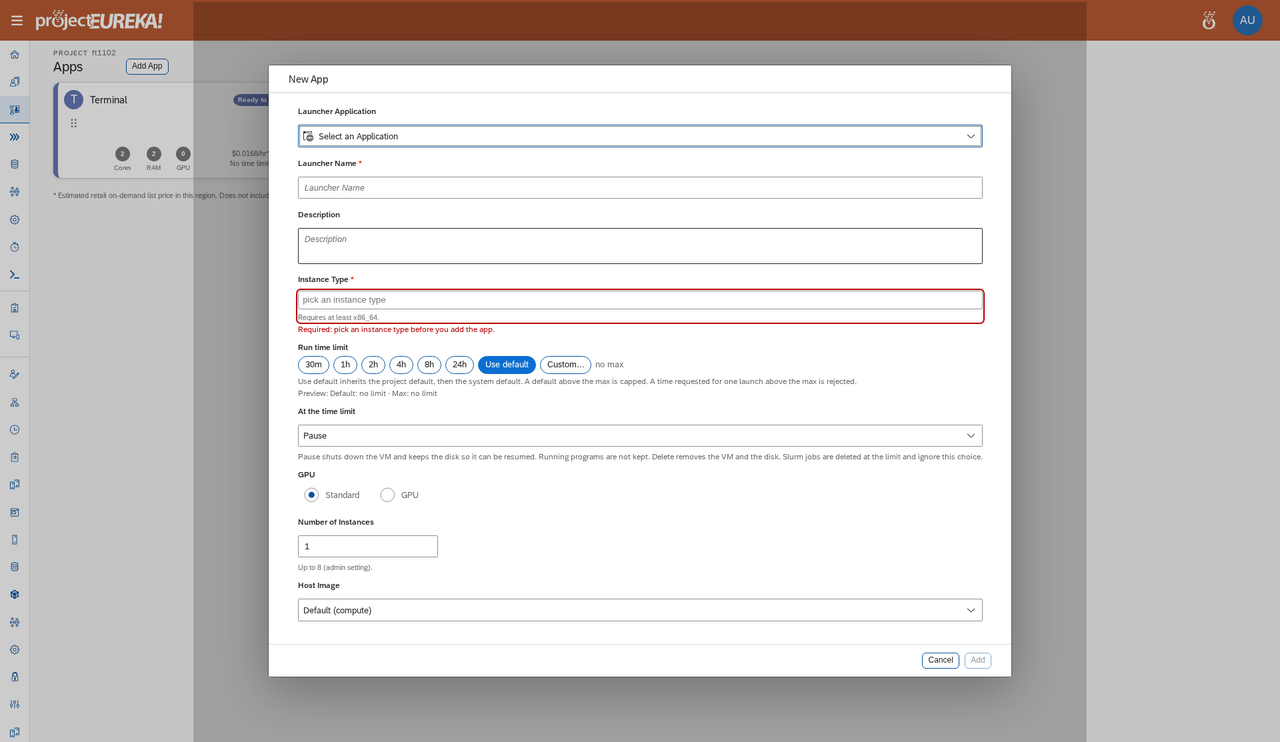
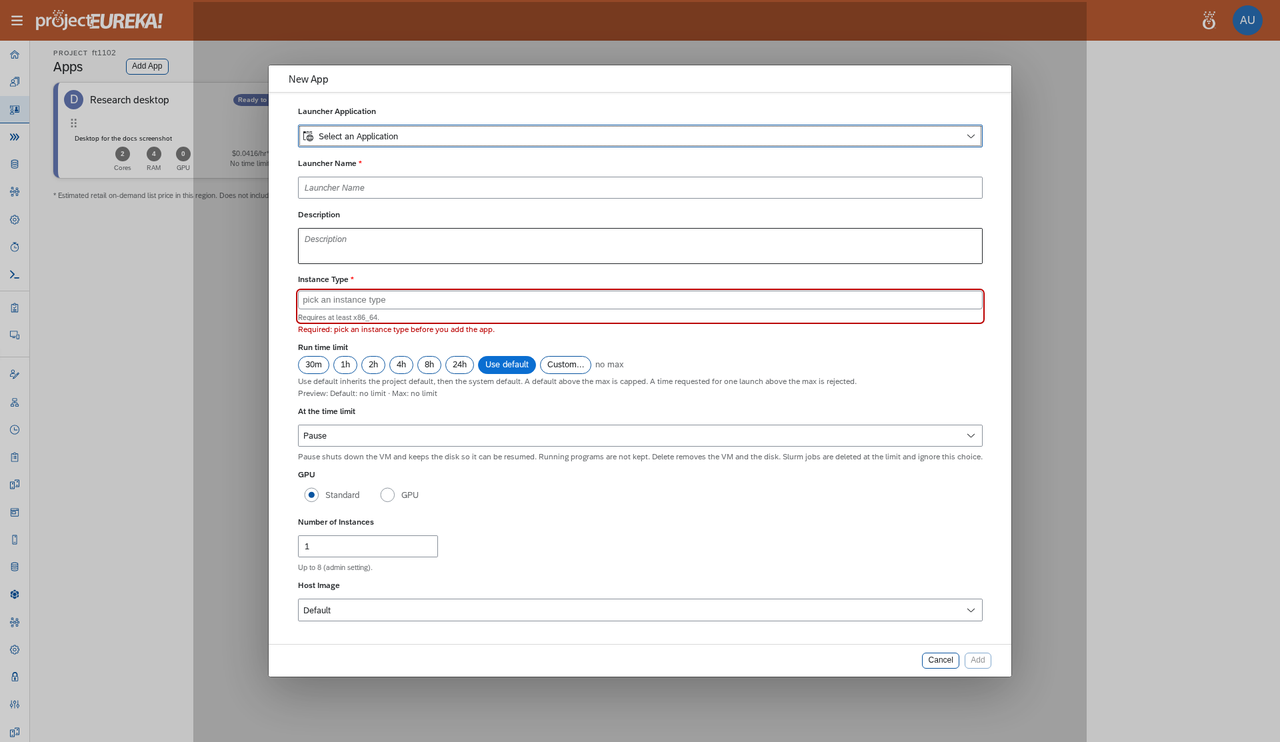
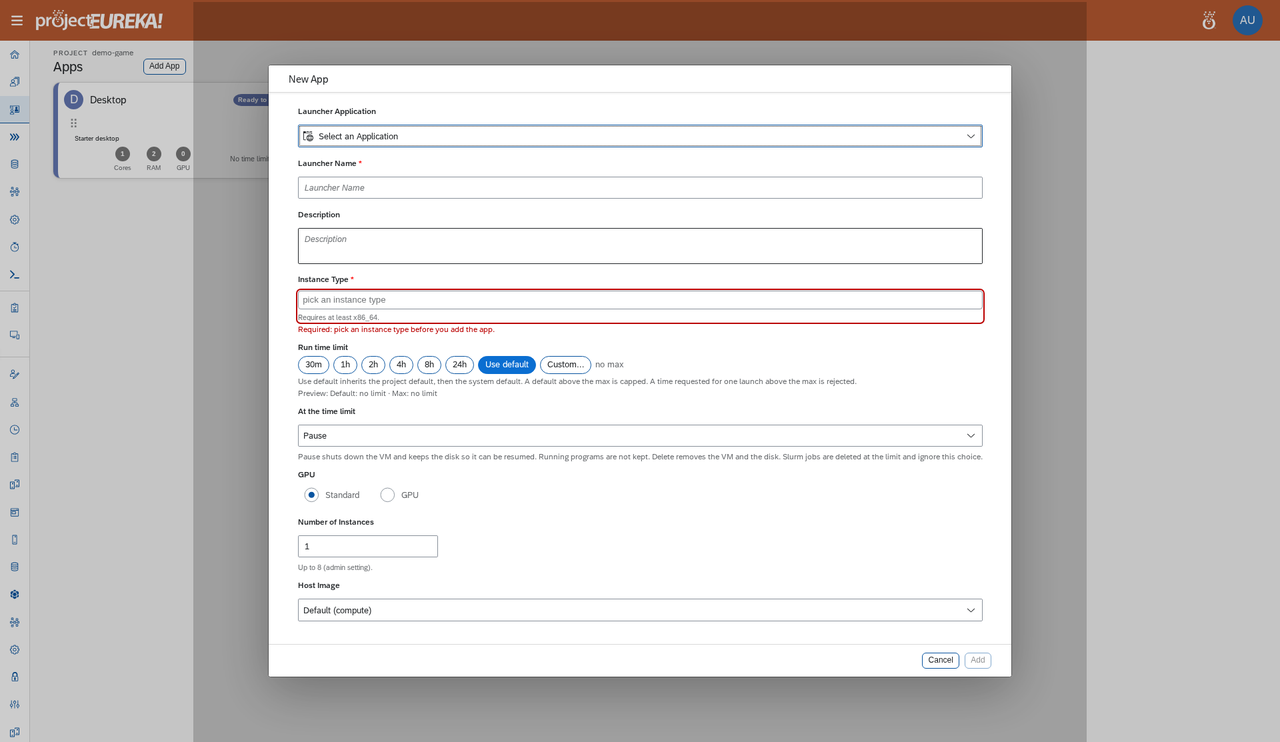
- Select Add App. The New App window opens.
- In Launcher Application, choose the app.
- Enter Launcher Name and, optionally, Description.
- Choose Standard or GPU, then Instance Type, which sits right under Description. Instance Type is required; Add stays off until you pick one. Then set Number of Instances. Desktop and terminal apps are fixed at 1. Other apps can go up to the admin’s maximum (8 unless an admin changes it). Cores and memory come from the instance type (times the number of instances), and the card shows them. A type under the app’s minimum is refused: a terminal can be 1 core, and an X or VNC desktop needs at least 2 cores. See Machine size.
- Optional: set Root disk (GiB). Leave it blank to use the environment default. A size below the catalog minimum for the host image is refused (the form names the floor). Disk size and the other settings stay unsaved until you select Add or Save.
- Optional: set Run time limit (30m to 24h, Use default, or Custom…) and what happens At the time limit: Pause keeps the disk so it can restart; Delete removes the machine and disk.
- For desktop apps, set VNC Configuration (image quality, compression). To share a desktop, check Shared with project. That checkbox is available only when Shared desktops and Project login are both on in Project Settings.
- System admins on AWS and Google Cloud may also open Advanced and set Session VM identity. It is disabled with a hint on Kubernetes, and disabled when the environment has no allowlist. Other users do not see it. See Session identity.
- Select Add.
Google Cloud
AWS
Kubernetes
A blank type means auto, except for GPU containers (minGpus 1 or more), which need a chosen type or an admin or project default. When an app needs GPUs, the editor shows Requires N GPU(s) next to the picker and lists only GPU types the project allows.
Instance types with a price are listed cheapest first. Types with no price follow, smallest first: by cores, then memory.
Result
Section titled “Result”The launcher card shows on Apps for every project member.
To change a launcher later, open its App Settings and select Save. Changes, including disk size, stay unsaved until Save.