Get started
This page follows the screens in the order you see them on your first visit.
getting-started getting-started getting-started Google Cloud video: https://docs.projecteureka.ai/clips/getting-started/gcp/getting-started.gcp.mp4
AWS video: https://docs.projecteureka.ai/clips/getting-started/aws/getting-started.aws.mp4
Kubernetes video: https://docs.projecteureka.ai/clips/getting-started/k8s/getting-started.k8s.mp4
1. Sign in
Section titled “1. Sign in”-
Open the projectEureka address your administrator gave you.
-
Sign-in has two steps. First, enter your user ID and choose how to sign in, then select Next. If the page asks you to choose how to sign in, choose Eureka Login (the user name and password an admin set), Google, or Your institution (your university or research lab). An admin turns those on. InCommon (and, later, eduGAIN) is how Your institution works under the hood. See Sign-in.
-
Enter your username and password when the method asks for them. Google and your institution send you to that provider and back.
The page remembers only the last method you used (not your user ID or password), and picks it for you next time. To choose a different one, select Show all sign-in options. On the password page, a show-password button lets you check what you typed, which helps on an iPad.
While the app connects, you may see a Connecting page. It moves on by itself. A Connecting page opened with no app address stops. One that has waited 15 minutes stops and offers Retry.
2. The home page
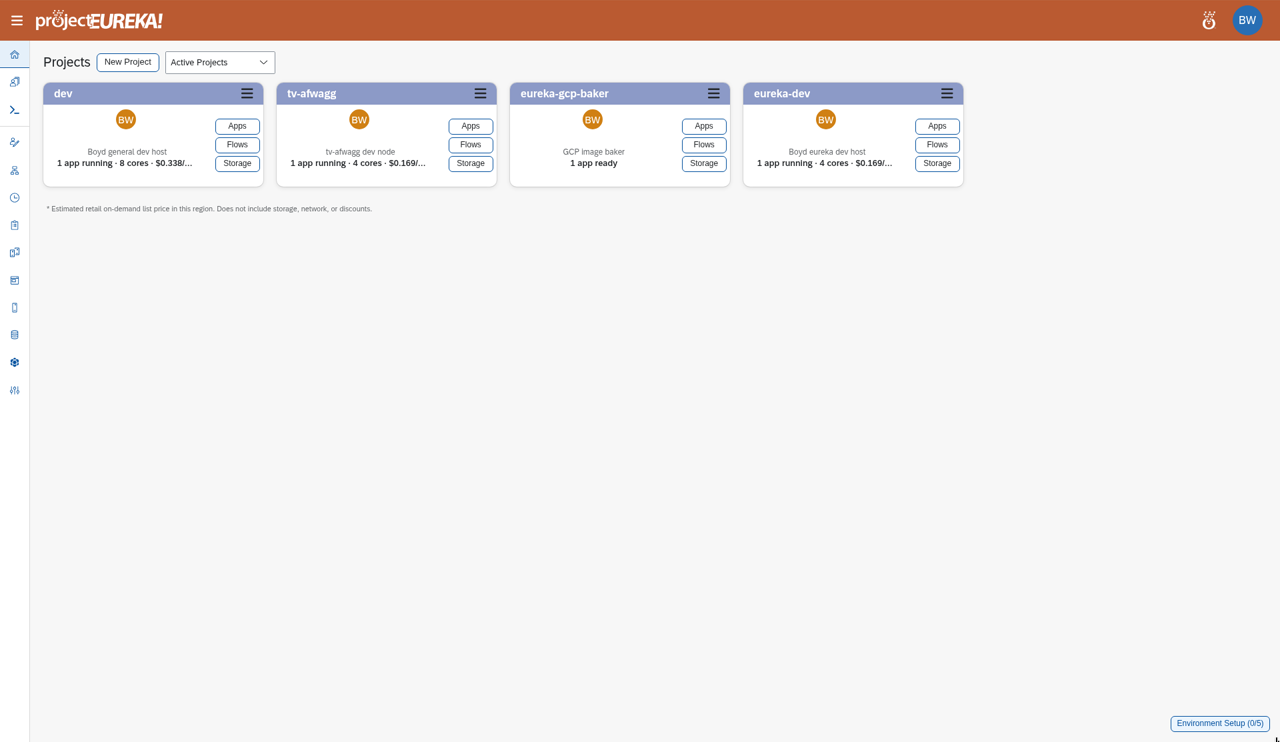
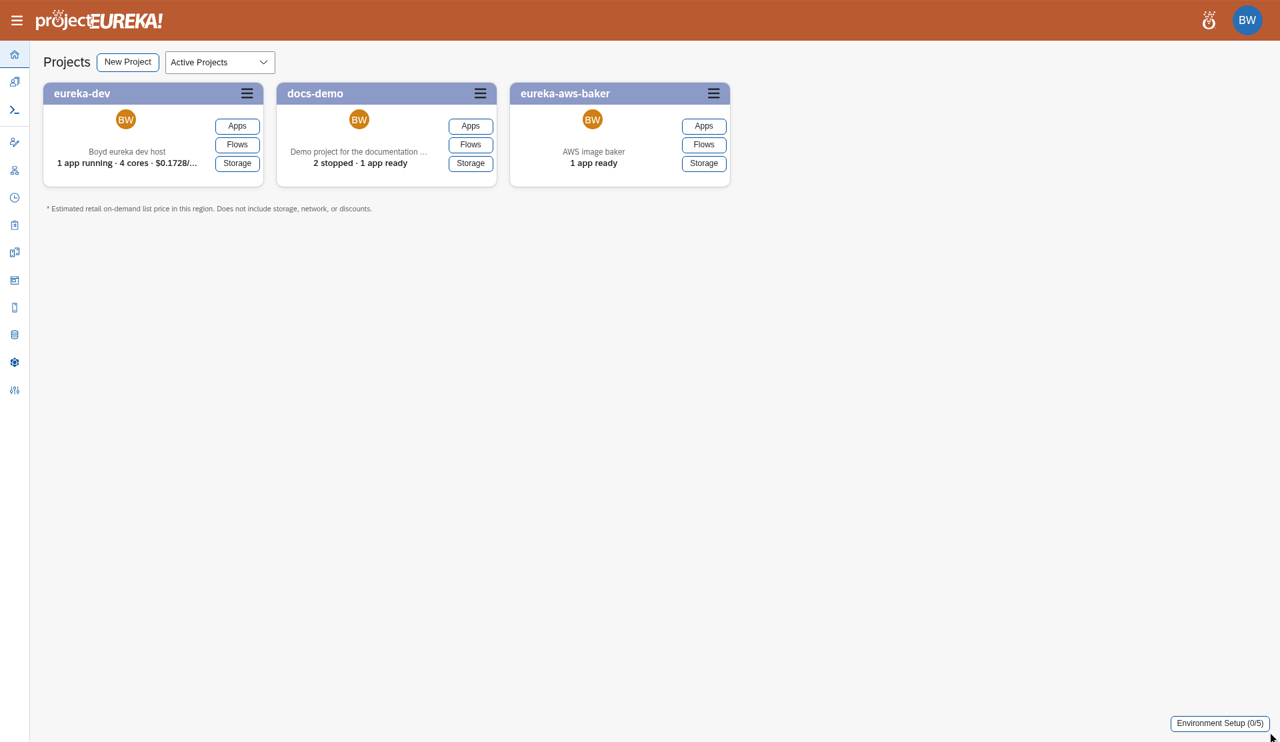
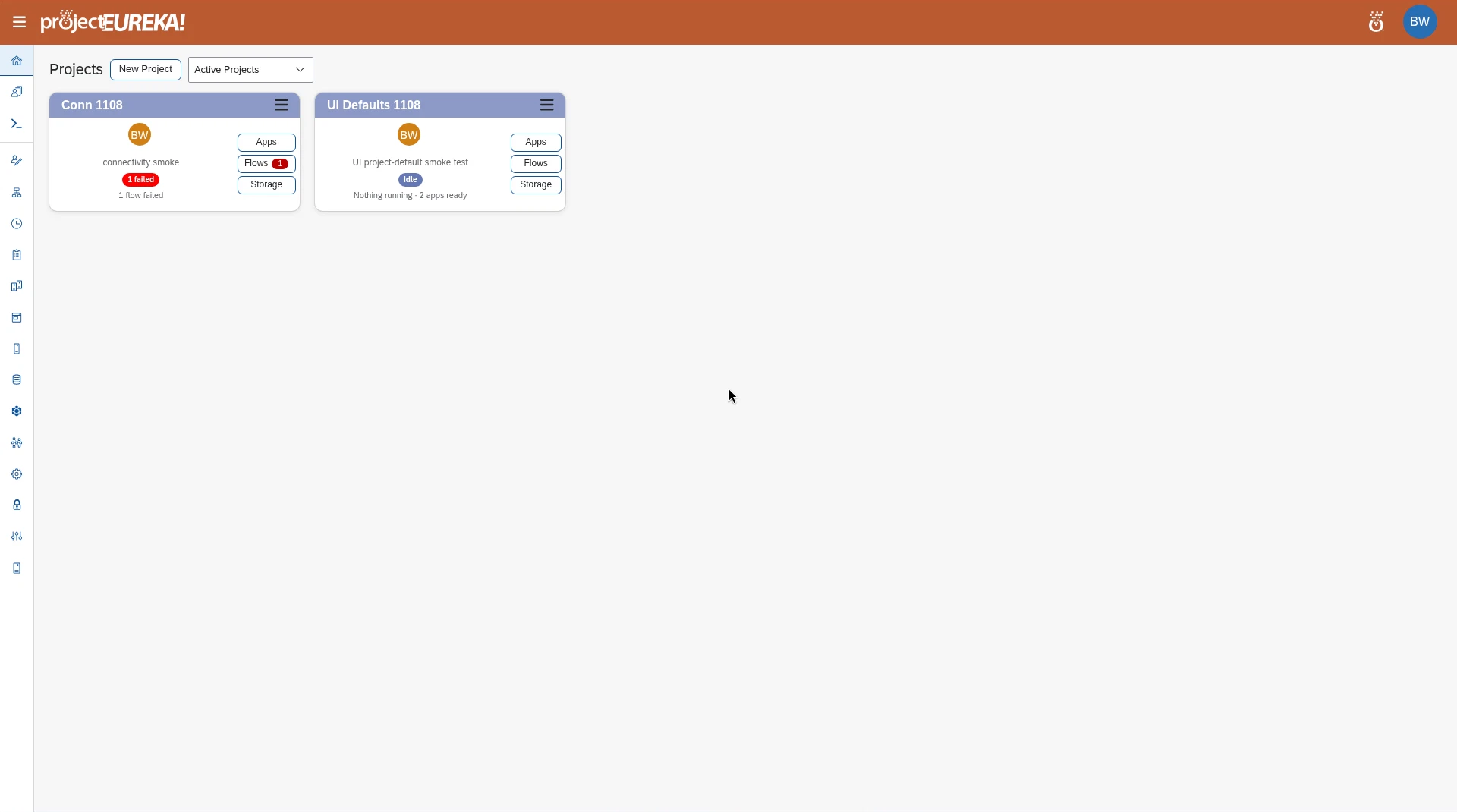
Section titled “2. The home page”The home page is titled Projects. It lists the projects you belong to as cards. On your first visit it shows a welcome note until you create a project or someone adds you to one. If you may create projects, the note has a New Project button.
- New Project shows only if an admin has allowed you to create projects.
- The switch at the top shows Active Projects or Archived Projects.
Google Cloud
AWS
Kubernetes
3. Create or join a project
Section titled “3. Create or join a project”- To start your own, select New Project. See Create a project.
- To join a team’s project, ask its Owner to add you. See Add and manage members.
4. A project card
Section titled “4. A project card”- Each card shows the apps running, cores and GPUs in use, and an estimated cost per hour and so far.
- Apps, Flows, and Storage open those project pages.
- The menu button (☰) opens Project Settings, Storage Settings, Credentials, and, for Owners and admins, Archive (or Restore). Archive asks you to confirm.
- Help in the user menu (top right) opens these docs.
5. Inside a project: the side bar
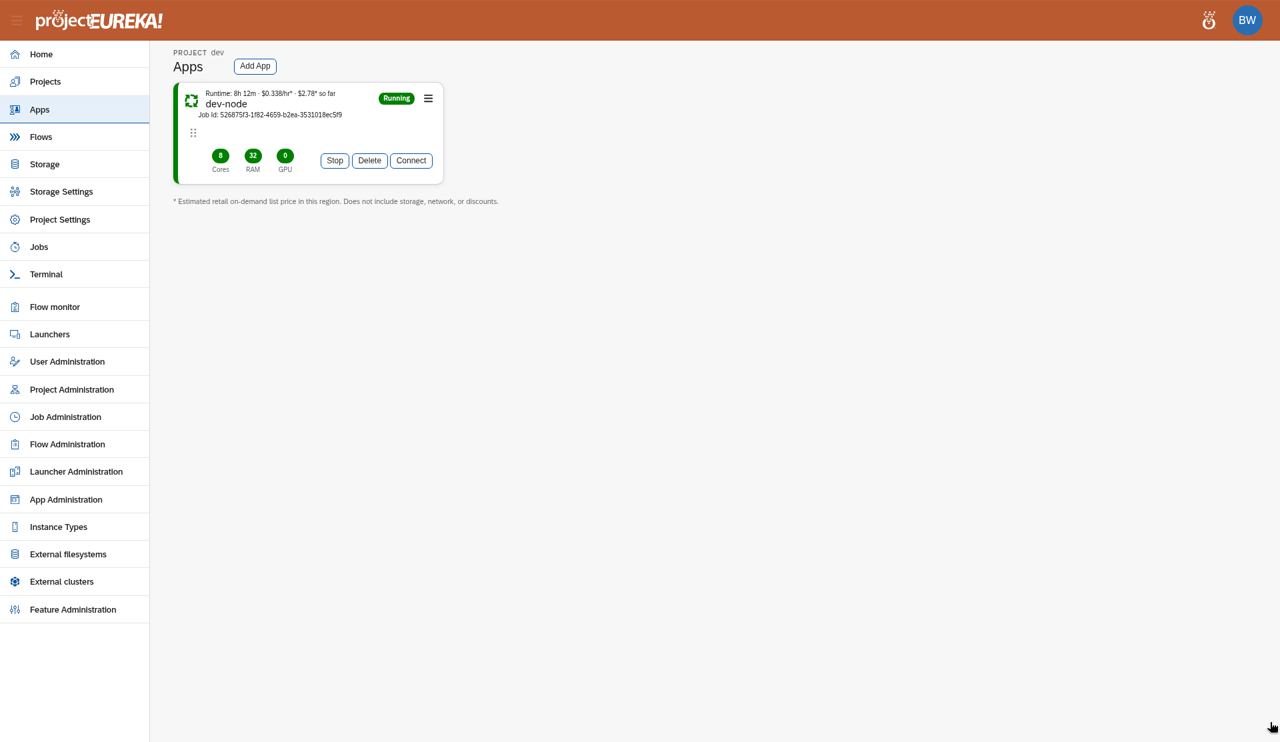
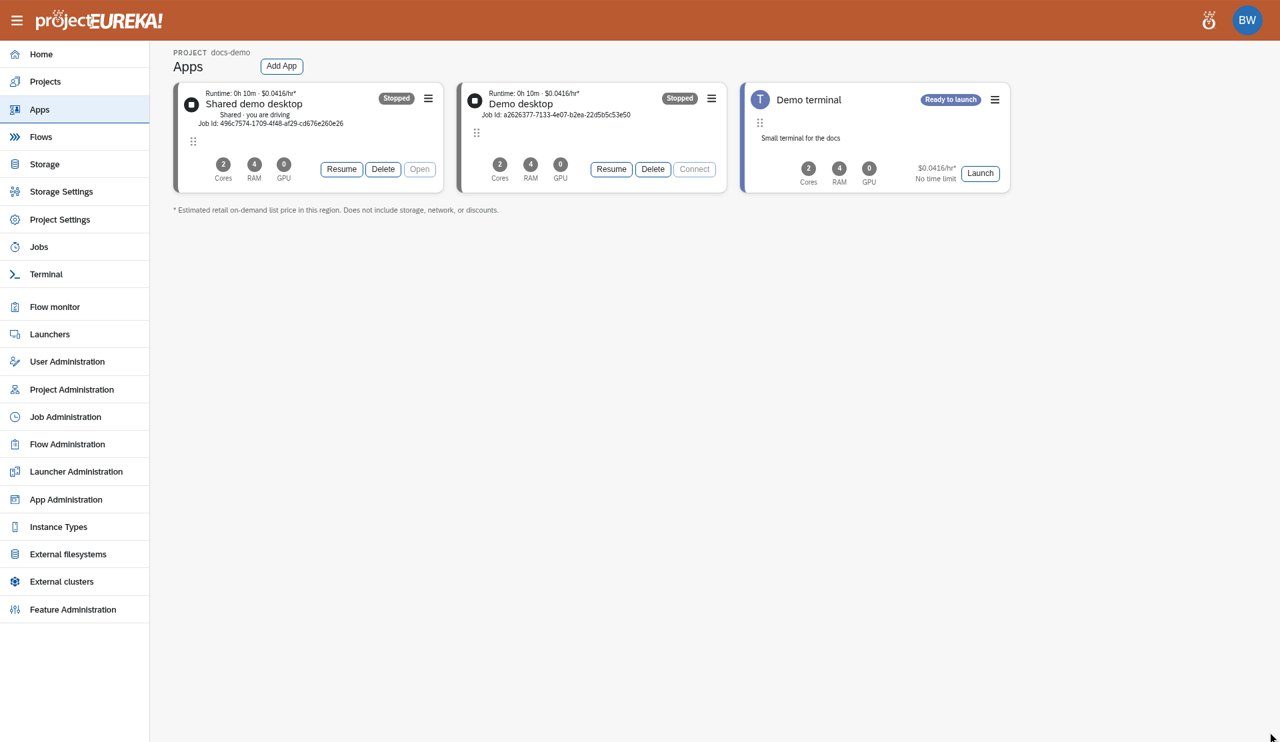
Section titled “5. Inside a project: the side bar”When you open a project, the side bar on the left shows, in this order: Home, Projects (switch project), Apps, Flows, Storage, Storage Settings, Project Settings, Jobs, and Terminal. Below them, Flow monitor and Launchers appear when the project has flows or launchers to watch. Select ☰ at the top left to show their names. While the names are hidden, hover over an icon to see its name.
Google Cloud
AWS
Kubernetes
After you open a project, the side bar adds Apps, Flows, Storage, Storage Settings, Project Settings, Jobs, and Terminal, then Flow monitor and Launchers when the project has them. On the home page those project pages are not in the side bar; a system admin sees the administration pages there instead (see below).A typical first session goes:
- Project Settings, including project credentials on the Credentials tab.
- Storage and Storage Settings for buckets.
- Apps or Flows, then run them.
- Check results in Storage and flow runs, and the cost estimate on the project card.
6. If you are a system admin
Section titled “6. If you are a system admin”Admins also see the administration pages at the bottom of the side bar, in this order: User Administration, Project Administration, Job Administration, Flow Administration, Launcher Administration, App Administration, Instance Types, External filesystems, External clusters, Environment overview, Nodes, Sign-in, and Feature Administration. Someone who is not a system admin does not see those pages. Opening one directly shows a denial. On the home page, before a project is open, the side bar shows Home, Projects, Terminal, and those administration pages — not Apps or Flows. Start with Manage users. Nodes is where an admin pauses the environment. Pause and eureka admin resume --start are not proven live; resize control or login from the cloud console only when nothing is running. Sign-in turns on Eureka Login, Google, and InCommon.
Google Cloud
The administration pages appear at the bottom of the side bar on Google Cloud as well.AWS
The administration pages appear at the bottom of the side bar on AWS as well.Kubernetes
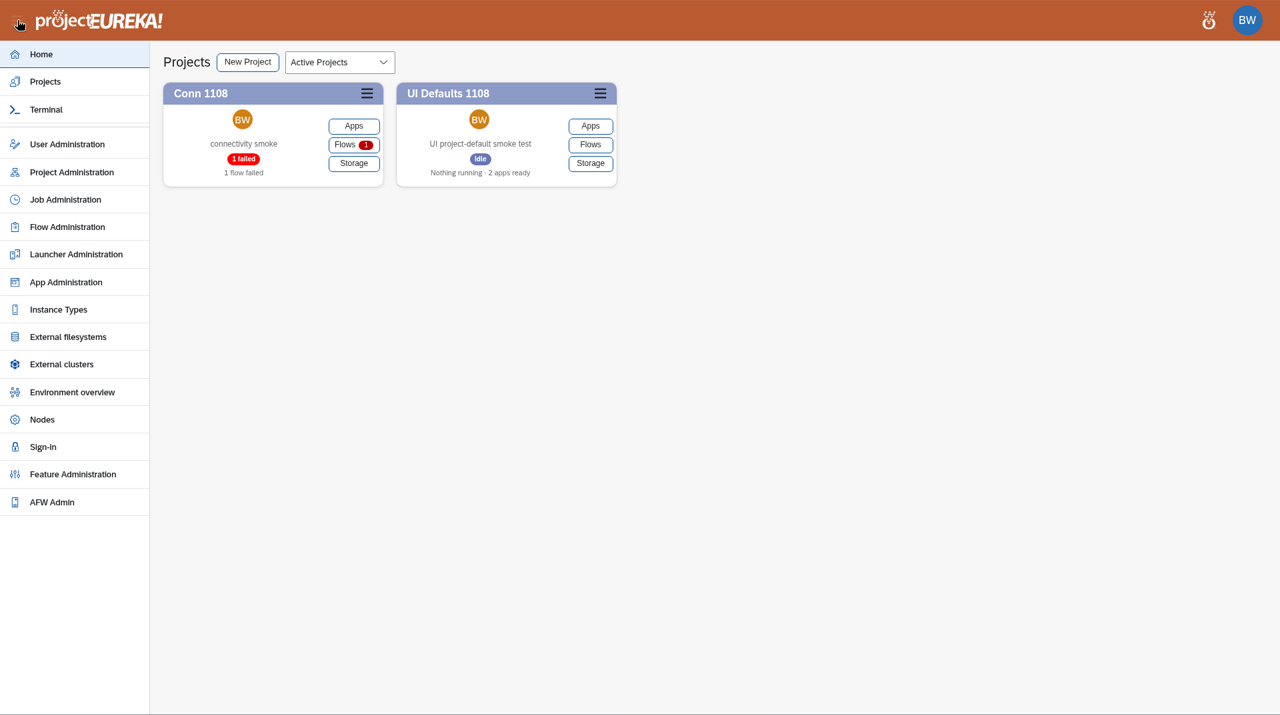
The first time a system admin opens Home on a new environment, an Environment Setup window lists the setup steps. See Manage users.
Using Eureka with your AI agent
Section titled “Using Eureka with your AI agent”eureka mcp is a small server on the login node. It speaks the Model Context Protocol on standard input and output, as your Unix account. The tools are the same actions you can take in Eureka, and they use your permissions. A reader cannot do what only an owner can do.
What you hand the bot is three things: the tools, a written agent guide, and short call examples inside that guide. The guide covers creating a project, launching an app, building and running a flow, checking a run, and listing buckets.
Give the bot this command. Replace the account and the host with your login.
ssh <you>@<login-host> eureka mcpA client config that launches it:
{ "mcpServers": { "eureka": { "command": "ssh", "args": ["-T", "<you>@<login-host>", "eureka", "mcp"] } }}The bot reads the guide from the MCP resource eureka://docs/agent-guide. The same file is on the login node at /usr/share/doc/eureka/mcp-agent-guide.md. Tool names for the command line are in CLI and MCP.
Next steps
Section titled “Next steps”How projectEureka works · Run Slurm jobs from the Terminal
Your user menu
Section titled “Your user menu”Select your initials at the top right to open Dark Theme, Profile, and Sign out. The build id shows under Sign out. Give it to support when you report a problem.
Add another way to sign in
Section titled “Add another way to sign in”Open Profile. The Sign-in methods section lists how you can sign in now. Select Add Google or Add your institution to add the other method to your own account, and Remove to take one away. You cannot remove your last method (“This is your last way to sign in. Link another method first.”).
After you select Add, sign out, then sign in with the new method within 10 minutes. Eureka links it to you. The link works once, only for you, and only for 10 minutes. If it is used twice, or too late, you see “That sign-in link was already used.” or “That sign-in link has expired. Start again from your profile.”
Google must send a verified email (“Google did not send a verified email.” otherwise). An account that already belongs to another Eureka user is refused (“That account is already linked to another Eureka user.”). The allowed Google domains and institutions set by your admin still apply. Linking and removing need a sign-in from the last 10 minutes; otherwise you are asked to sign in again.
From the command line, eureka me sign-in add google or eureka me sign-in add incommon prints the address to open while signed in (add --base https://HOST if it guesses the wrong host). The MCP tool is me_sign_in_add with source (google or incommon). Neither can add a method for anyone else.
When a page fails
Section titled “When a page fails”A missing address shows Page not found and Go to Projects. An unexpected failure shows Something went wrong, a short reason, and details you can copy. The details include a trace id and the build id. Send those to support@projecteureka.ai. The same trace id is what eureka and eureka mcp print after an unexpected failure. A project id that does not exist says the project was not found.