Create a project
Create a project to give a team shared apps, flows, and storage.
create-project create-project create-project Google Cloud video: https://docs.projecteureka.ai/clips/create-project/gcp/create-project.gcp.mp4
AWS video: https://docs.projecteureka.ai/clips/create-project/aws/create-project.aws.mp4
Kubernetes video: https://docs.projecteureka.ai/clips/create-project/k8s/create-project.k8s.mp4
Before you begin
Section titled “Before you begin”- If you only need to join an existing project, you don’t create one. Ask its Owner to add you; it then shows on your home page.
- An admin must allow you to create projects. If not, the page says An admin has to allow you to create projects.
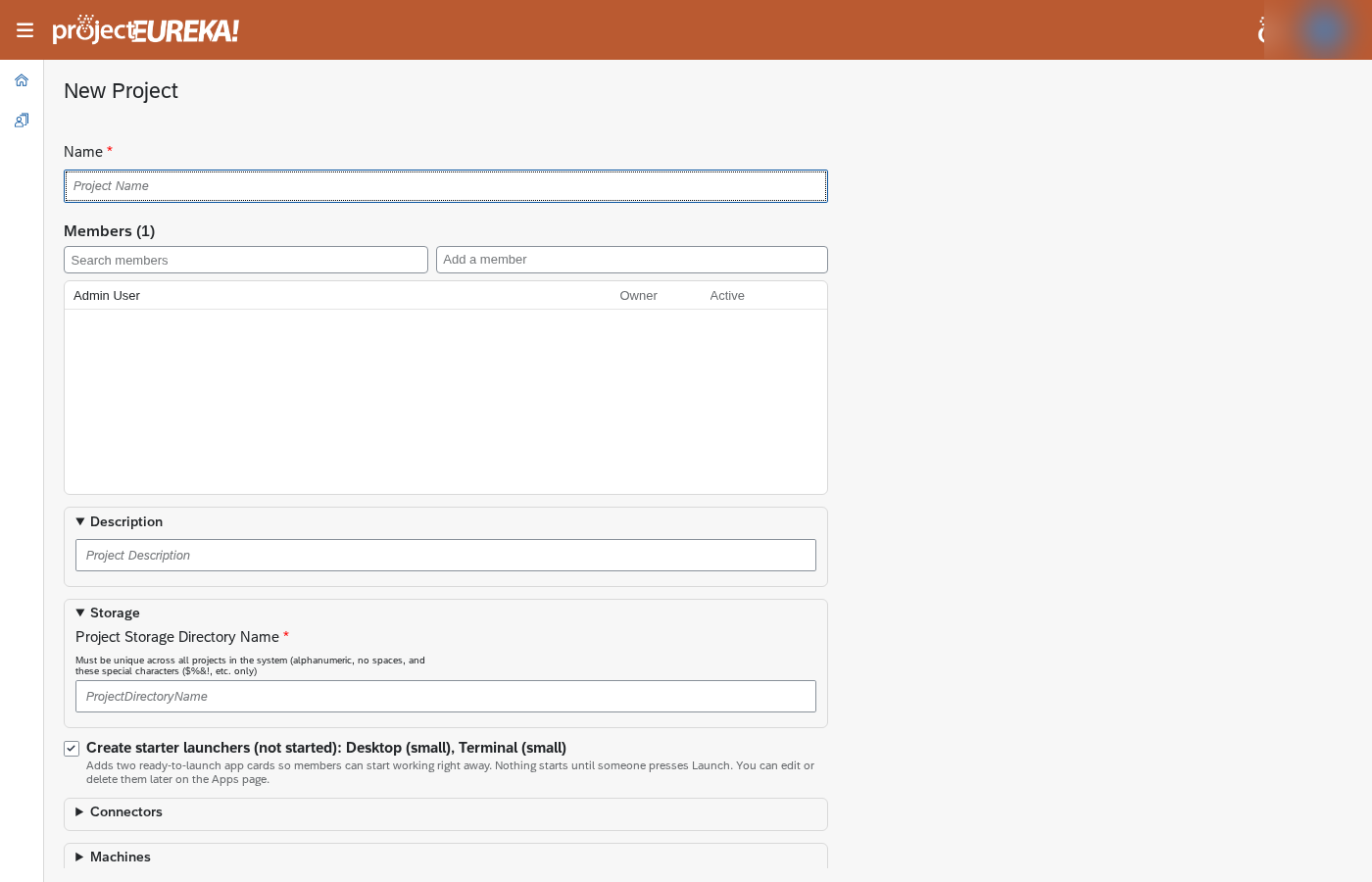
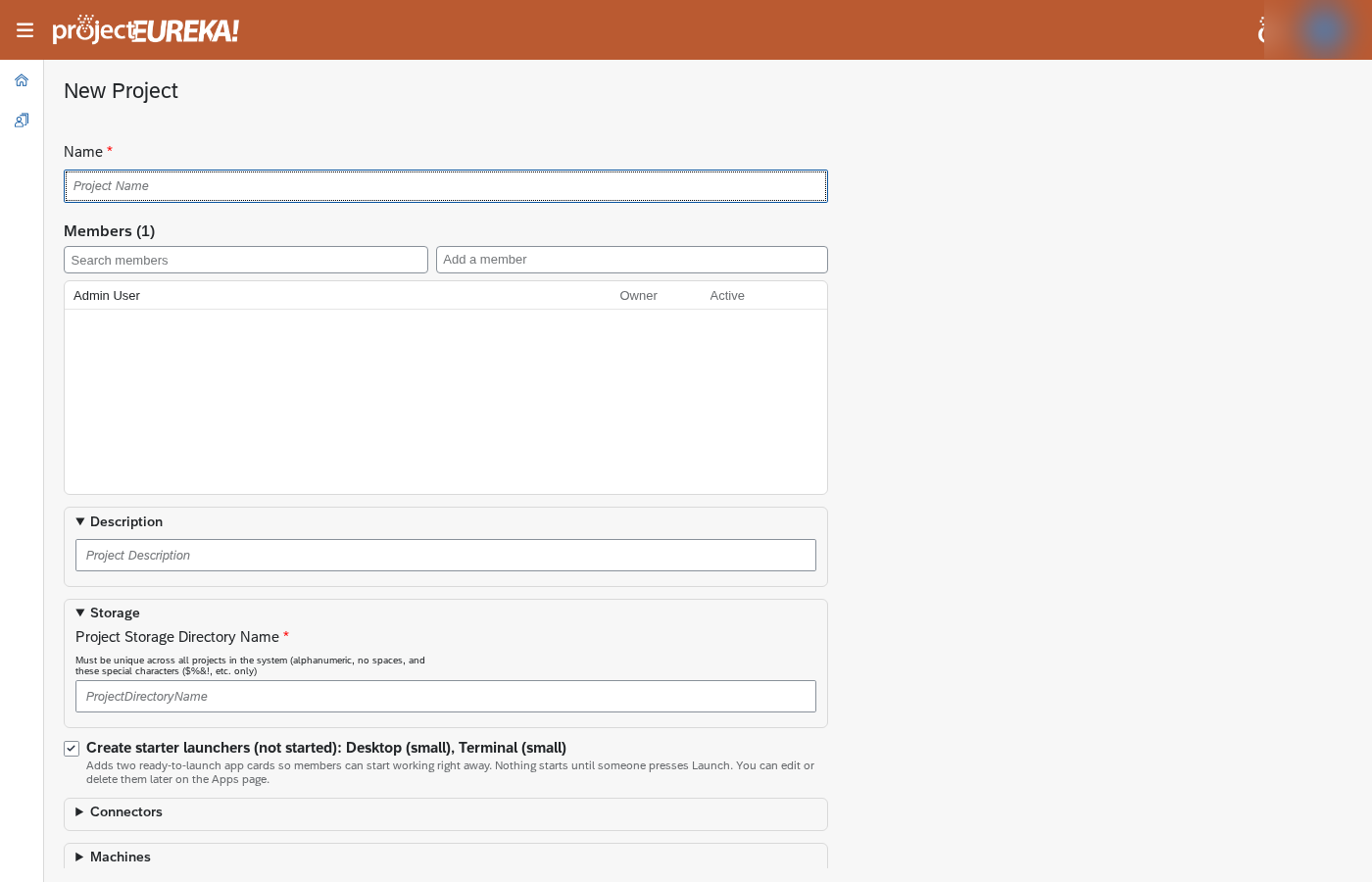
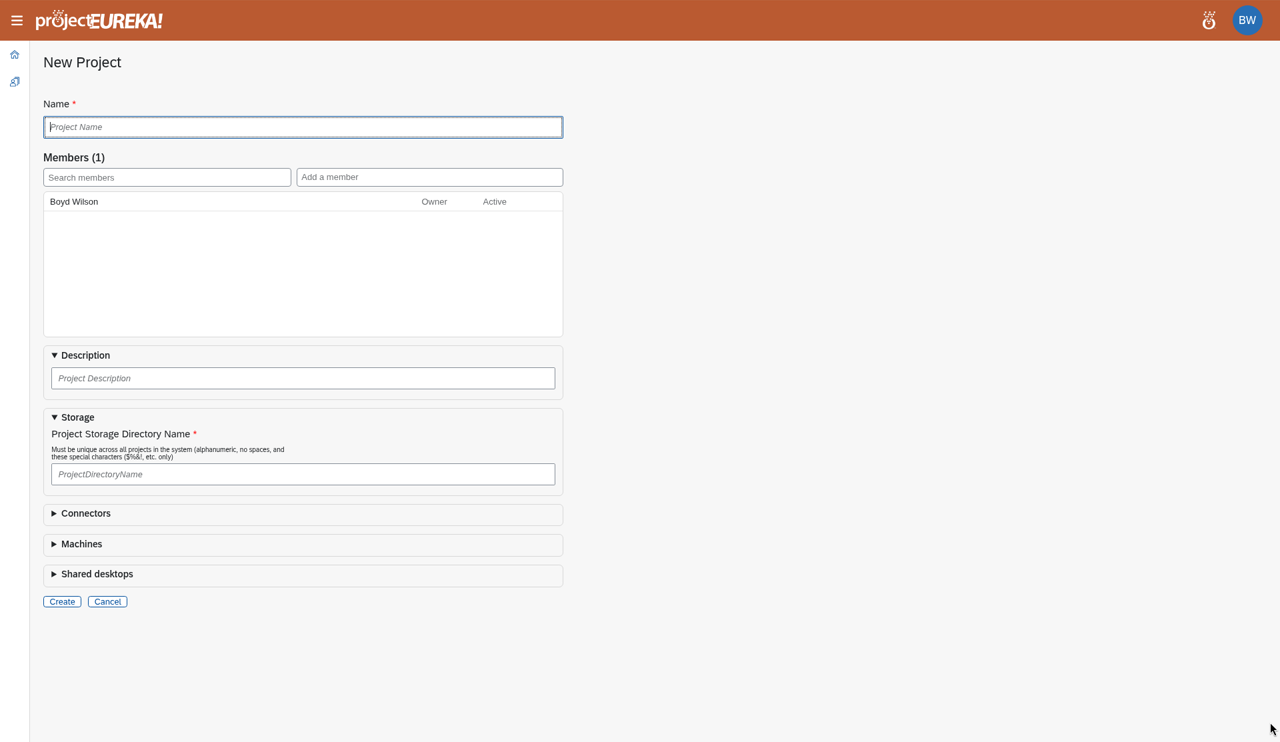
- On the home page, select New Project.
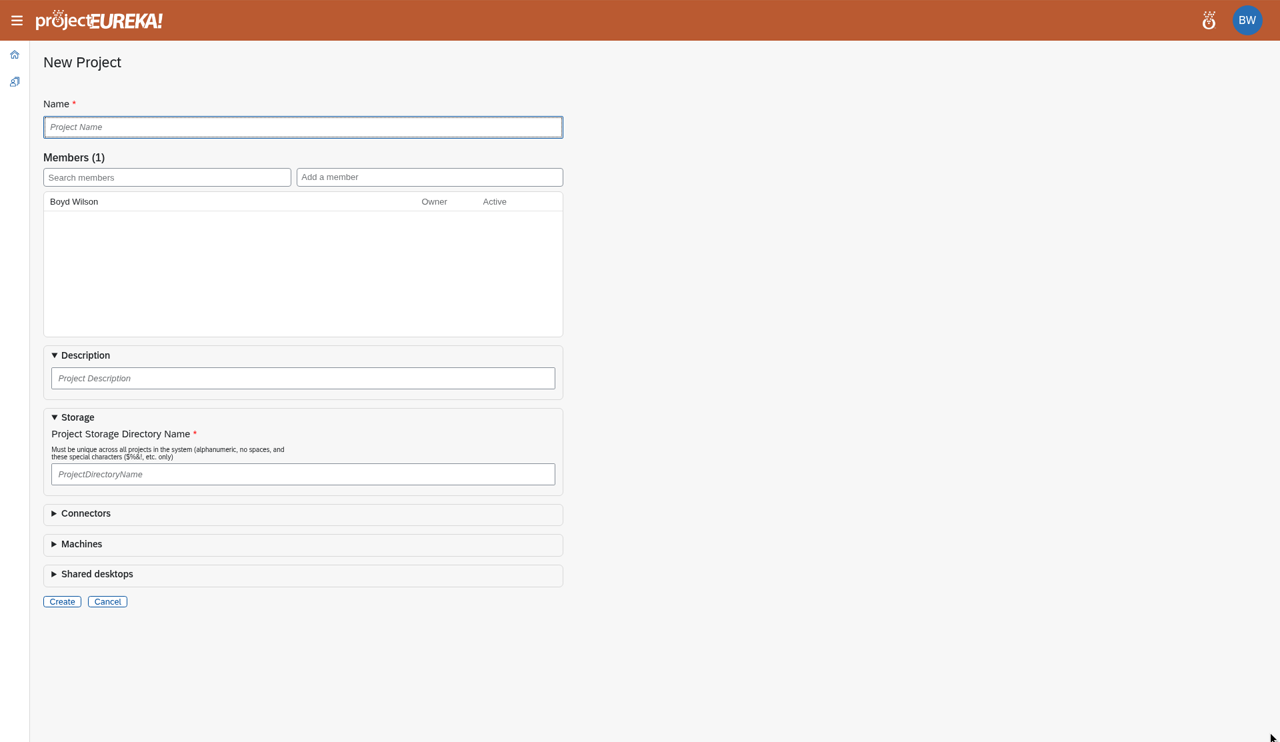
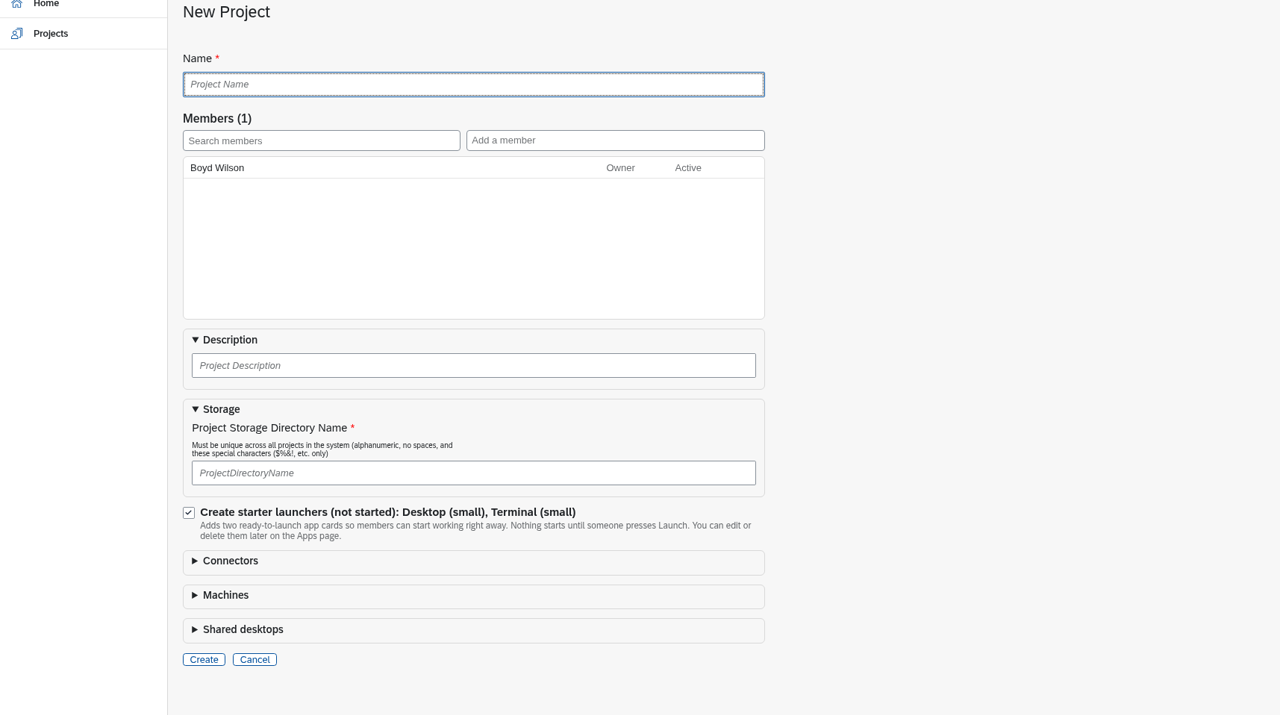
- In Name, enter the project name.
- Under Description, enter a short description.
- Under Storage, in Project Storage Directory Name, enter a directory name. It must be unique across all projects and cannot be changed later.
- Leave Create starter launchers (not started): Desktop (small), Terminal (small) on if you want two app cards ready. Nothing starts, and nothing is billed, until someone selects Launch. You can edit or delete them later on Apps. Clear the box to skip them.
- Select Create.
Google Cloud
AWS
Kubernetes
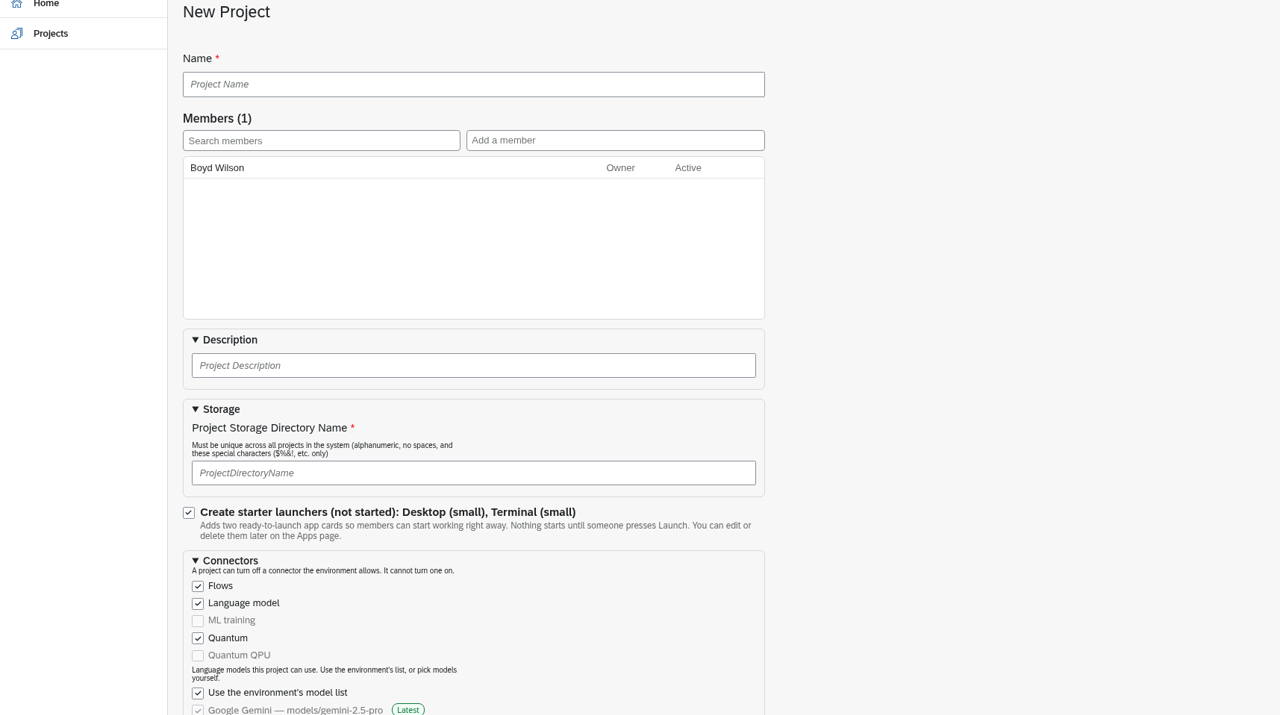
The starter Desktop is a 2-core, 4 GB machine: e2-medium on Google Cloud, t3a.medium on AWS, and u1.large on Kubernetes, when that type is allowed. The starter Terminal is the smaller type that still has at least 1 core and 2 GB: e2-small, t3a.small, or u1.small. A desktop (X or VNC) cannot go below 2 cores. A terminal can. See Machine size.
eureka project add NAME creates the same starters. --no-starters skips them. --home DIR sets the storage directory.
Google Cloud
AWS
Kubernetes
Result
Section titled “Result”The project opens on Flows. A banner there points to Project Settings → Credentials until the project has an API key for AI stages. It shows on the home page under Active Projects. You are its Owner.