Browse storage
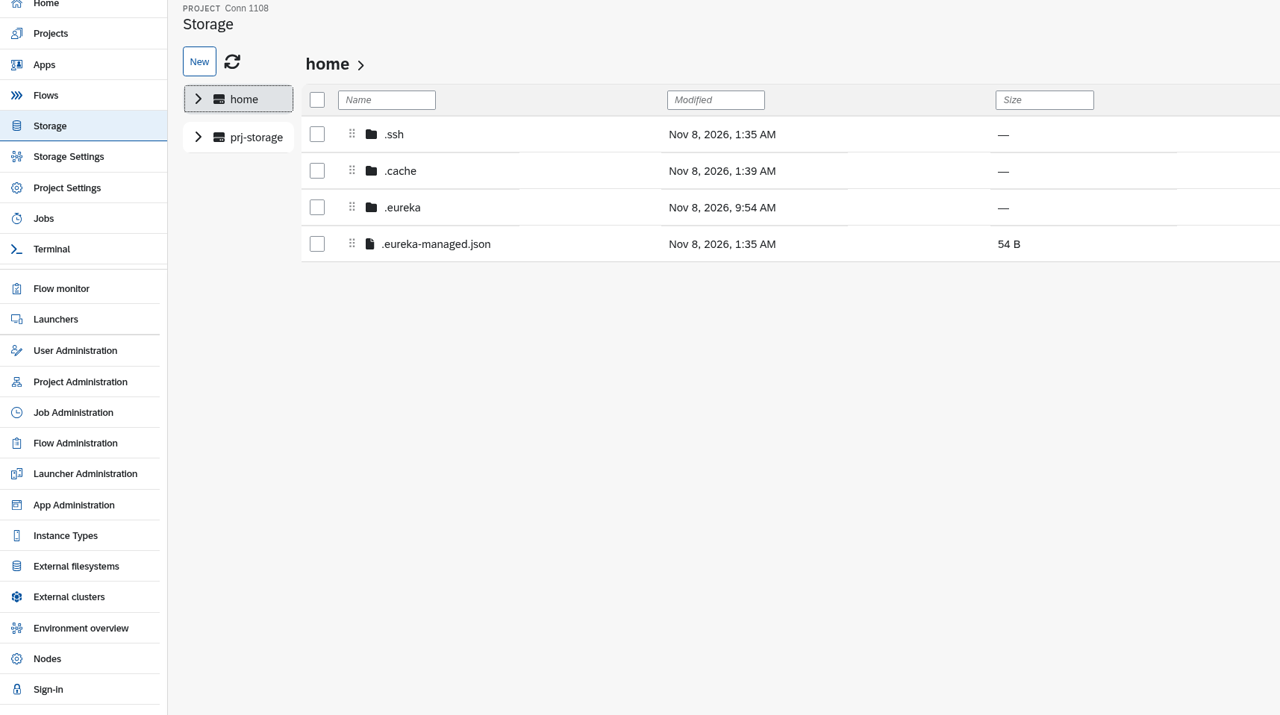
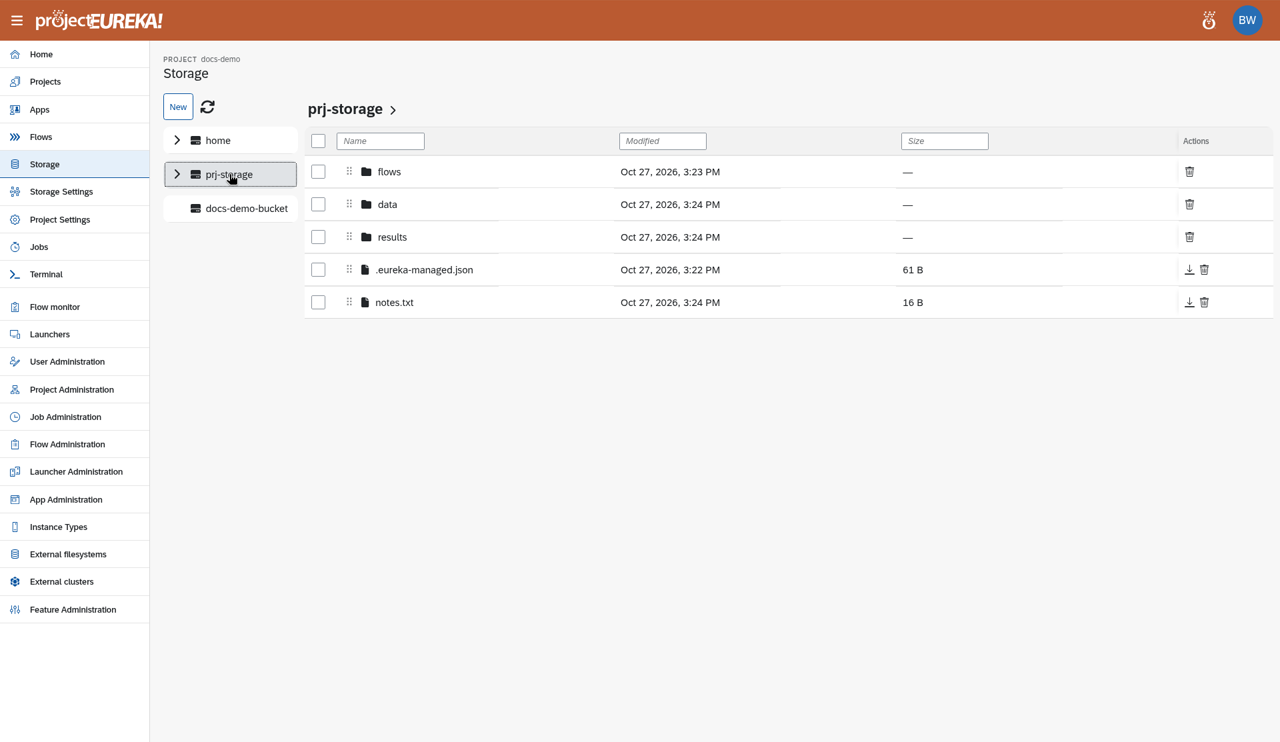
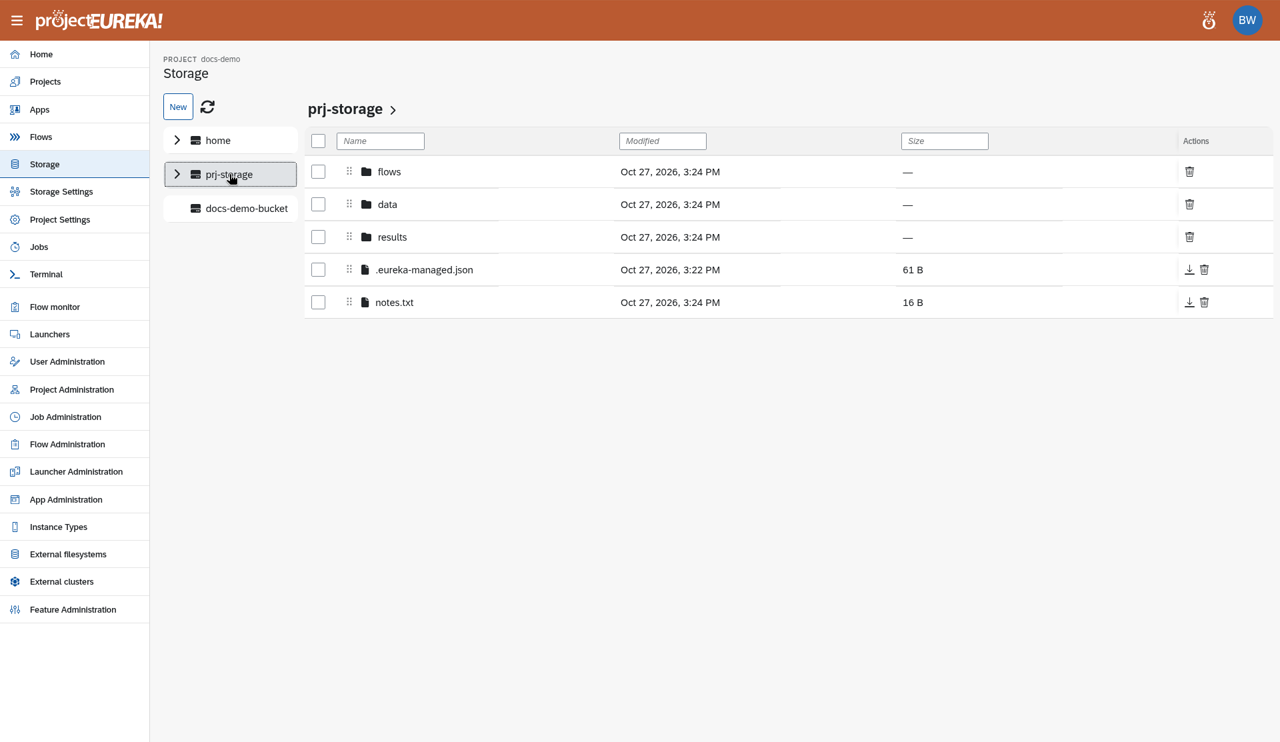
The Storage page is a file browser for your home directory, the project directory (shown as prj-storage), and the project’s buckets.
Recording coming soon Google Cloud ·
storage-manager Recording coming soon AWS ·
storage-manager Recording coming soon Kubernetes ·
storage-manager Video: Google Cloud
Google Cloud video: https://docs.projecteureka.ai/clips/storage-manager/gcp/storage-manager.gcp.mp4
Video: AWS
AWS video: https://docs.projecteureka.ai/clips/storage-manager/aws/storage-manager.aws.mp4
Video: Kubernetes
Kubernetes video: https://docs.projecteureka.ai/clips/storage-manager/k8s/storage-manager.k8s.mp4
Find a folder
Section titled “Find a folder”- Select a folder in the tree on the left. Select the caret to expand it without leaving the current folder.
- The open folder is kept in the page address as
?path=. Copy the address to share a link to that folder. Your browser’s Back returns to the previous folder. - If a linked folder no longer exists, the page says The path … no longer exists! and opens the top level.
Upload files
Section titled “Upload files”- Open the folder.
- Select New > File Upload, and choose files.
You can also drag files from your desktop onto the file list or the empty area under it.
Create a folder
Section titled “Create a folder”- Select New > Folder, or right-click a folder and select New Folder.
- Enter the name and select Create.
Download or delete
Section titled “Download or delete”- Each file row has Download and Delete in the pinned column on the right. Folders have no Download.
- Select several rows to delete them together with the Delete selected icon above the list.
- Delete asks Are you sure you want to delete this item? The buttons are Cancel, then Delete. One item and many items use that same order.
- Deleting a folder link removes the link. It does not follow the link and delete the folder it points at.
- If a folder cannot be created, uploaded, or deleted, the page says so in one sentence.
Google Cloud
Screenshot coming soonGoogle Cloud ·
public/screenshots/storage-manager/storage-manager-step2.gcp.pngAWS
Screenshot coming soonAWS ·
public/screenshots/storage-manager/storage-manager-step2.aws.pngKubernetes
Google Cloud
AWS
Kubernetes
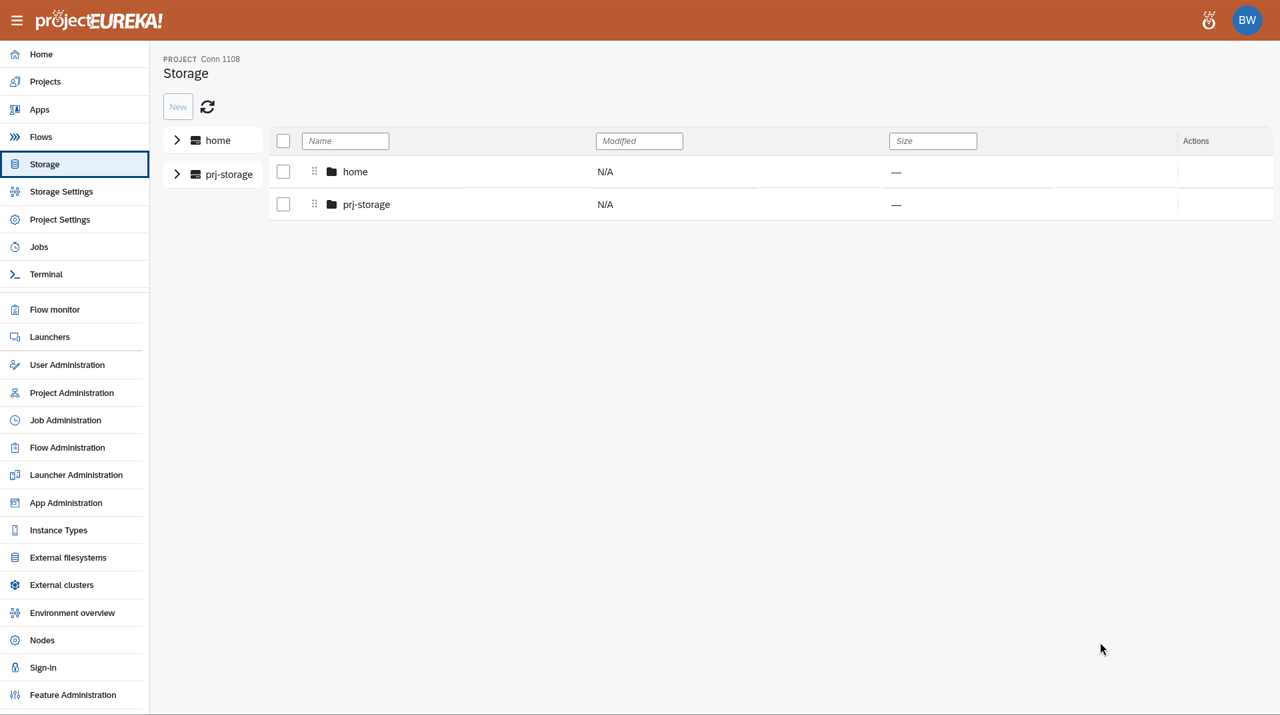
Flows keep their files under prj-storage/flows/<flow>/.