Run Slurm jobs
You can submit ordinary Slurm batch scripts to run on cloud machines. projectEureka starts the machines for each job, tracks their estimated cost under the project, and removes them when the job ends.
Before you begin
Section titled “Before you begin”- You are a member of the project.
- Slurm commands work on the login node only. Open Terminal in the project side bar: it opens a shell on the login node in a new browser tab. Slurm commands are not available inside desktop or app sessions.
- In the Terminal, write a batch script with
#SBATCHlines, for examplejob.sh. - Submit it with
sbatch -p <project> job.sh. The partition (-p) names the projectEureka project the job runs in.-A <project>also works when no partition is set.srunsubmits one job and waits for it.ccqsubis also accepted. - Follow it with
squeue,scontrol show job <id>,sacct, andsinfo. Cancel it withscancel <id>.squeue,sbatch,scancel,sacct, andsinfoare login-node Slurm commands. They are noteurekasubcommands. - With no
-o, output goes toslurm-<job id>.outin the folder you submitted from.
How it works
Section titled “How it works”- A single-node job runs on its own machine. Multi-node, MPI, and array jobs run in a small Slurm cluster started for that job.
-c,--mem, and--gres/--gpuschoose the machine size.-tsets the run time limit. A value above the project max is rejected. With no-t, the project or system default applies. At the limit the job is stopped and shows TIMEOUT. See Set time limits.- A job that exits with a nonzero code shows Failed.
- While an admin is pausing the environment, a queued job shows Held: environment paused. If the admin kept the queue held after resume, it shows Held (kept after resume) until an admin releases it. The Jobs page has no Held filter: held jobs stay in Active with that Held: … state. Paused launcher sessions are listed on Launchers > Paused. See Pause and resume the environment.
- A job runs as the person who submitted it, even when the project has a project user.
- Nodes shown in sinfo is set in Project Settings.
The Jobs page
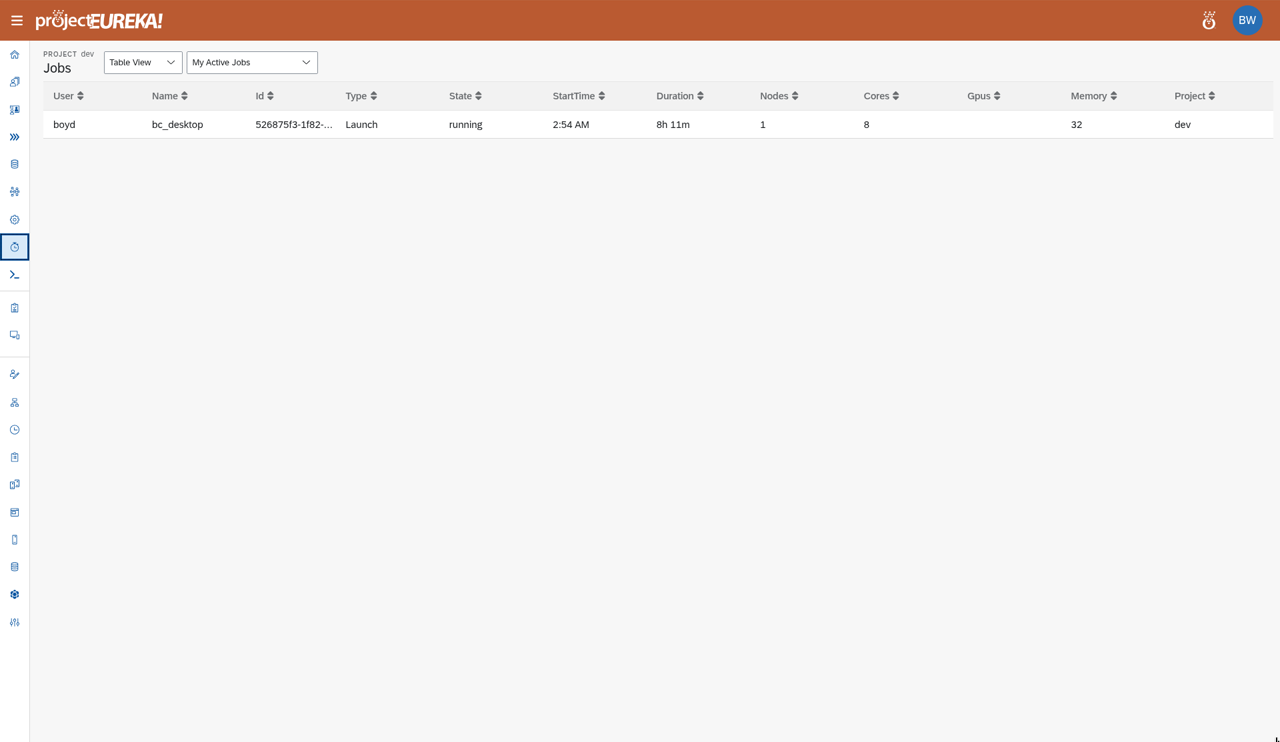
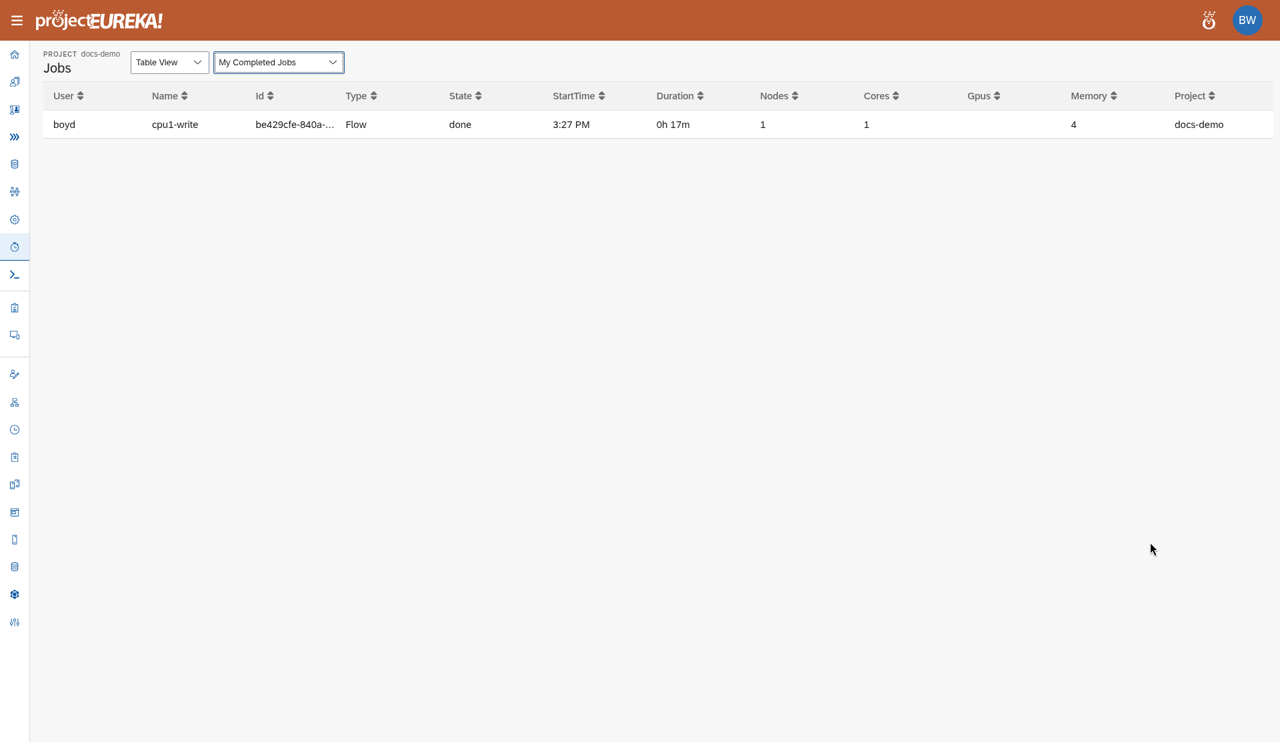
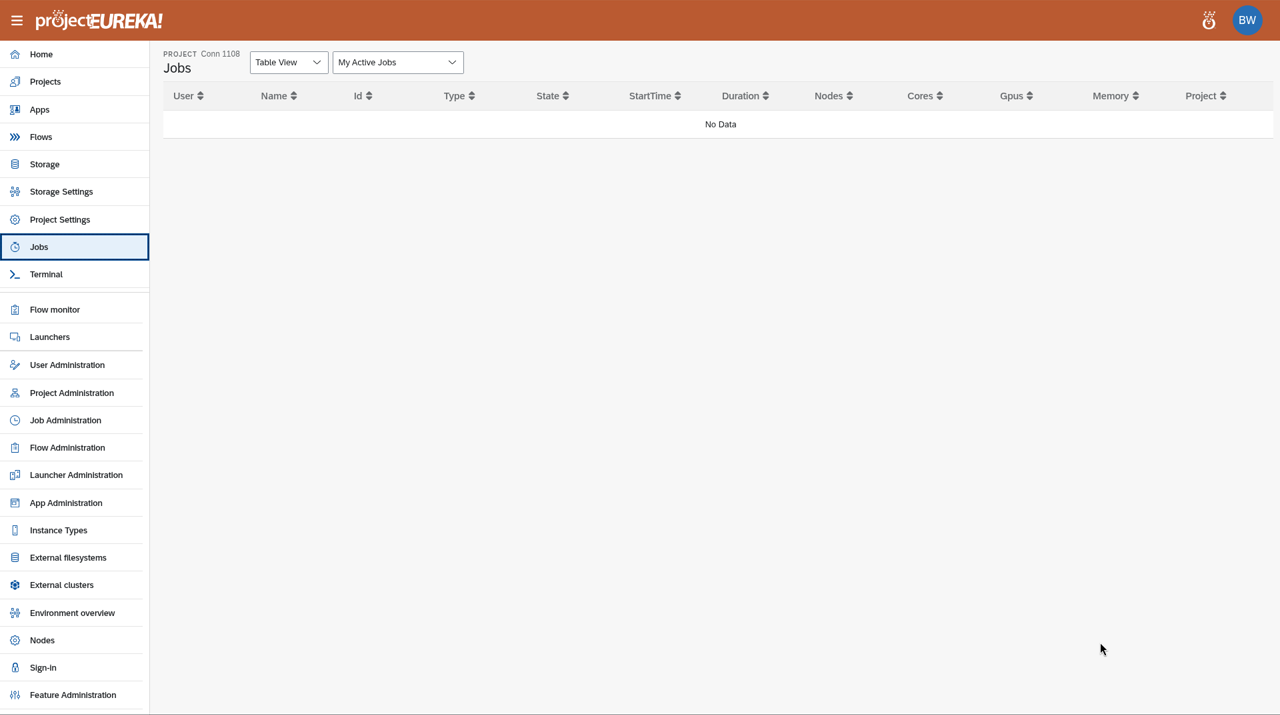
Section titled “The Jobs page”Jobs in the side bar lists jobs in the project, in Table View or List View. The table shows user, name, id, type, state, start time, duration, nodes, cores, GPUs, memory, and project. Choose My Active Jobs or My Completed Jobs. Project Owners and system admins can also choose All Active Jobs and All Completed Jobs. There is no Held filter.
Google Cloud
AWS
Kubernetes
Related
Section titled “Related”Set time limits · How costs are tracked · How projectEureka works