Sign-in
Sign-in is where a system admin chooses how people sign in to this environment. Open it from the side bar.
Three sources can be on at once. At least one must stay on, and you cannot turn off the source you are using yourself.
Google Cloud
AWS
Kubernetes
Eureka Login
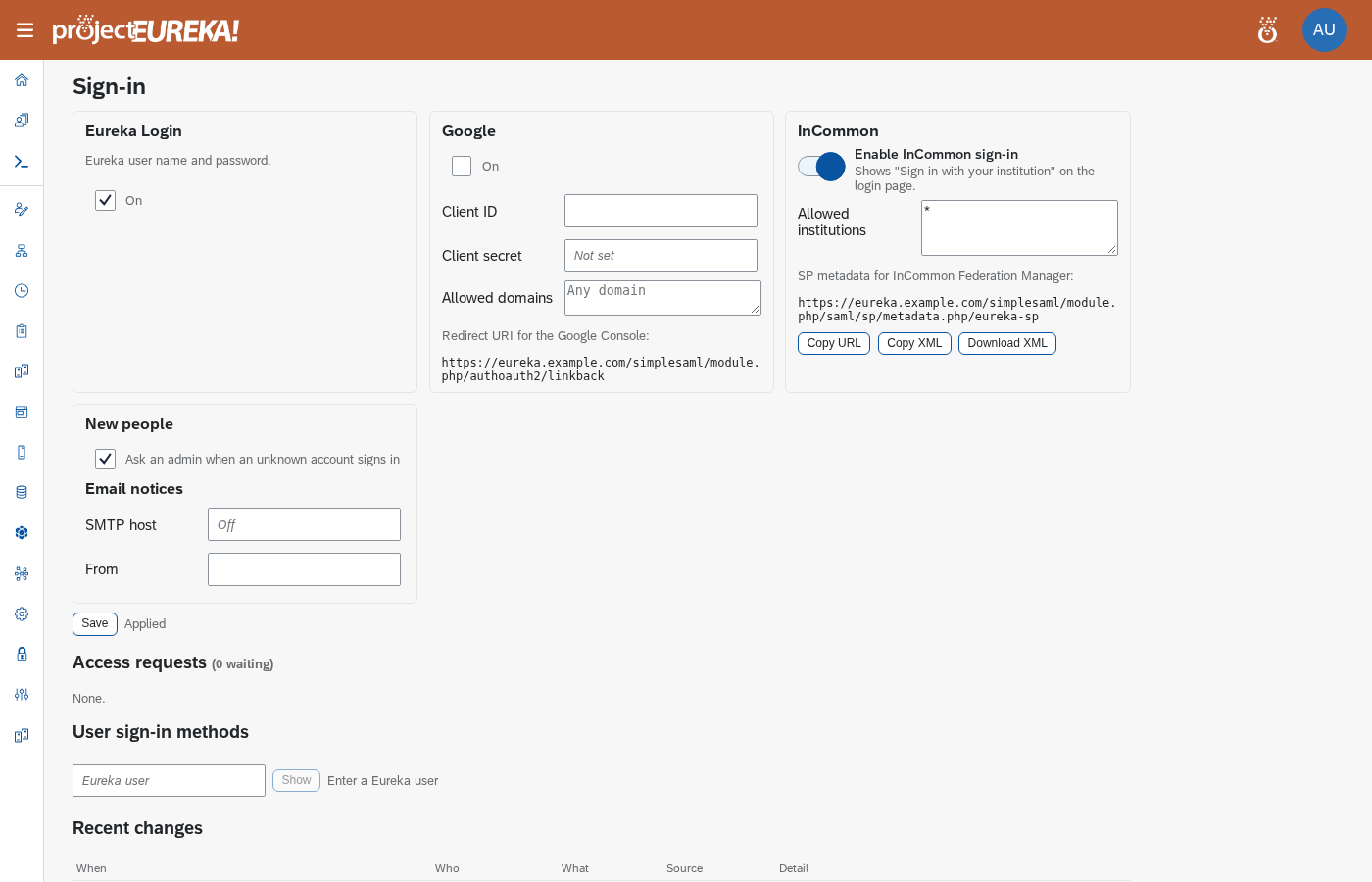
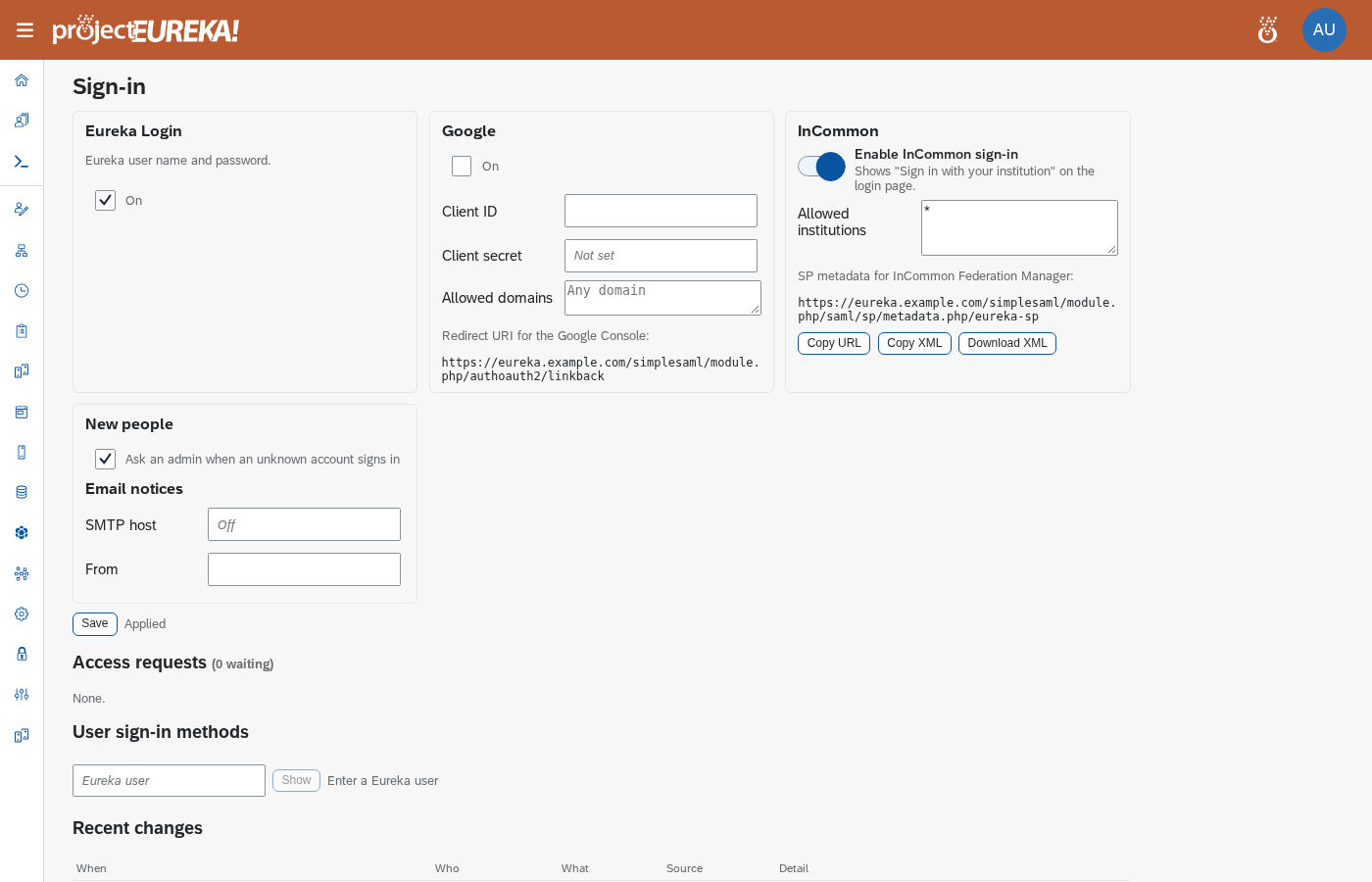
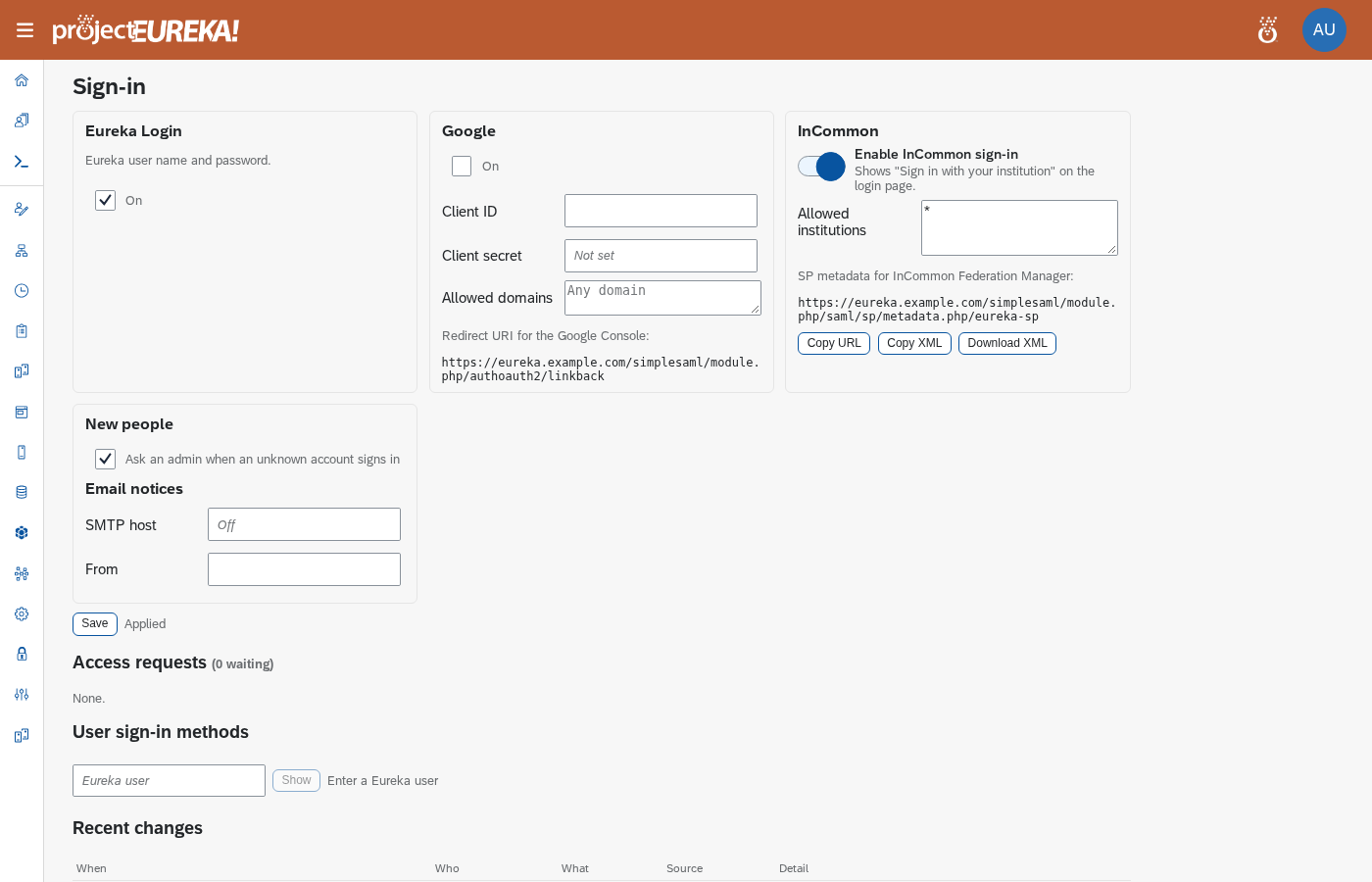
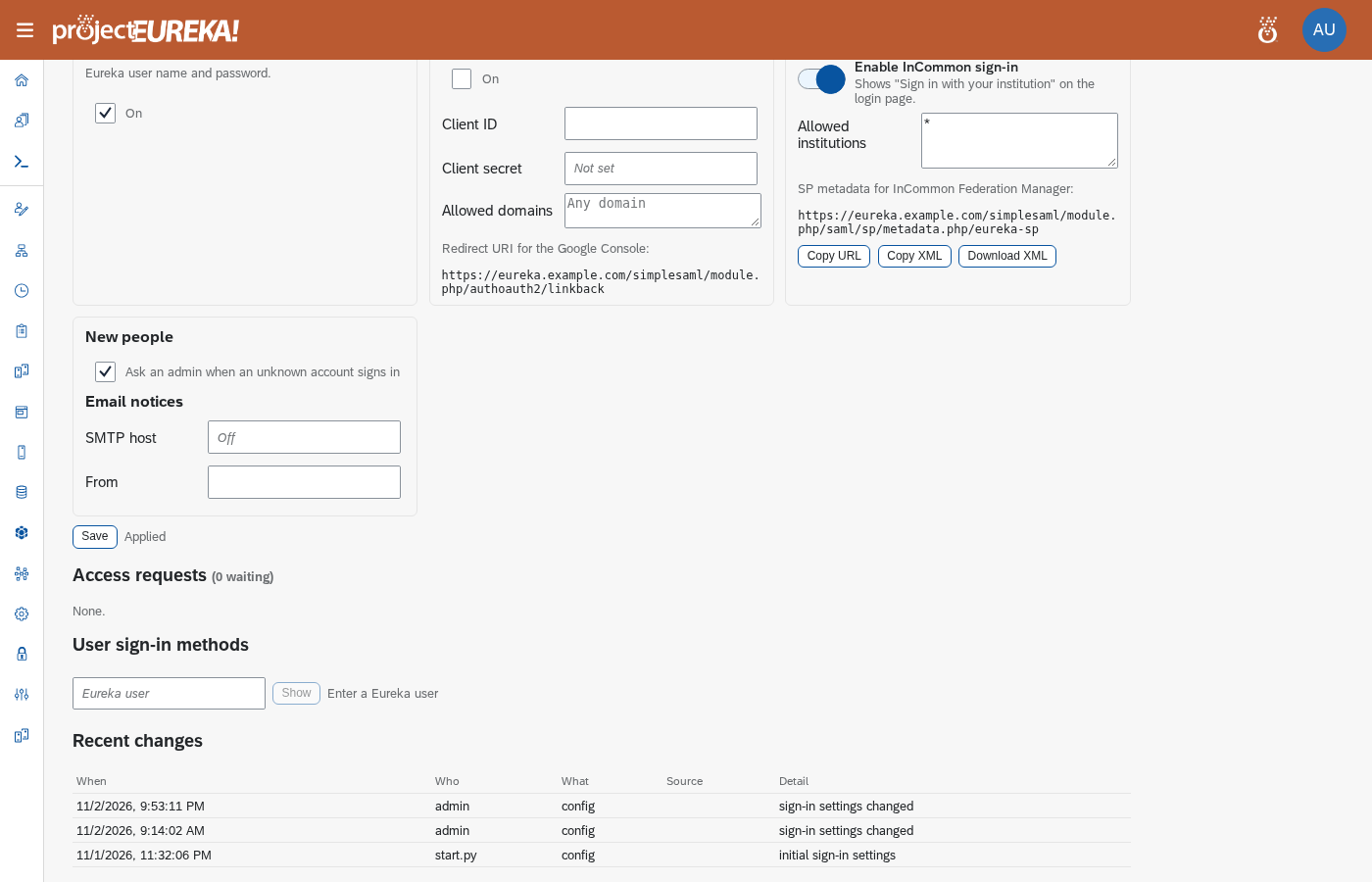
Section titled “Eureka Login”Eureka Login is the user name and password you set in User Administration. Turn On to show it on the sign-in page.
Google sign-in uses your own Google OAuth client. Eureka does not ship a shared one. Each customer creates the client in their own Google Cloud project, so Google’s consent screen, quotas, and the list of who may sign in are yours.
Set up the Google OAuth client
Section titled “Set up the Google OAuth client”-
In the Google Cloud console, open the project you want to own the client. Go to APIs & Services > OAuth consent screen (or Google Auth Platform in newer consoles) and set it up once.
-
Choose the User type:
- Internal: only accounts in your Google Workspace organization can sign in. This is the simplest choice for a company or a campus on Workspace. It is only offered when the project belongs to a Workspace organization.
- External: any Google account can reach the sign-in screen, so use Allowed domains in Eureka (below) to limit who gets in. While an External app is in Testing, only the test users you list can sign in; publish it to In production to let others sign in.
-
Go to APIs & Services > Credentials > Create credentials > OAuth client ID. Choose Web application.
-
Under Authorized redirect URIs, add this environment’s callback address, exactly:
https://<login-host>/simplesaml/module.php/authoauth2/linkback<login-host>is the host name people use to open Eureka, with no trailing slash. The Sign-in page shows the exact Redirect URI to copy. If you change the host name later, add the new address to the client too. -
Create the client. Copy the Client ID. Download or copy the Client secret into a file that only you can read, for example
google-secret.txt.
Turn it on in Eureka
Section titled “Turn it on in Eureka”You can do this on the Sign-in page (paste the Client ID and Client secret, set Allowed domains, then Save), or from the command line as a system admin on the login node:
eureka auth google set --client-id CLIENT_ID --client-secret-file google-secret.txt --domains example.edueureka auth enable google- The secret is read from a file, not typed on the command line, and it is never shown again. After it is saved, the page shows Saved (leave blank to keep).
--domainslimits which Google accounts can sign in. Give a comma list (example.edu,example.org). Leave--domainsout to keep the current list. An empty list allows any domain, so set it whenever the client is External.- Google cannot be turned on until a client ID and a secret are stored.
Approve the first sign-ins
Section titled “Approve the first sign-ins”An account that signs in with Google and is not linked to a Eureka user becomes an access request (when Ask an admin when an unknown account signs in is on). Approve it on the Sign-in page, or with:
eureka auth requestseureka auth approve ID --user NAMEeureka auth requests lists the pending requests and their IDs. eureka auth approve ID --user NAME links that Google account to the existing Eureka user NAME. From then on that person signs in with Google as NAME. To refuse, use eureka auth deny ID. Email notices are optional: with no SMTP host set, no email is sent, so check Access requests yourself.
InCommon
Section titled “InCommon”The signed-out chooser calls this option Your institution. The button reads Your institution (university or research lab), and the line under it is Your university or lab account. InCommon (and, later, eduGAIN) is how it works under the hood. The login node looks up each identity provider on its own. It does not download the full federation file.
- Turn on Enable InCommon sign-in. The note under the switch says the login page will show Sign in with your institution.
- Under Allowed institutions, list identity-provider entityIDs, one per line.
*allows any InCommon institution. - Use the SP metadata URL with InCommon Federation Manager so your service provider is registered. Copy URL copies that address. Copy XML copies the metadata document. Download XML saves it as
<host>-sp-metadata.xml, using the host from that URL. A short note next to the buttons says Copied URL, Copied XML, Downloaded, or why that action failed.
If InCommon is on and Allowed institutions is empty, Save does not send the change. A red bar says Not saved. InCommon: “Allowed institutions” is empty. The list gets a red border, and the line under it says Enter at least one IdP entityID, or * to allow any InCommon institution.
A person signs in at their campus and returns here. The first time, an unknown account becomes an access request unless you have already linked that person.
Select Save. A green note next to Save says Saved at and the local time. The sign-in page updates in under a minute. The status next to Save reads Applied when the login node has the change, Applying… while it is catching up, or Not applied: plus the reason when the login node could not render it.
If the server rejects the change, the same red bar says Not saved. and the server’s message. An empty InCommon allow list is checked before the request is sent, and it uses that bar too.
When sign-in is blocked
Section titled “When sign-in is blocked”If Eureka cannot match a sign-in to a user, the person sees a Sign-in blocked page. It shows the reason (for example, that the account is not linked yet or that an access request is pending) and the account that tried to sign in. The page has one button, Use a different account.
Use a different account ends the half-finished sign-in and returns to the sign-in chooser (Eureka Login, Google, Your institution), so the person can pick another method or another account. Eureka does not force Google’s account picker. If the browser is signed in to Google as the wrong account, the person chooses the right one on Google’s own page, or signs out of Google there.
The button only works from the blocked page itself. A link to it from another site does nothing.
New people and email
Section titled “New people and email”Ask an admin when an unknown account signs in holds a Google or InCommon account that does not match a user, instead of creating one. Email notices sends that request when SMTP host and From are set. Leave the host empty to keep email off.
Access requests
Section titled “Access requests”The table lists unknown Google and InCommon accounts. A row stays pending until an admin denies it or that account is actually linked to a Eureka user. It is not dropped by age, a list limit, or a status change that is not a real decision.
For a pending row, pick an existing Eureka user in the Approve picker (type to search the list) and select Approve to link it, or select Deny. If the person has no Eureka user yet, select Create user and approve. The New User dialog opens filled in from the request (name, a suggested user name from the email, and email) with no password, since the person signs in with Google or their institution. Selecting Add creates the user and links the request. Approve writes the SignInIdentity first; the row becomes approved only after that link exists. If the user name is unknown, creating the user fails, or the link fails, the row stays pending and the page shows the error. Failures are never silent.
If the same account is linked another way (you create the user and link it, you link it under User sign-in methods, or a pre-approved Google email binds on first sign-in), the row becomes linked. The message names the Eureka user and how it was linked. eureka auth requests shows pending rows; eureka auth requests --all includes approved, denied, and linked.
If recording the request fails, the person is not told it was sent. The mapper returns MAP_FAIL_ACCESS_REQUEST (“We could not record your access request. Please contact your administrator.”). A recorded request, or an existing pending one, still returns MAP_FAIL_ACCESS_REQUESTED. A previously denied account is told the request was denied (MAP_FAIL_NOT_LINKED), not that a new request was sent.
Google Cloud
AWS
Kubernetes
Link new sign-ins automatically
Section titled “Link new sign-ins automatically”By default a new Google or InCommon sign-in that does not match a user becomes an access request that an admin approves. A project can opt in to linking it for you. See Change project settings.
- It is off for every project until a project Owner or a system admin turns on Auto-link sign-in identities.
- A Google sign-in is linked only when its verified email matches exactly one member of a project that has the switch on. An InCommon sign-in is matched the same way on the eppn or mail the institution sends.
- A sign-in is not linked automatically, and stays an access request, when more than one member matches, the email is not verified, the Google domain or the institution is not allowed on this page, or the account is already linked to a user.
- A system admin or a project Owner is never linked this way unless a system admin also turns on Allow auto-link for owners and system admins on a project they belong to. Only a system admin can change that second switch.
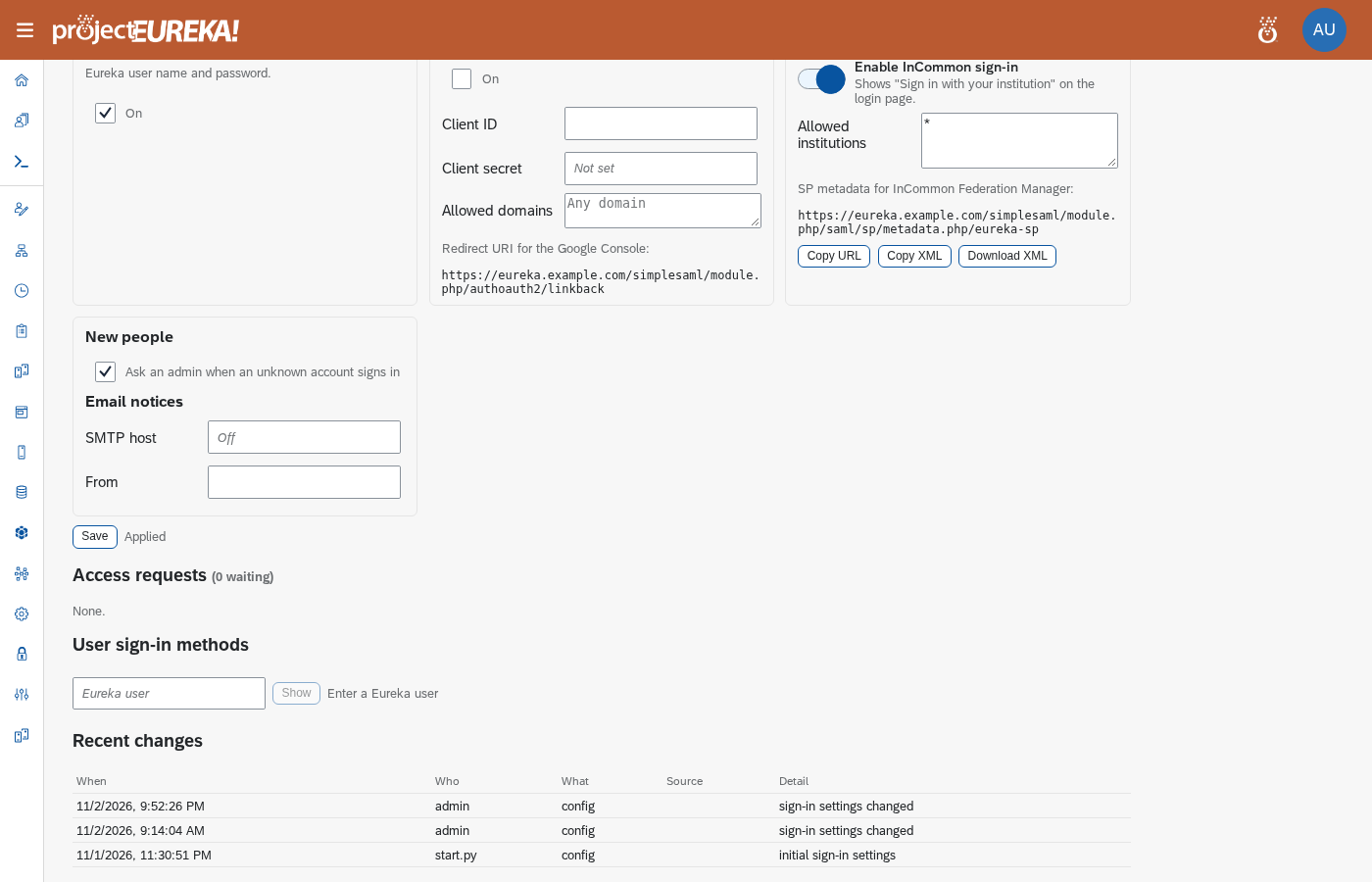
- Every automatic link is listed under Recent changes as “linked automatically”, with the method, the matched value, and the project.
User sign-in methods
Section titled “User sign-in methods”Look up an Eureka user name and select Show. Each method can be removed. The last method cannot be removed.
To add one, choose Google or InCommon and select Link:
- Google: the Email is approved now and binds on the first verified sign-in. You can also set the Google subject.
- InCommon: eppn or subject is the campus identifier. Issuer is the identity-provider entityID when you have it.
People can also add Google or their institution to their own account from Profile (see Get started). That does not need an admin, and an admin can still see and remove it here.
Turn on puts Eureka Login back on for that user. Every link and unlink is listed under Recent changes.
User Administration still shows a Sign-in column of Local (an Eureka password), Google (a linked Google account), or Directory (no local password, so the account uses the directory or a campus login, including InCommon). Linking and the institution list are done on this page.
CLI and MCP
Section titled “CLI and MCP”| Portal | CLI | MCP tool |
|---|---|---|
| Sources and the chooser | eureka auth show and eureka auth chooser |
sign_in_settings |
| Turn a source on or off | eureka auth enable eureka|google|incommon and eureka auth disable … |
set_sign_in_source |
| Google client | eureka auth google set --client-id ID --client-secret-file FILE [--domains D1,D2] |
|
| Clear Google | eureka auth google clear |
|
| InCommon allow list | eureka auth incommon set --allow ENTITY[,ENTITY] or --allow '*' |
|
| A user’s methods | eureka user methods NAME |
user_sign_in_methods with action show |
| Link | eureka user link NAME google|incommon --email … or --subject … |
user_sign_in_methods with action link |
| Unlink | eureka user unlink NAME eureka|google|incommon |
user_sign_in_methods with action unlink |
| Access requests | eureka auth requests (pending), eureka auth requests --all, eureka auth approve ID --user NAME, eureka auth deny ID |
|
| Add a method to your own account | eureka me sign-in add google|incommon [--base https://HOST] (prints a URL) |
me_sign_in_add with source |
| Auto-link a project | eureka project auto-link NAME on|off and eureka project auto-link-privileged NAME on|off |
project_auto_link with autoLinkIdentities and autoLinkAllowPrivileged (omit a key to leave it) |
The Google client secret is read from a file. It is not a command-line argument, and neither the CLI nor MCP returns it.