Manage users
Adding users is usually an admin’s first task: a new user can’t sign in, and can’t create a project, until you do.
admin-users admin-users admin-users Google Cloud video: https://docs.projecteureka.ai/clips/admin-users/gcp/admin-users.gcp.mp4
AWS video: https://docs.projecteureka.ai/clips/admin-users/aws/admin-users.aws.mp4
Kubernetes video: https://docs.projecteureka.ai/clips/admin-users/k8s/admin-users.k8s.mp4
Add a user
Section titled “Add a user”- In the side bar, open User Administration.
- Select New User.
- Enter First Name, Last Name, Username, Password, and Email. Phone is optional.
- Turn on Project create to let the user create projects.
- Select Add.
Adding a user creates their projectEureka account, and from it their sign-in account in the environment’s directory (LDAP) and their home folder. This takes a short time after Add. The user can sign in when it finishes.
To make someone a system admin or give them a Default project, select Edit on their row, change the settings, and select Save.
To change or remove a user, use Edit or Delete in the row’s Actions.
The Sign-in column shows how each user signs in: Local (a projectEureka password set here), Google (a linked Google account), or Directory (no local password, so sign-in comes from the directory or a campus login, including InCommon). Turning sources on, the InCommon institution list, and linking a method are on Sign-in.
First-run checklist
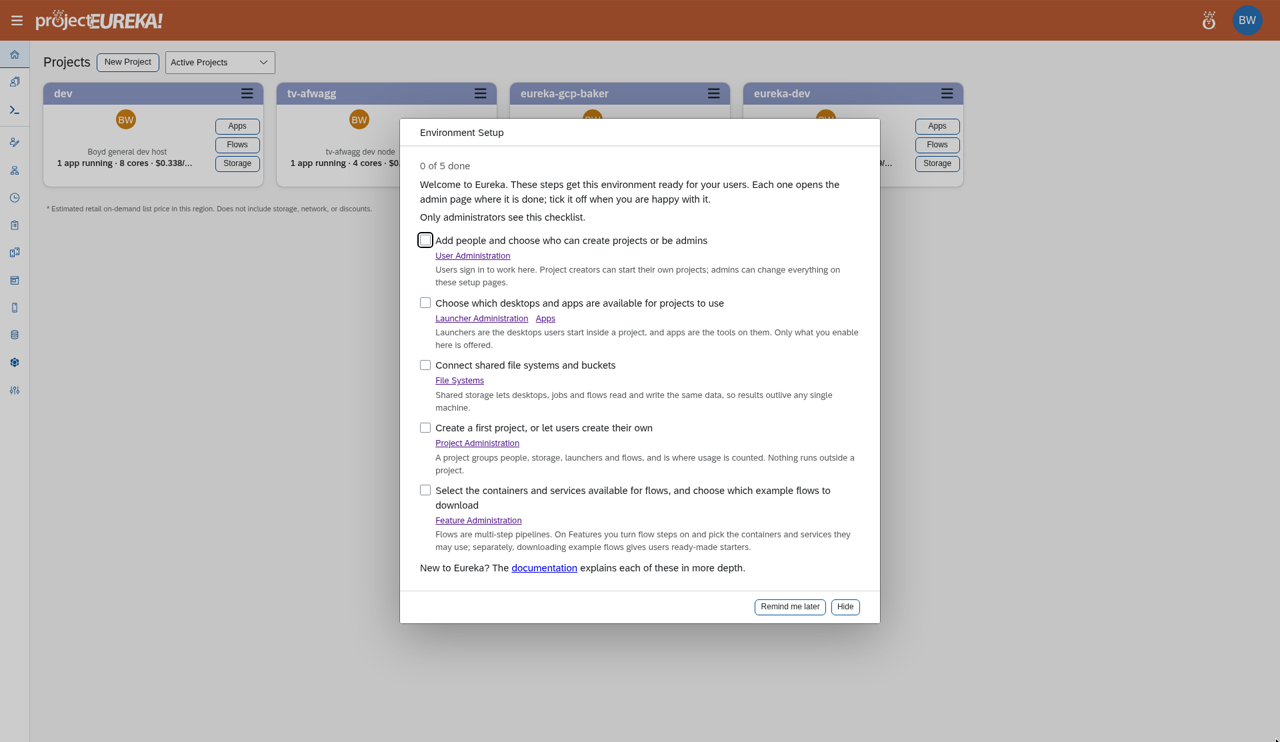
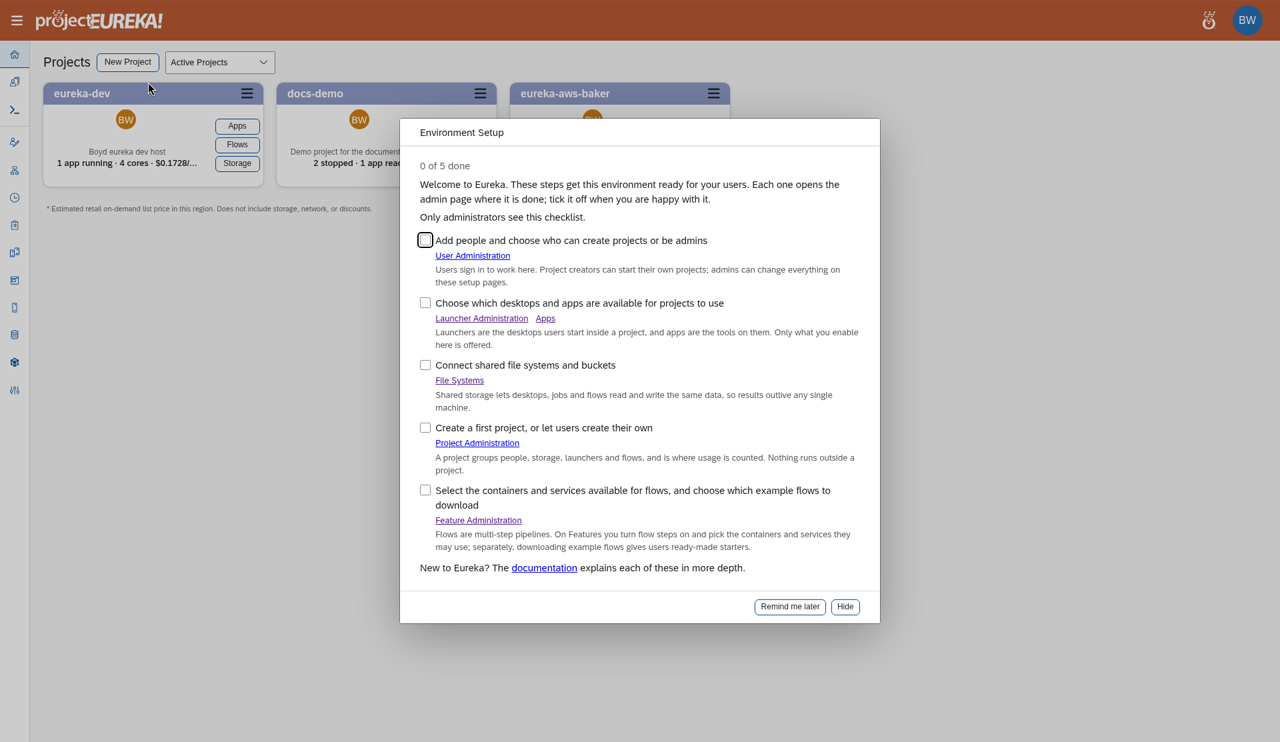
Section titled “First-run checklist”On a new environment, Home opens an Environment Setup window for system admins. It lists five steps, each with a link to the admin page where it is done: add people (User Administration), choose desktops and apps (Launcher Administration, Apps), connect shared file systems and buckets (File Systems), create a first project (Project Administration), and choose flow steps, services, and example flows (Feature Administration). Tick each step when you are done. Progress is shared by all system admins.
- Remind me later closes the window for 24 hours in this browser. While it is closed, the Environment Setup (n/5) button at the bottom right reopens it.
- Hide closes it for good, for every admin. It also stops showing once all five steps are ticked.
admin-checklist admin-checklist admin-checklist Google Cloud video: https://docs.projecteureka.ai/clips/admin-checklist/gcp/admin-checklist.gcp.mp4
AWS video: https://docs.projecteureka.ai/clips/admin-checklist/aws/admin-checklist.aws.mp4
Kubernetes video: https://docs.projecteureka.ai/clips/admin-checklist/k8s/admin-checklist.k8s.mp4
Google Cloud
AWS
Kubernetes
The Environment Setup checklist is not available on Kubernetes once the environment is already set up.Projects
Section titled “Projects”Project Administration lists every project, with an Archived column and filter.